
This article discusses the PowerShell script requirement rule is not met status you get when deploying Intune Updates through the Patch My PC Publisher.
Introduction
This article discusses the PowerShell script requirement rule is not met status you may see when deploying Intune Updates through the Patch My PC Publisher or Patch My PC Cloud.
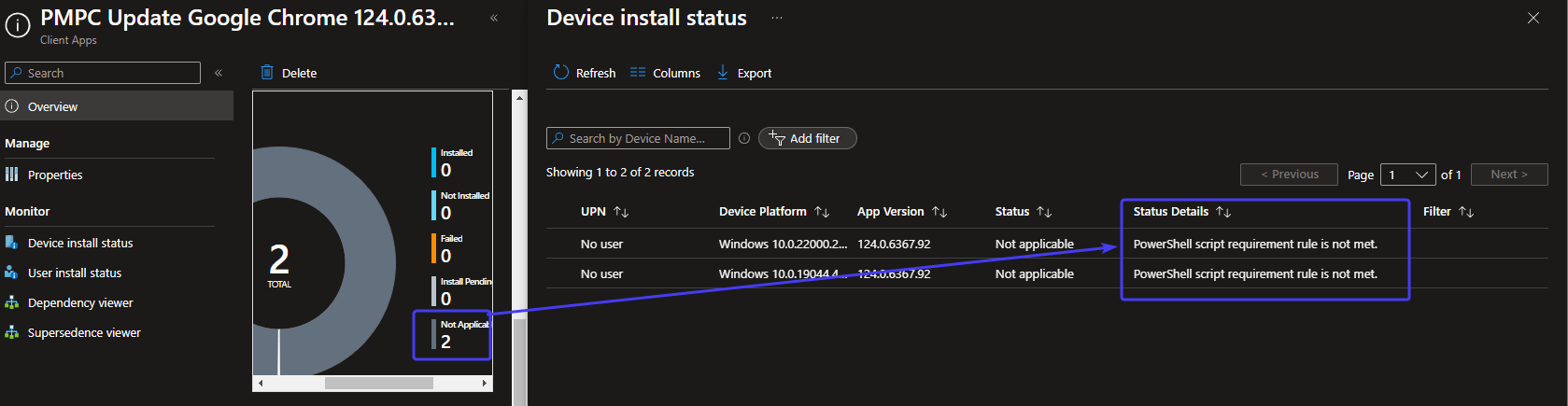
When an Intune Update is assigned and reports as Not Applicable on devices, the status details in the Intune admin center can show:
PowerShell script requirement rule is not met.
In most cases, this does not mean detection is broken. It usually means the deployment you created in Patch My PC does not match the exact app variant installed on the device.
What this status actually means
Each Intune Update created by Patch My PC Publisher or Patch My PC Cloud has a requirement script. Before installing the update, the Intune Management Extension invokes the script, which returns:
- True, if an older version of the matching variant is installed on the device.
- False, if an older version of the matching variant is not installed on the device.
When the script returns False, Intune reports PowerShell script requirement rule is not met and marks the deployment as Not Applicable.
Its also important to understand that an Intune Update is not a universal updater for every variant of an app. It only applies when the device already has the matching product variant installed, including:
- Installer type e.g. MSI vs EXE
- Architecture e.g. 32-bit vs 64-bit vs ARM64
- Install context e.g. for example per-machine vs per-user
If the targeted variant does not match the the installed variant, the deployment will report Not Applicable.
The most important thing to understand
If a device has a different variant installed to the update you targeted, the update will not be applicable.
For example:
- A device has Google Chrome EXE x64 installed
- You published Google Chrome MSI x64 as an update
The same behavior is also observed with these other variant types:
- 32-bit installed, but 64-bit published
- ARM64 installed, but 64-bit published
- Per-user installed, but per-machine published
- One edition installed, but a different edition published
Why inventory can show hundreds of installs while only a few devices update
This is one of the most common points of confusion. You might see:
- 850 devices with Google Chrome in inventory
- Only 5 devices where the Patch My PC Intune Update is applicable
That does not mean Patch My PC only found 5 installations. It usually means only 5 devices have the same variant as the package you published.
Inventory tools often group products by a broad product name, while applicability checks require a more exact match.
So the question is not only:
Is Chrome installed?
The real question is:
Is the exact Chrome variant installed that matches this deployment?
Common reasons an UpdateOnly assignment shows Not Applicable
MSI vs EXE mismatch
A device has the EXE-installed version of the app in the user profile, but you published the MSI system-wide update.
Example – Google Chrome:
- Installed on device: Chrome EXE
- Published from Patch My PC: Chrome MSI
- MSI installation (system-wide): typically
C:\Program Files\Google\Chrome\Application\orC:\Program Files (x86)\Google\Chrome\Application\ - EXE installation (user-level): typically
C:\Users\<Username>\AppData\Local\Google\Chrome\Application\
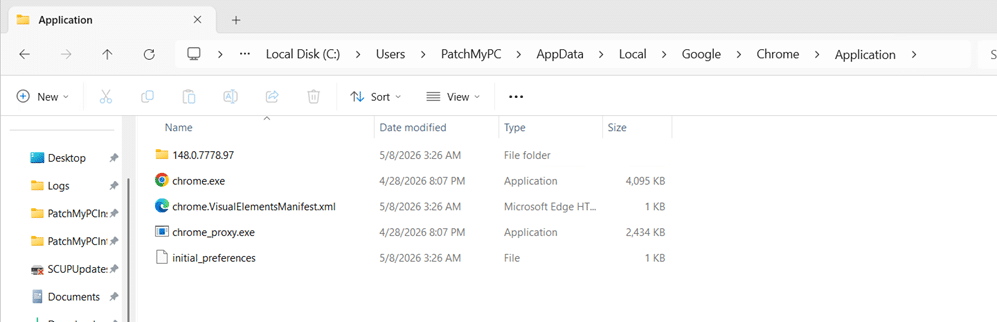
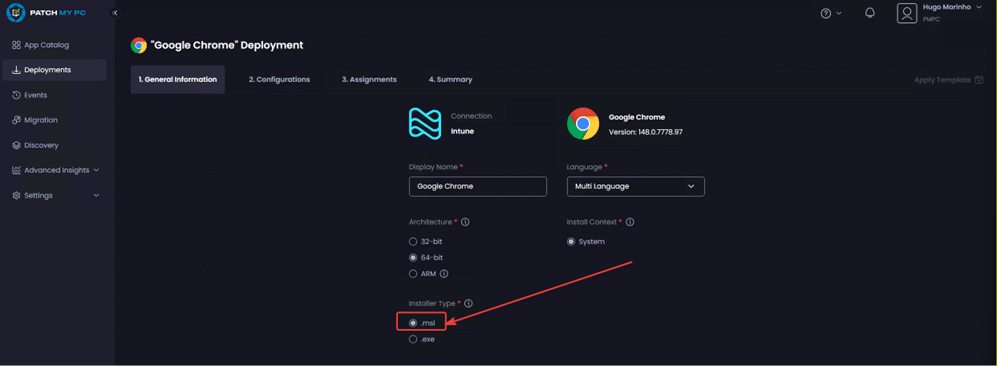
Result: Not Applicable.
2. 32-bit vs 64-bit mismatch
A device has the 32-bit version installed, but you published the 64-bit UpdateOnly package.
Example:
- Installed on device: Firefox x86
- Published from Patch My PC: Firefox x64
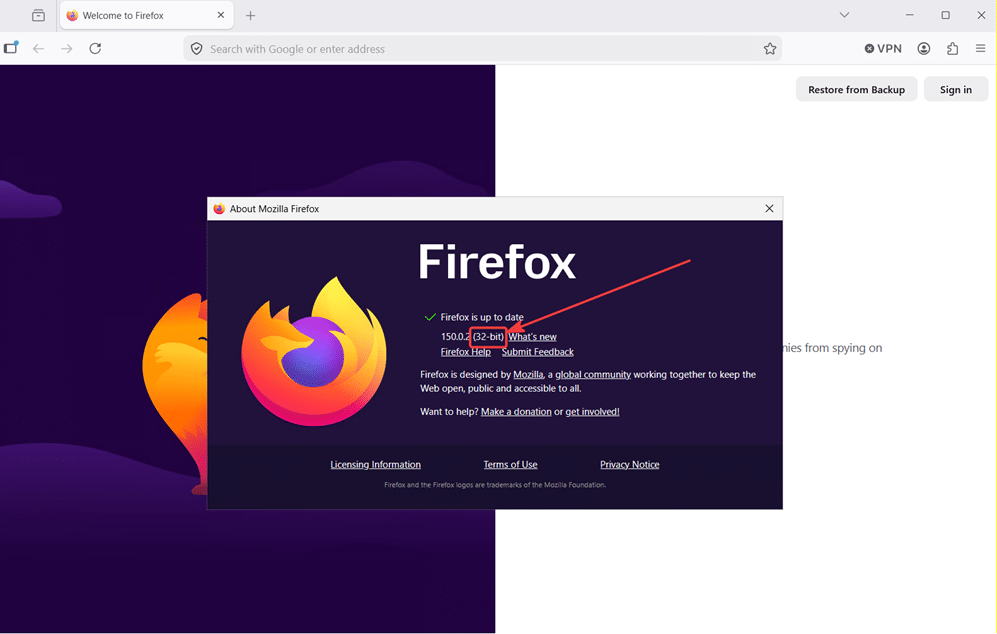
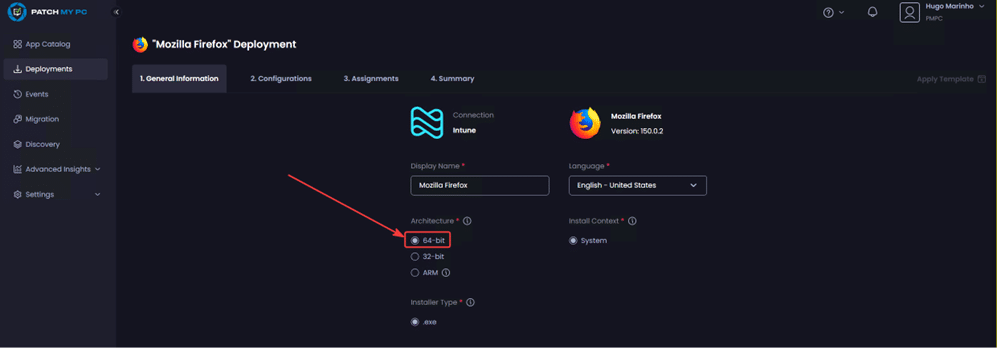
Result: Not Applicable.
3. ARM64 vs x64 mismatch
A device has the ARM64 version installed, but you published x64.
Result: Not Applicable.
This matters more as vendors offer ARM packages for more products.
4. Per-user vs per-machine mismatch
A device has a per-user install, but the package you published targets a machine-wide install, or the other way around.
Result: Not Applicable.
This is especially common with browsers and self-updating apps that users originally installed themselves.
5. Different edition or major version
Some vendors ship multiple product variants that look similar in inventory but are installed differently, resulting in detection nuances that differ per variant.
Result: Not Applicable if the published package does not match what is actually installed.
What “Update Only” actually means in Patch My PC Cloud
In Patch My PC Cloud specifically, an Update Only assignment is designed to update devices that already have the matching app variant installed.
It does not automatically:
- Convert EXE installs into MSI installs
- Convert 32-bit installs into 64-bit installs
- Convert per-user installs into machine-wide installs
- Standardize every device to one installer type or architecture
- Update every product that shares the same product name
If your environment contains mixed variants, you may need more than one deployment, or you may need a standardization plan.
Publisher equivalent: The same applies to apps deployed as Required from the Intune Updates tab in the Patch My PC Publisher. The terminology is different, but the behavior is identical. The deployment only applies to devices that already have the matching variant installed.
What to do when you want broader coverage
Option 1: Publish additional variants
If your environment contains multiple real-world variants, publish the matching variants as separate deployments.
For example, you may need:
- Chrome MSI x64
- Chrome EXE x64
- Chrome x86
- Chrome ARM64
This is usually the fastest way to improve coverage.
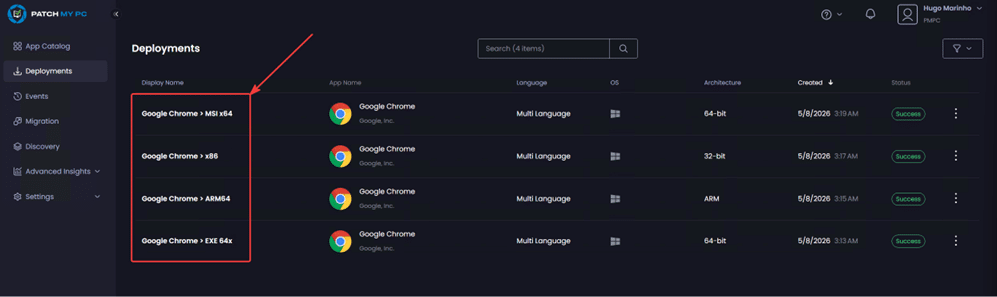
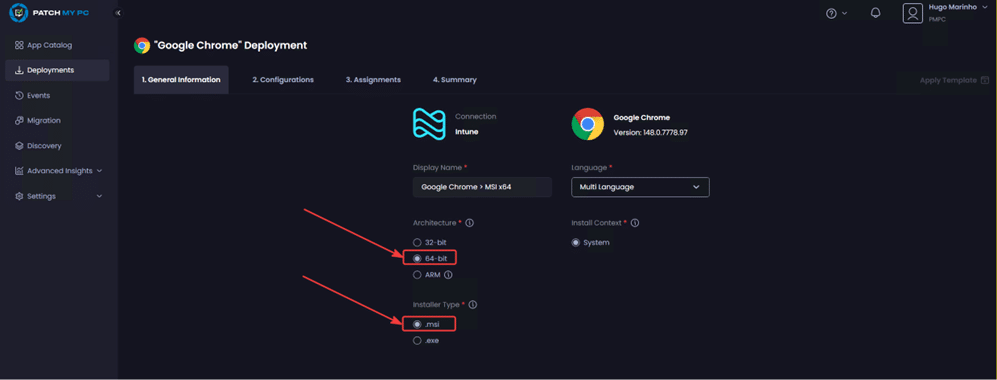
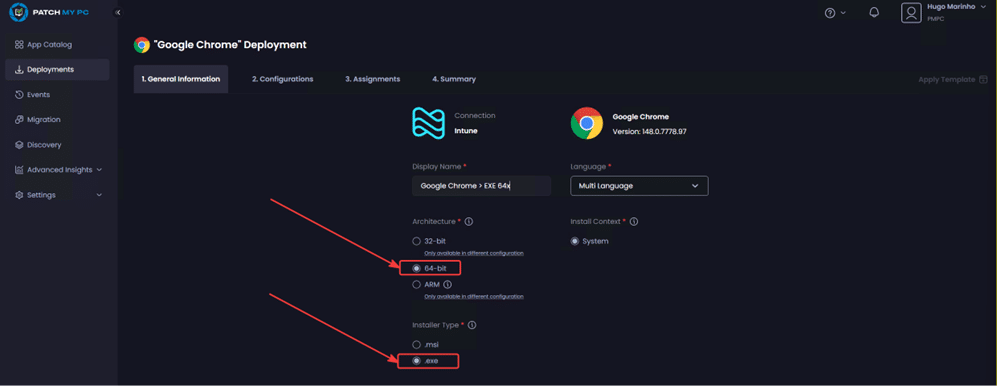
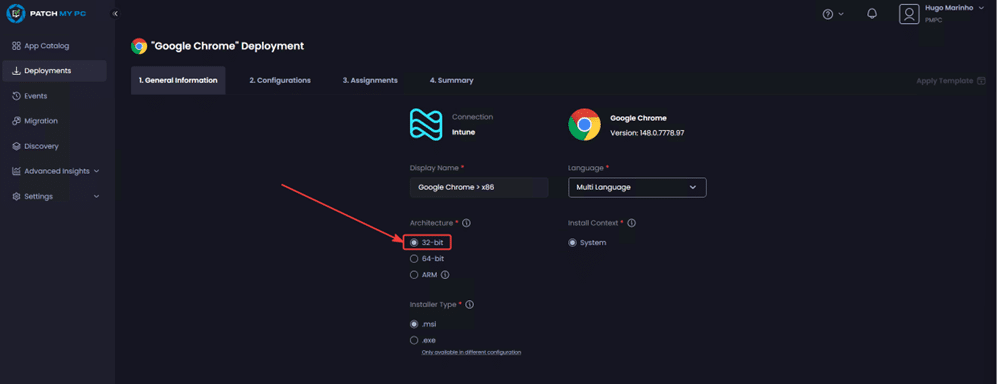
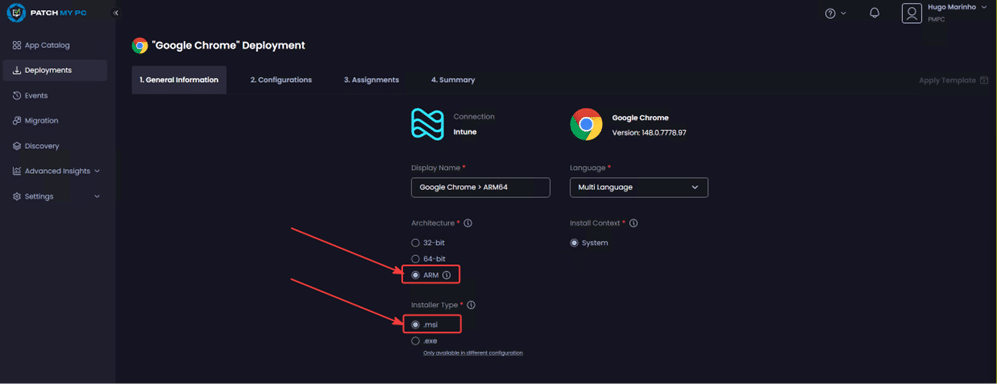
Note: We don’t recommend selecting every available product in the Patch My PC Publisher or its Cloud counterpart, as you may run into the Intune policy size limit. See Intune policy size considerations.
Option 2: Standardize on a single variant
If you want all devices to use one standard version (for example, 64-bit MSI), deploy that package as a required application and use a pre-install script to remove other variants first. You can use our community pre-uninstall script and target the app you want to remove.
This is often the better long-term approach. A standardization workflow usually looks like this:
- Choose the target standard, for example MSI x64
- Create a deployment for that standard variant
- Add a pre-install script to uninstall other variants
- Force the standard version to install
- Let future updates follow that standard
This approach is commonly used when environments contain older EXE installs, legacy 32-bit installs, or user-installed versions.
How to verify what is actually installed
Before assuming detection is broken, confirm what is on the device. The easiest way is to export the installed software details from affected machines and compare those results with the variant you published.
Use our Export-PMPCInstalledSoftware.ps1 script to check the installed software on a specific device.
When reviewing affected devices, look for:
- Display name
- Display version
- UninstallString
- Architecture
- Install context (per-user or per-machine)
If devices showing Not Applicable have a different variant than your deployment, then the deployment is behaving correctly.
Troubleshooting checklist
When an UpdateOnly deployment shows PowerShell script requirement rule is not met, check these items first:
- Did I publish the correct installer type?
- Did I publish the correct architecture?
- Did I account for ARM64 where relevant?
- Is the installed app per-user or per-machine?
- Did I publish the exact product flavor in use?
- Am I assuming inventory naming equals deployment applicability?
If any of those answers point to a mismatch, the next step is to publish the matching variant or standardize the environment.
Frequently asked questions
If the app is installed, why is the deployment not applicable?
Because the installed app may not be the same variant as the one you published.
Does UpdateOnly detect all versions of the same app name?
No. It detects applicability for the specific package variant you created.
Does Patch My PC automatically convert EXE installs to MSI installs?
No. That requires a separate standardization plan.
Does publishing both 32-bit and 64-bit guarantee full coverage?
Not always. You may still have EXE vs MSI differences, ARM64 devices, or per-user installs.
Is this a detection problem?
Usually no. In most cases, the deployment is correctly reporting that the installed software does not match the deployment criteria.
Best practice recommendations
- Decide whether you want to support multiple variants or standardize to one
- Use installed software exports to confirm what is really present on devices
- Do not rely only on the product name shown in inventory
- Publish all required variants when your environment is mixed
- Standardize to a single preferred variant where possible
When to contact Patch My PC Support
If you’ve worked through the checklist above and still believe an Intune Update should be applying but isn’t, please open a support case and include the following:
- The name of the update that is not installing
- Logs from the affected device
Collect these logs. (Make sure to include the rolled-over logs too) - An installed software export from the affected device
Generate this report using the Export-PMPCInstalledSoftware.ps1 script