
Overview
WSUS content URLs may redirect from HTTP port 8530 to HTTPS port 443 when HSTS is enabled or cached for the WSUS host name.
This can affect direct access to WSUS content files, such as CAB files, and may prevent expected HTTP access to WSUS content.
Symptoms
When browsing to a WSUS content URL over HTTP, the browser redirects the request to HTTPS on port 443 e.g: http://<WSUSServer>:8530/Content/<ContentPath>.cab
The issue may also occur when browsing to the WSUS anonymous check file. e.g: http://<WSUSServer>:8530/content/anonymousCheckFile.txt
The redirect may only occur when the Default Web Site has an HTTPS binding on port 443.
Instead of the intended WSUS content being downloaded, or the expected WSUS test file being displayed, the browser may return an HTTP 404 error. This can occur because the browser is redirected to the Default Web Site on port 443, where the WSUS content file does not exist.
For example, the browser may try to access content from the Default Web Site content directory, which is typically C:\inetpub\wwwroot\
The requested WSUS content file would not normally exist in that location C:\inetpub\wwwroot\Content\<ContentPath>.cab
Cause
This behavior can occur when HSTS is enabled on the WSUS Administration site.
After a browser receives and caches the HSTS instruction, future HTTP requests to that host name are automatically changed to HTTPS by the browser.
Disabling HSTS in IIS prevents new clients from receiving the HSTS instruction. However, clients that already cached HSTS may continue forcing HTTPS until the local HSTS state is cleared or expires.
Use these steps to determine whether the redirect is caused by active HSTS on the server or cached HSTS on the client.
Confirm the server configuration
- Confirm that the WSUS Administration site is bound to HTTP port 8530 and HTTPS port 8531.
- Confirm that HSTS is disabled on the WSUS Administration site, the Default Web Site, and any other IIS site using the same host name.
- Confirm that there are no IIS redirect rules in the WSUS Administration site or Default Web Site.
- Confirm that no custom response headers are configured that add the
Strict-Transport-Securityheader.
Test from an affected client or server
- Browse to the WSUS content URL from the affected client e.g:
http://<WSUSServer>:8530/content/anonymousCheckFile.txt
- If the request still redirects to HTTPS after HSTS has been disabled in IIS, the client may have cached HSTS state.
- Clear the local browser HSTS state for the WSUS host name.
- Clear the browser cache.
- Close and reopen the browser.
- Test the same URL again.
Test from a clean client
- Use a different client that has not previously browsed to the WSUS host name.
- Browse to the same WSUS content URL. e.g:
http://<WSUSServer>:8530/content/anonymousCheckFile.txt
- If both clients still redirect, review IIS bindings, redirect rules and custom response headers.
- If the clean client works but the affected client redirects, the issue is likely cached HSTS state on the affected client.
- If both clients redirect after HSTS is disabled and the browser cache is cleared, confirm that HSTS is disabled on the WSUS Administration site, the Default Web Site, and any other IIS site using the same host name.
Resolution
Disable HSTS where HTTP access to WSUS content is required, then clear the cached HSTS state on affected clients.
Disable HSTS in IIS
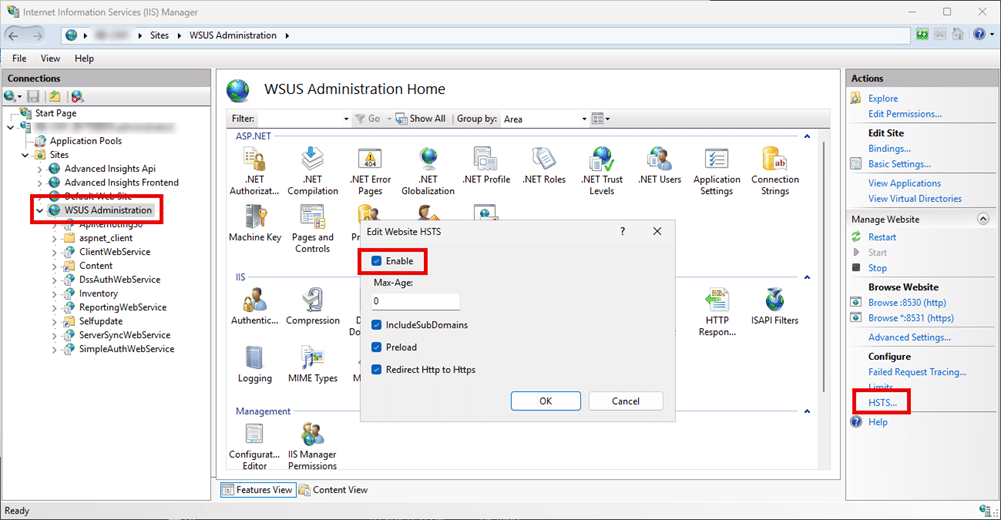
- Open IIS Manager.
- Select the affected IIS site (typically the WSUS Administration site).
- Open the HSTS settings.
- Clear the HSTS options.
- Set the max age value to
0. - Clear Enable.
- Select OK.
Clear cached HSTS state in Microsoft Edge
- Open Microsoft Edge.
- Browse to the following page.
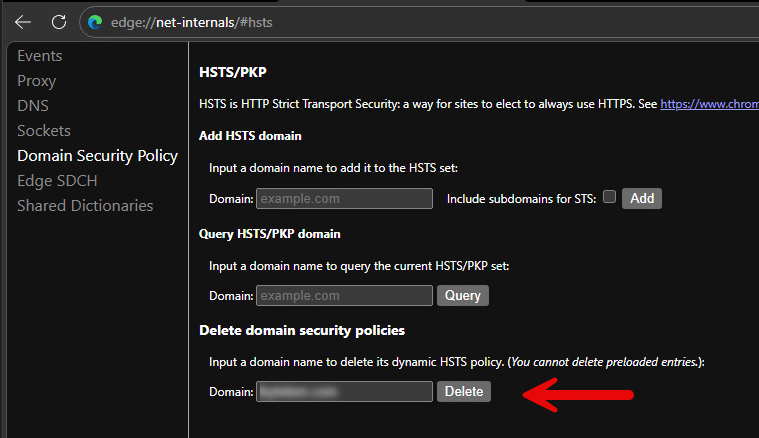
edge://net-internals/#hsts
- In the Delete domain security policies section, enter the WSUS host name or parent domain.
- Select Delete.
- Clear the browser cache.
- Close and reopen Microsoft Edge.
- Browse to the WSUS content URL again.