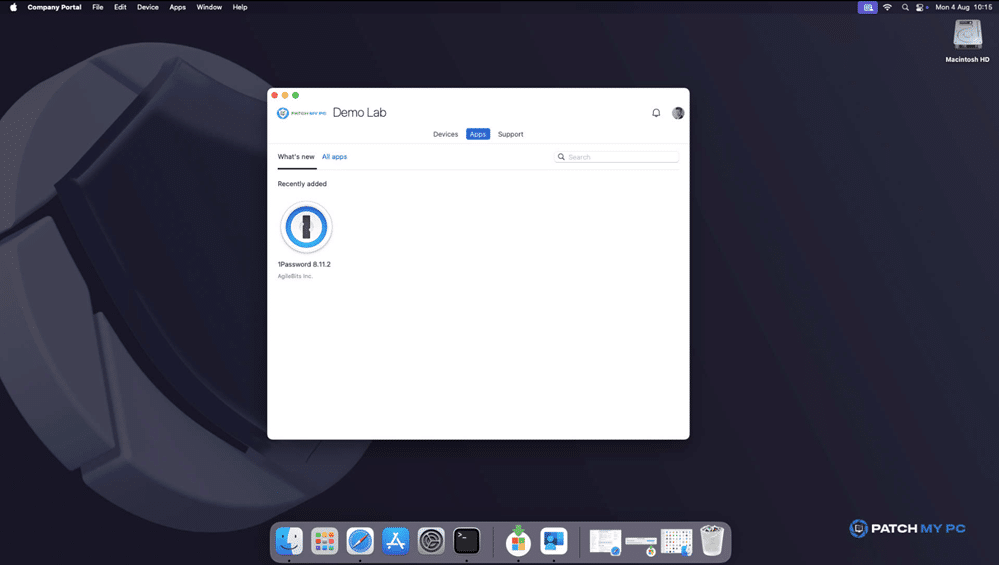
To install and manage optional apps on macOS devices provided by your organization through Intune, users need the Company Portal app.
Devices enrolled via Automated Device Enrollment or direct enrollment may have the Company Portal app installed automatically. However, personally owned or manually enrolled devices require users to download and install the app themselves.
This article explains how to manually install the Company Portal app on macOS.
Requirements
- The device must be running macOS 11 or later.
- The device is already enrolled into Intune.
Download and Install the Company Portal app
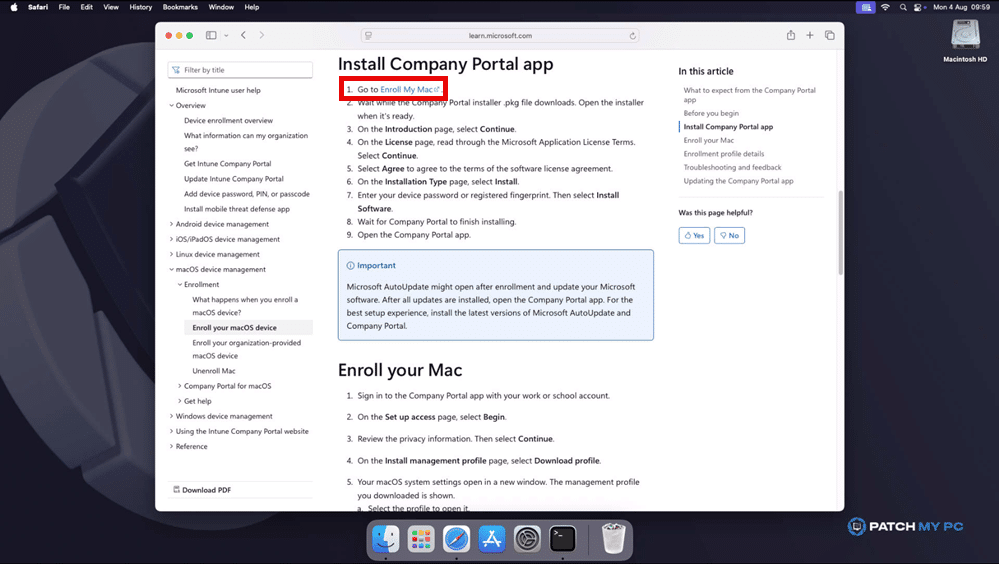
- Navigate to https://learn.microsoft.com/en-us/intune/intune-service/user-help/enroll-your-device-in-intune-macos-cp#install-company-portal-app and click Enroll My Mac.
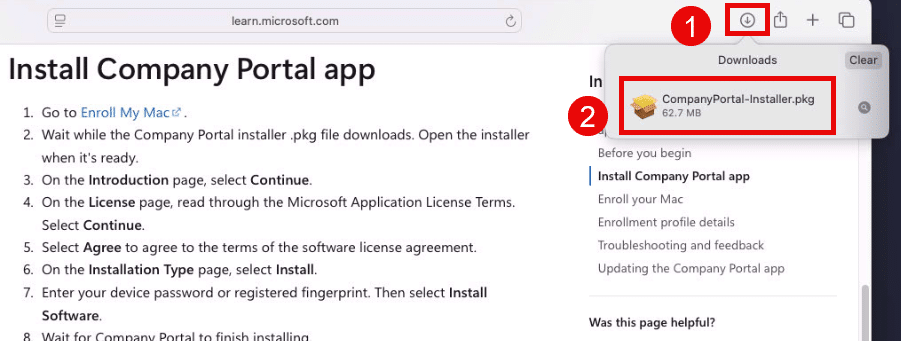
- Wait while the Company Portal installer .pkg file downloads and open the installer when it’s ready.
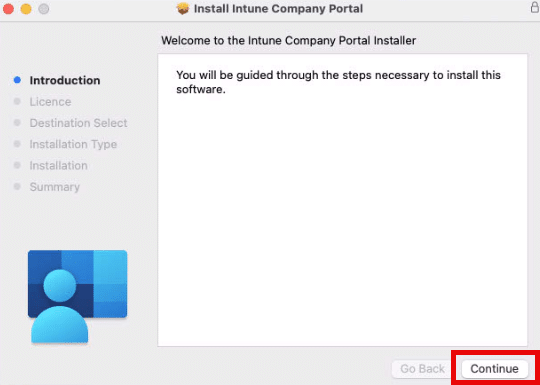
- Click Continue.
- Read the Licence Agreement and click Continue.
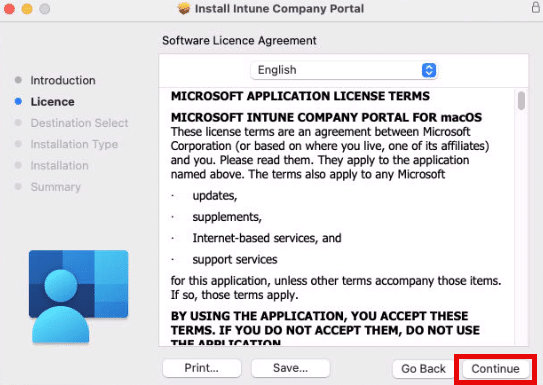
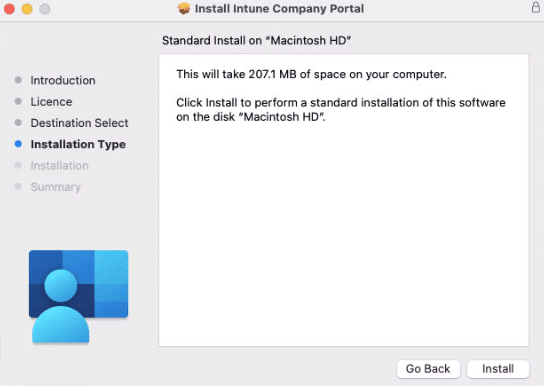
- Click Install.
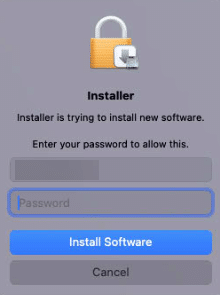
- If prompted, enter your password to continue to install the software.
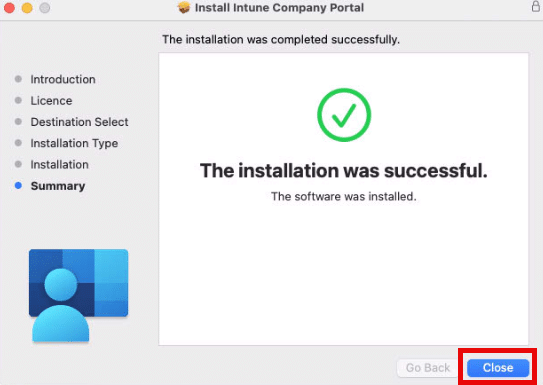
- Once the installation has completed, click Close.
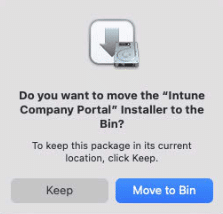
- If prompted, you can move the Company Portal installer .pkg to the trash as it is no longer required.
Launch the Company Portal app
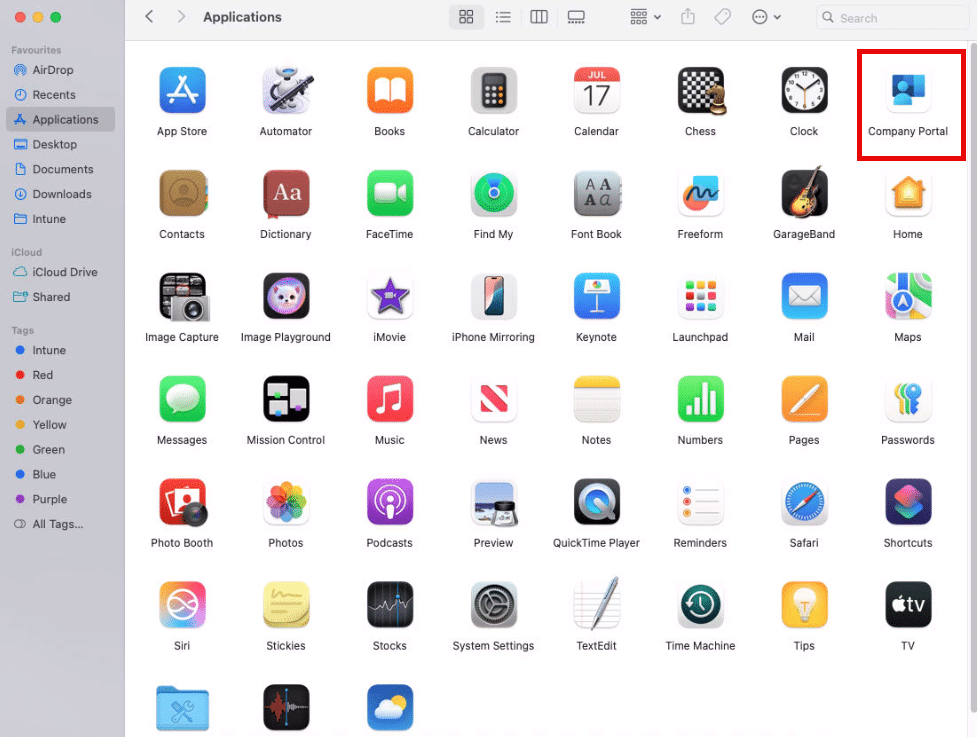
- Open the Company Portal app from Finder > Applications or the Launchpad.
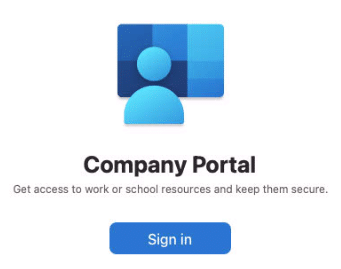
- Click Sign in.
- Navigate to the Apps tab to interact with the applicaitons made available from Intune.