This blog is about the 60-minute delay that occurs before the required Win32 apps are installed after Autopilot. ESP blocking apps complete without issue, but once the user reaches the desktop, nothing else happens until exactly an hour later. We’ll break down why this delay occurs, what triggers it, and how this 60 minute delay can easily be bypassed.
Introduction
Every now and then, a thread pops up on Reddit or Discord: “My device enrolled fine with Autopilot, ESP installed all the blocking apps, user logged on… but then nothing. Nothing new, right? However, they then informed me that the required apps had suddenly started appearing after exactly one hour. That’s the moment my spider sense went off. (Just before heading over to Wp Ninjas)
We attempted to reproduce the same behavior and ensured that we documented all strings attached. During testing, it quickly became clear that Enrollment Status Page (ESP) itself wasn’t broken: all blocking apps configured in the ESP profile installed perfectly before the user’s desktop appeared. The problem only started afterwards. Once the user signed in, the remaining required apps didn’t appear until a full hour later. Which is way too long.
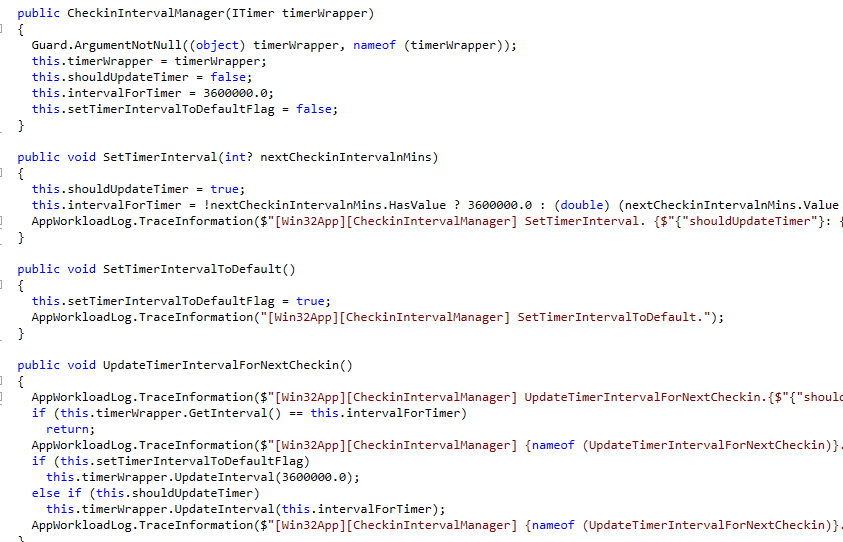
To understand why, we dug into the Intune Management Extension (IME) logs and decompiled code (again) until the picture made sense. And yes, it really does come down to a hardcoded 3600000 ms timer in the Win32 app poller.

But the real culprit is why that 60-minute timer starts in the first place.
Required Apps start installing when a reboot occurs during AP
Initially, we were unable to reproduce it. On all of our test devices, the required apps always appeared almost immediately after the user landed on the desktop. Later, we remembered that we still had some policies in place that we tested when writing the reboot-required Blog. One of the leftovers was a policy to configure Device Guard that fell under the RebootRequired URI. That meant the device always rebooted during Autopilot.

And that reboot masked the required apps issue. If the device restarts as part of ESP, the very first IME cycle after login finds the logged-on user properly (FirstSync / IsSyncDone), and required apps start immediately. No delay.
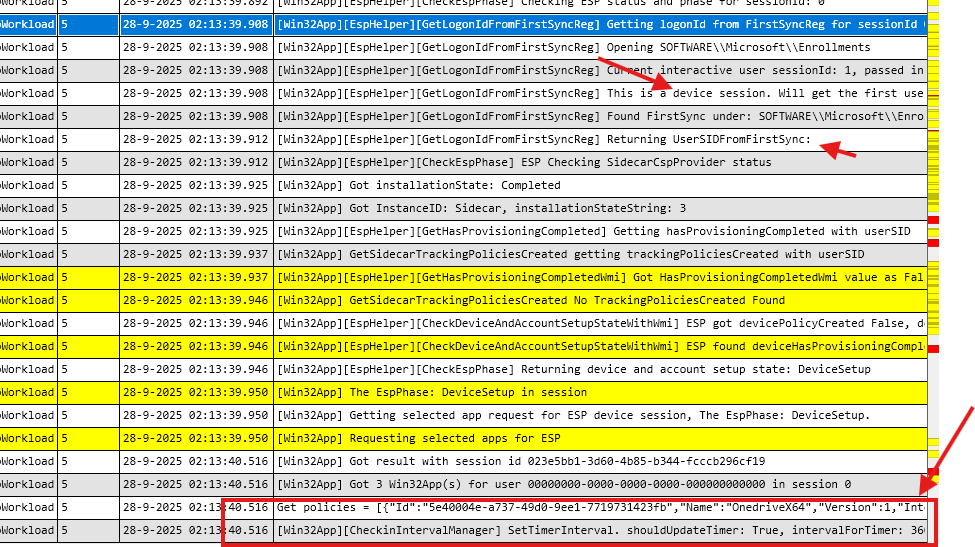
But if the device does NOT reboot during ESP (typical default setup without any reboot-required policy), you land at the desktop with your Entra ID user, configure Hello for Business, and… nothing happens. That’s when the 60-minute clock starts ticking.

The Available App check-in: The 60-minute Required Apps delay
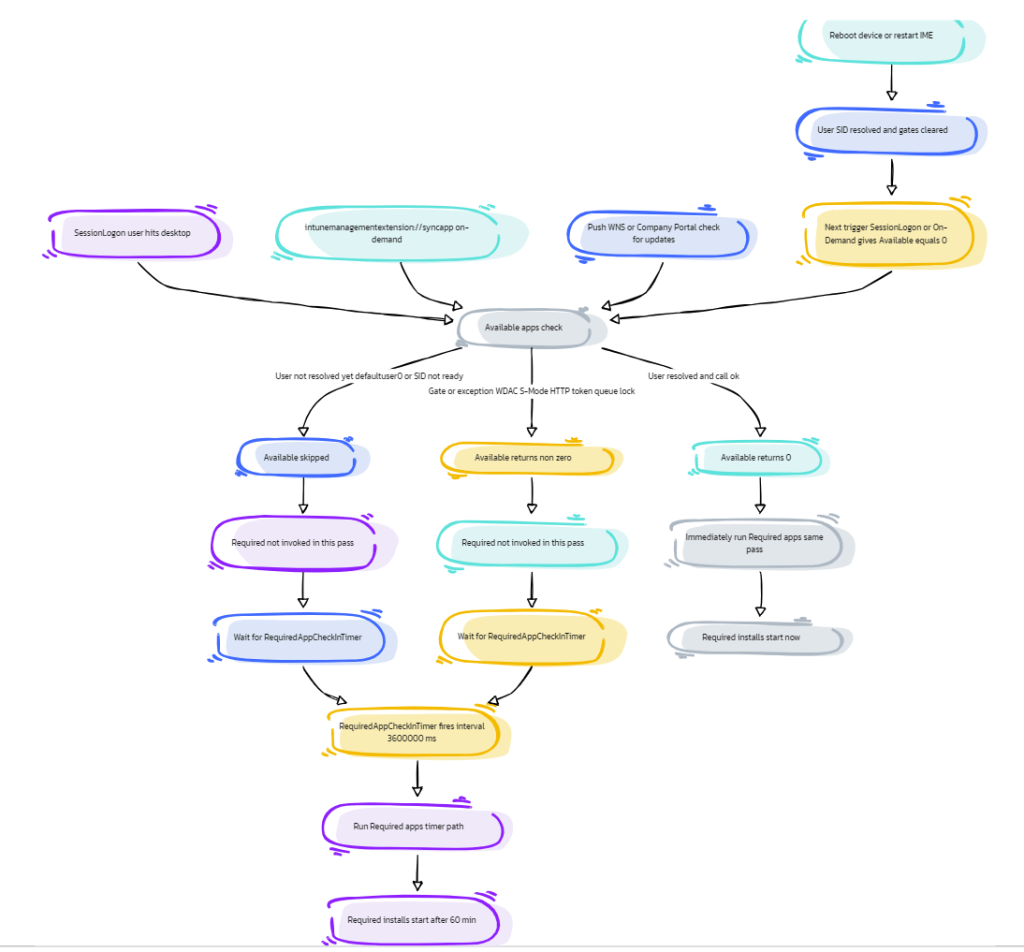
The IME treats required and available apps as two separate sync passes, and believe me, that order matters:
- Available app check-in runs first.
- Only if that pass returns 0 (no blockers, valid user found) does the required app check-in kick in immediately.
- If the available check-in fails or exits early (no user yet, still on defaultuser0, ESP not out of User phase), IME sets a delay timer of 3600000 ms before it retries.
That’s precisely why you see required apps appear one hour later. The log literally shows:
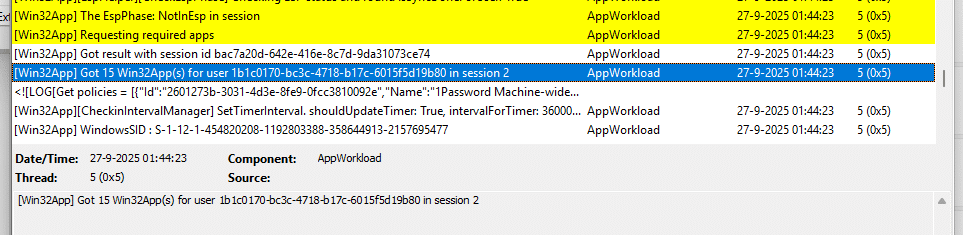
[Win32App] Request required apps for user logon
AvailableAppRequest → exit → scheduling required app check-in for 3600000 ms
So, the problem isn’t that the required apps “don’t run.” It’s that they are gated by the available app logic, and if that doesn’t succeed on the first shot, you’re stuck waiting until the next scheduled run… which takes… yes, 3600000 ms to kick off.
The Required Apps log flow in plain English (or not)
Here’s what happens line by line when the delay hits:
- User signs in, IME starts ApplicationPoller.DoWork().
- EspHelper.CheckEspPhase() still thinks you’re in AccountSetup (or hasn’t set IsSyncDoneForUser correctly, as documented in this blog).
- The available app check-in looks for a valid logged-in Entra SID. It often only sees defaultuser0 at this point.
- Since the available pass doesn’t succeed, IME bails and schedules the next full check-in for +3600000 ms.
- Required apps are skipped until then.
If you reboot (or restart IME) after logging in, the next pass sees the real user, EspPhase=NotInEsp, and available returns 0; required apps start installing immediately.
Why Microsoft Built in the 60-Minute Required Apps Delay
After having another *lovely conversation with MSFT, this was their answer
*(PS: I love those guys!!! … so yeah, lovely, that’s how I explain when I genuinely believe it was a great conversation…totally no sarcasm in play! )
Microsoft confirmed that payloads delivered through the Intune Management Extension are refreshed on a fixed schedule. That schedule depends on the type of payload. For Win32 apps, the check-in is hardcoded to 3,600,000 ms… exactly one hour. Microsoft also mentioned they’re working on accelerating delivery by making changes to those payloads trigger a notification for devices to check in immediately, but there’s no timeline yet.
In practice, this means the behavior we observed is not a bug. It’s by design. ESP blocking apps are installed immediately, but everything else waits until the next scheduled check-in, unless you trigger it earlier with a reboot, IME restart, or manual IME sync.
What fixes or bypasses it
When the IME lands in this state, there are four reliable ways out.
SkipUserStatusPage (short-circuits User ESP)
If you don’t need User ESP on these devices, set SkipUserStatusPage=1. This forces EspHelper.CheckEspPhase() to return NotInEsp immediately. The available pass succeeds instantly, so required apps start without waiting an hour.
This is also why kiosk devices stuck on “Waiting for install status” recover the moment you flip this bit, the IME stops trying to resolve a non-existent user. The behavior and OMA-URI path are covered in the Patch My PC write-ups on kiosk ESP and ESP phases.
Restart the IME
A device reboot or a manual restart of the Microsoft Intune Management Extension service clears the state and reruns the Win32 App poller. Now that the user session is fully live, the available app pass succeeds, and required apps kick in immediately. But restarting the IME… that feels a bit off.
Trigger an on-demand sync with a custom IME command
Another method that people think could bypass the 60-minute required app delay is running intunemanagementextension://syncapp; this will call into the StatusService.CheckInAsync() method, BUT this only queues an immediate Available Win32App sync.… it DOES NOT kick off the required app Sync anymore. Bottom line: just ask your user to logoff and logon!

Force a reboot during Autopilot
The last way out is to assign a policy that falls under the RebootRequired URI, so ESP enforces a restart before the desktop. That guarantees IME sees the correct user session on the first pass and avoids the 60-minute window altogether… But we all know that rebooting a device during Autopilot could break your Passwordless experience (TAP)
Log Off / Log on
Another option is to ask the user to log off and log back on. This will trigger a Session change, which the IME monitors
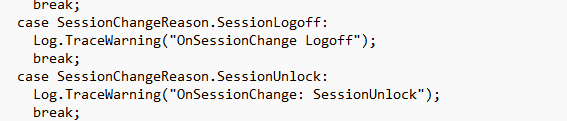
Once the session change is triggered, the IME will also kick off the required app check in.
Triggering the IME with PowerShell
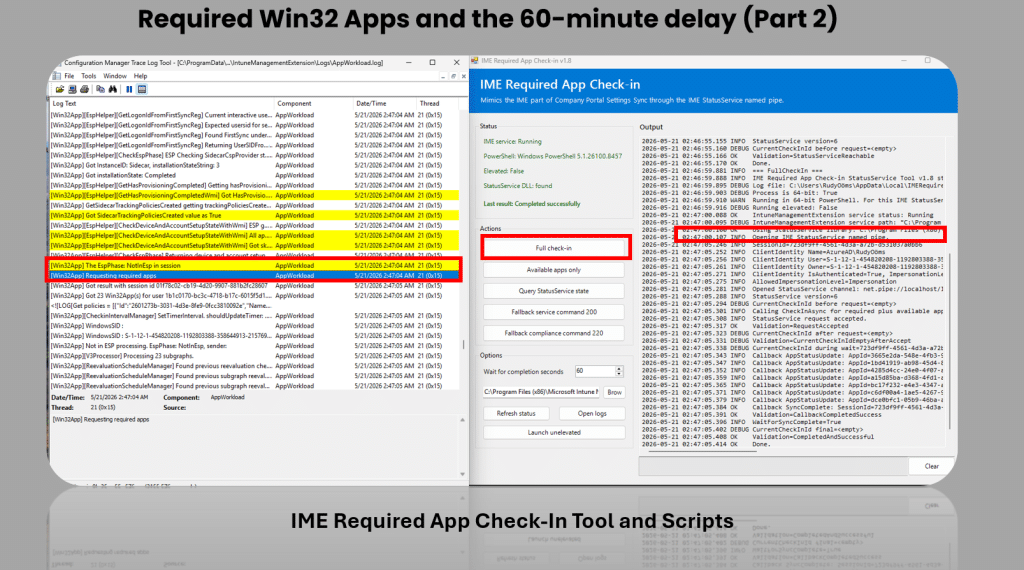
After writing this blog, I kept digging into the part that was still annoying. Understanding why required apps wait for that 3600000 millisecond timer is useful, but it still leaves you with the same problem. The cleaner fix is to trigger IME directly from the device itself. So, I built a PowerShell remediation that can be executed on demand.
This Remediation runs in the logged-on user context and connects to the local IME StatusService. The easiest way to explain StatusService is to see it as a local pipe into IME. The Company Portal uses that same pipe to ask IME to do app-related work, and this remediation does the same thing
It opens the local named pipe, creates a new check in session, and calls CheckInAsync. Easy does it…
Please Note: That pipe only tells IME to start its app check in again. From that point on, IME handles the normal process: assignment evaluation, detection, content download, and installation.
That changes the story a bit. Required apps do not have to sit there until the one-hour timer expires. If IME missed the right moment after Autopilot, we can now give it a local nudge from an Intune remediation and let the normal Win32 app flow continue.
Don’t believe me? Well, here is how the tool looks like.
Mermaid flow of the logic
For those who prefer a flow over words….
Why this matters
On paper, the 60-minute timer makes sense, the IME assumes the user might not be ready and waits. In practice, it’s frustrating: the desktop looks ready, but required apps don’t appear until the hour mark. Once you trace the code and logs, the cause is clear: the available check-in runs too early. Skip User ESP, reboot, restart IME, or trigger a manual sync, and the required apps install right away.
Patch My PC cannot change that behavior, but once those apps are finally installed, we will always keep them up to date without effort. Book a demo to see how Patch My PC saves hours each week by taking third-party app management off your plate.