
Anthropic distributes Claude Desktop for Windows as an MSIX package, and like all MSIX packages it installs per user. That’s fine for a single machine, but it creates a problem in managed environments: the obvious Intune route of uploading the MSIX as a Line-of-Business (LOB) app often fails for exactly the users you’re deploying to.
In this post, I’ll show you why the LOB approach falls short and how to deploy Claude Desktop device-wide instead, using Patch My PC’s Custom Apps feature with a scripted installation.
Why the MSIX LOB approach can fail
When you upload an MSIX as an LOB app, Intune installs it in the user context. Standard users may hit installation failures when the deployment requires permissions their account doesn’t have. Even when it succeeds, the app is installed only for that user. Anyone else who signs in to the device gets nothing.
For device-wide deployment, the better approach is to provision the package at the operating system level with Add-AppxProvisionedPackage. Provisioning stages the package in the Windows image, so it’s installed for every user on the device, including users who sign in for the first time later. Because the Patch My PC agent runs in the SYSTEM context, it has the permissions provisioning requires; your end users never need admin rights.
Patch My PC’s Custom Apps with scripted installation makes this straightforward: you bring the installer and the PowerShell, and the platform handles packaging, delivery, and detection. (Custom Apps are handy well beyond this scenario: deploying registry keys, PSADT-based changes, and detection rules built on them. The Get-ADTRegistryKey function in PSADT is a nice example.)
Let’s go and build it!
Step-by-step: Claude Desktop as a Custom App
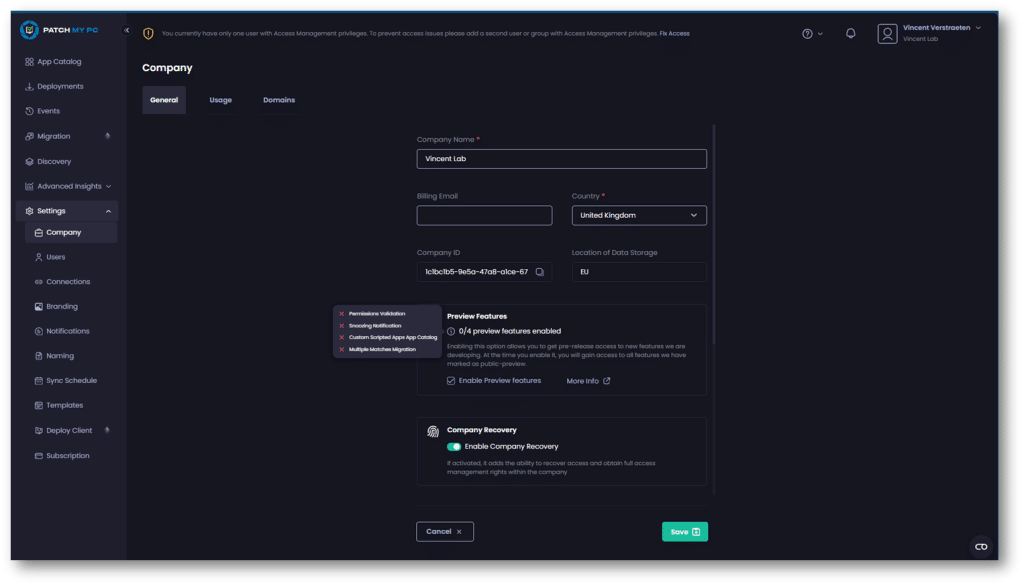
1. Enable Preview Features. Go to Settings > Company, enable Preview Features, and refresh your browser
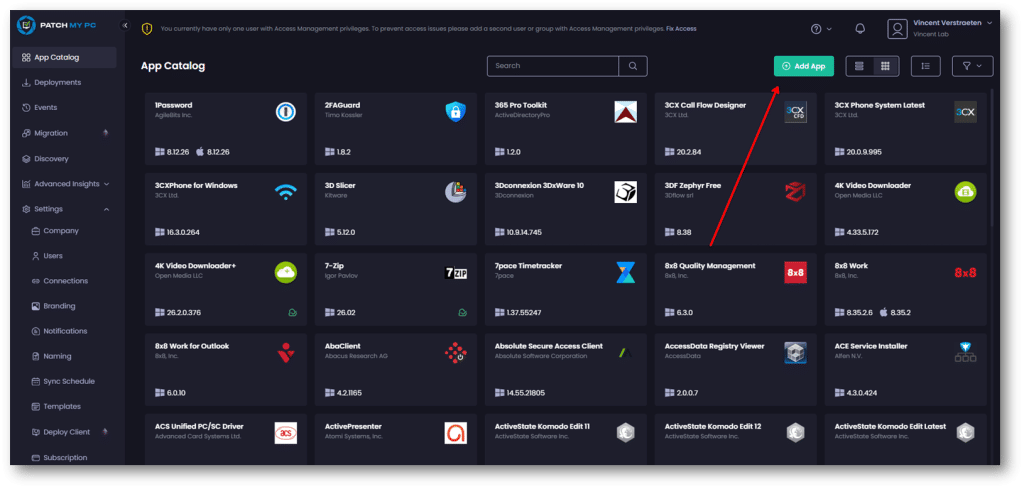
2. Add the app. Open the Patch My PC Cloud portal, go to App Catalog, and click Add App
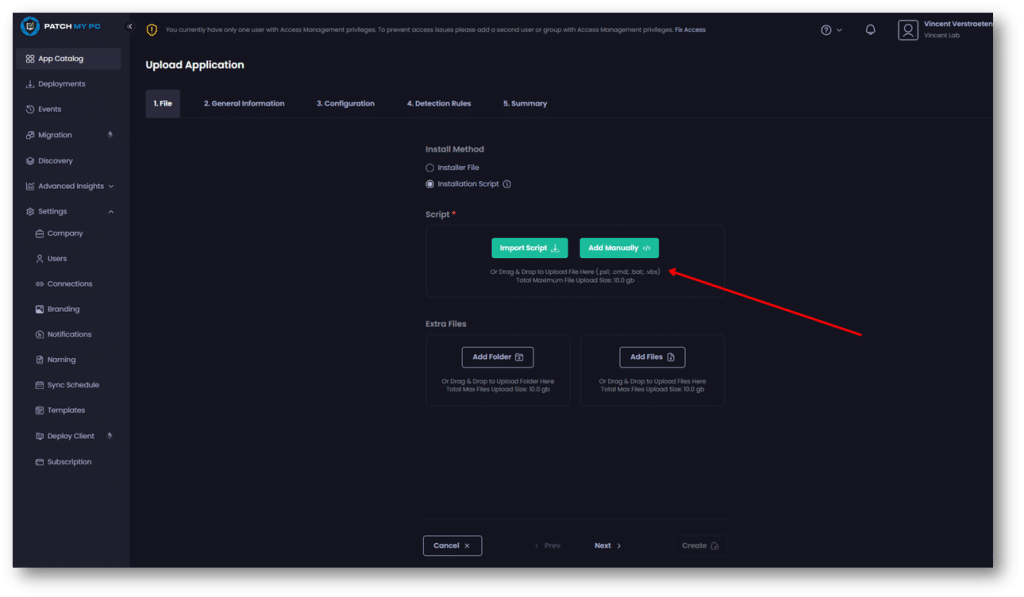
- Select scripted installation. Under Install Method, choose Installation Script, not Installer File. The installer file method won’t work for this scenario because we need to control how the package is provisioned.
- Download the MSIX. Get the Claude Desktop installer from the Claude Help Center: Deploy Claude Desktop for Windows | Claude Help Center
- Upload the MSIX as an extra file. Add Claude.msix under Extra Files (not as the script itself).
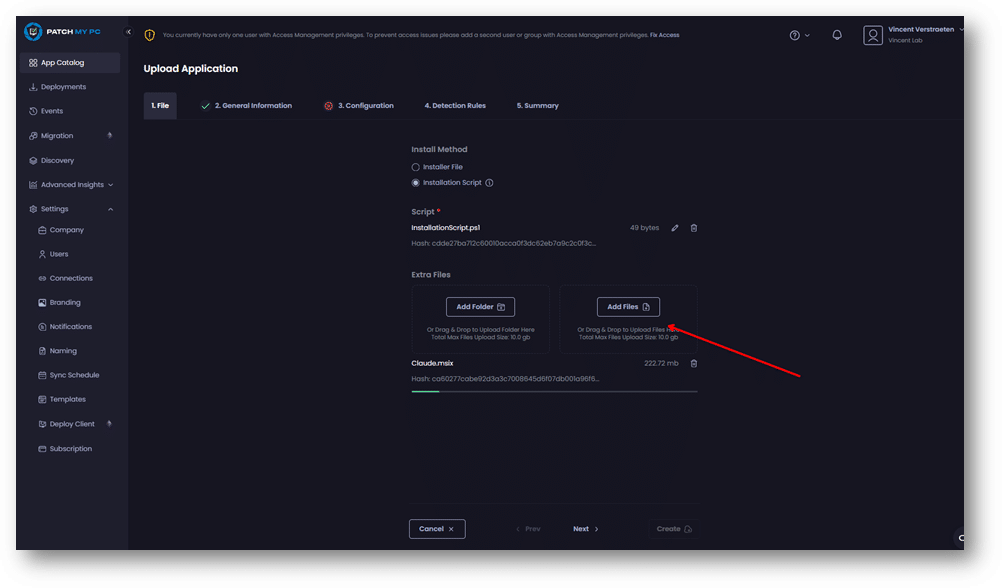
- Add the install script.
Add-AppxProvisionedPackage -Online -PackagePath "$PSScriptRoot\Claude.msix" -SkipLicense -Regions "all"- Fill in the General Information fields: app name, vendor, description, and icon.
- Configure the uninstall script. Because the package is provisioned, remove both the provisioned package (so new users don’t get it) and the installed package for existing users:
Get-AppxProvisionedPackage -Online | Where-Object { $_.DisplayName -match "Claude" } | Remove-AppxProvisionedPackage -Online
Get-AppxPackage -AllUsers *Claude* | Remove-AppxPackage -AllUsers- Add a custom detection script. The built-in automatic detection rules won’t work here, so select Use Custom Script and check for the provisioned package:
$claude = Get-AppxProvisionedPackage -Online | Where-Object { $_.DisplayName -match "Claude" }
if ($claude) {
    Write-Output "Installed"
    exit 0
}
exit 1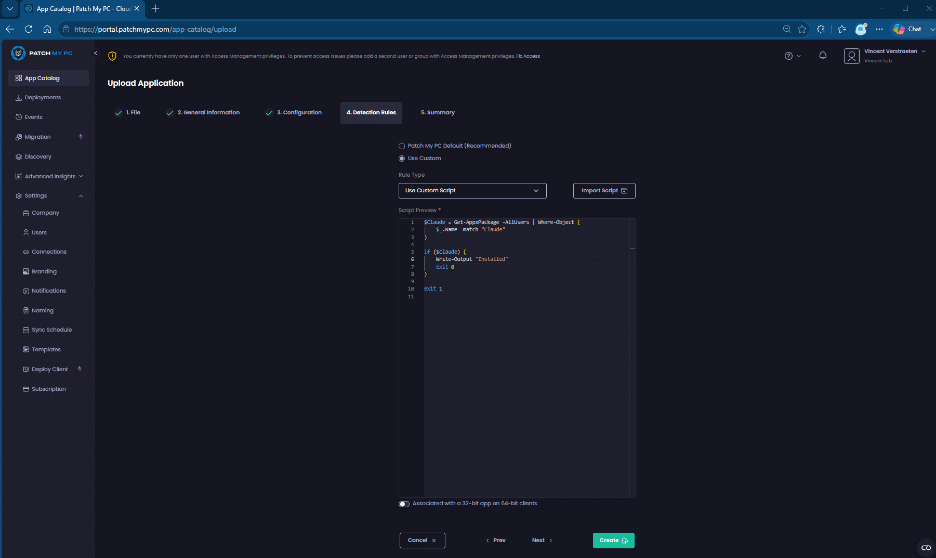
- Review the summary and click Create.
- Deploy and test.
Assign the app to a small group of test devices first. I always recommend an Available deployment to a handful of test machines before going Required to production. New to deployments? This guide covers it: Deploy an App using Patch My PC Cloud | Getting Started.
Wrapping up
That’s all it takes: one install command, a matching uninstall, and a short detection script, and Claude Desktop is provisioned device-wide for every current and future user, with no admin rights required on the endpoint. The same pattern works for any per-user MSIX you need to deploy machine-wide.
Good luck, and feel free to contact support if you have any questions.