

An IT team reached out to us about an Intune issue they’d already raised with Microsoft Support. The case had been open for quite a while. On the affected device, the Intune Management Extension (IME) would get uninstalled, come back, and get uninstalled again. What caught my attention was the device’s Intune MDM certificate. It wasn’t renewing either. I wanted to see where renewal was getting stuck. That led me to the 0x83750005: Failed to Parse Provisioning XML error, caused by missing ValidNodePaths registry keys. If the list in that key is incomplete, Windows can get a replacement certificate back from Intune and still stop before installing it.
The Intune certificate Windows uses to talk to Intune
During enrollment, Windows receives an MDM device certificate. For the enrollment discussed here, you can usually find it in the computer’s Personal certificate store (LocalMachine\My), issued by Intune MDM Device CA. It helps the device prove its identity when connecting to Intune.
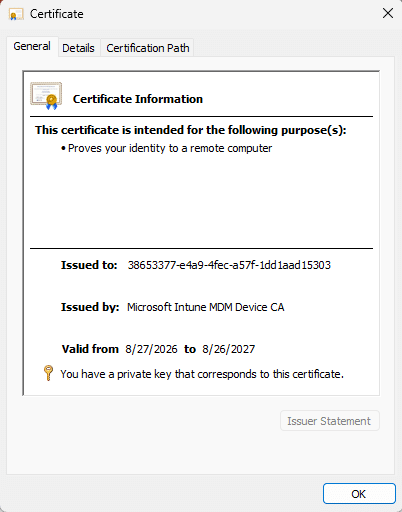
Windows uses this certificate when it syncs settings with Intune. The Intune Management Extension also relies on it when requesting its own work. Windows renews it before it expires, so both can keep connecting.
That is why a certificate problem can first look like an app or device management issue, rather than a certificate issue.
Why the IME can be affected too
The Intune Management Extension (IME) takes care of Win32 apps, PowerShell scripts, and remediations. It works separately from the Windows MDM client, but it still needs the same valid Intune device certificate to authenticate when it talks to Intune.
If that certificate can no longer be used, the IME may fail to request its assignments. That does not automatically mean Windows will uninstall IME. The removals seen in this case still need to be explained by the IME and Windows logs.
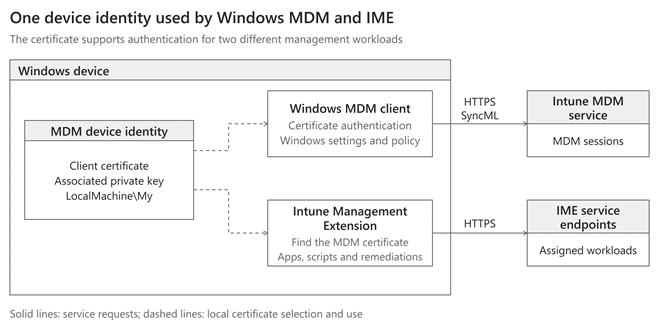
Why a failed Intune Certificate Renewal can stay hidden
A renewal attempt can fail while the device still appears to work normally. As long as Intune accepts the old certificate, Windows and IME may continue using it. The real trouble can start later, when that certificate is no longer accepted and there is no replacement.
That is also why I would not rely on the device’s last check in time alone.
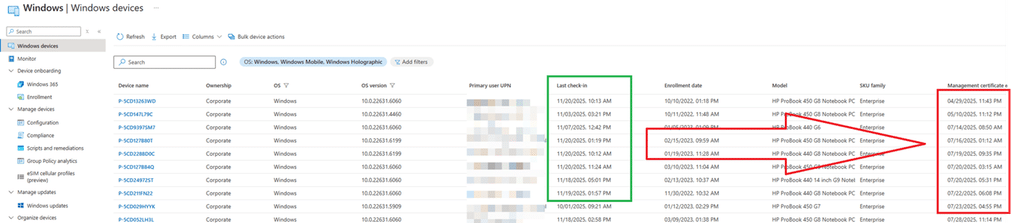
I would compare the renewal errors, the certificate expiry date, and the requests that started failing: 0x83750005: Failed To Parse Provisioning XML
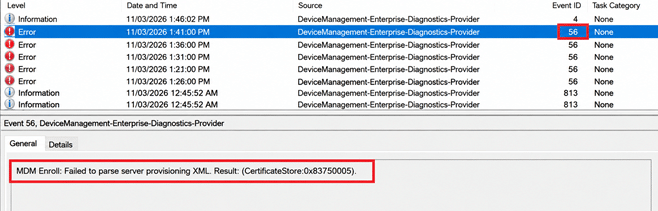
The admin reached out to me and provided me with the missing details. The moment the device tried to renew the Intune Device Certificate, it ran into the 0x83750005: Failed To Parse Provisioning XML error.
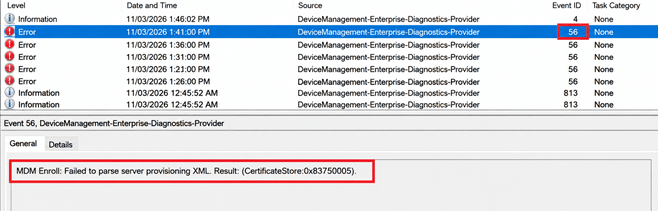
Besides this error in the event log, we could also spot the same error in the registry

RenewErrorCode = 0x83750005
RenewStatus = 3
EnrollmentType = 6
RenewStatus 3 means Windows recorded a failed renewal attempt. Error 0x83750005 can appear when Windows rejects a section of the response, but the error alone doesn’t tell us where the attempt failed. In my previous blogs, I explained a lot about what is required for a successful certificate renewal, but one important detail was missing. Let me explain
What happens during certificate renewal
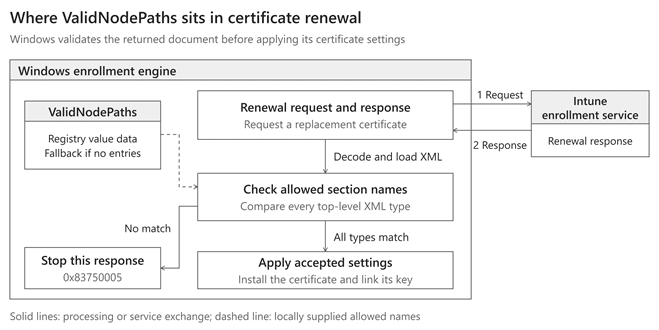
When Windows asks Intune to renew the device certificate, Intune should send back a new certificate together with the settings needed to install it.
Before Windows applies those settings, it checks whether their names are indeed allowed. The list it uses is called ValidNodePaths.
If a section is not allowed, Windows stops processing the response. So Intune may have sent the new certificate successfully, but Windows never installs it; the device will error out with the error 0x83750005
ValidNodePaths is a list of allowed settings
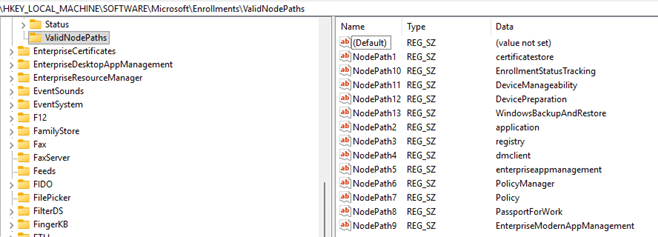
The ValidNodePaths name sounds more complicated than it is. ValidNodePaths contains the names of settings that Windows is willing to accept from the enrollment service. One of those names is CertificateStore. That section contains the settings for installing the certificate.
Windows checks the section names against the list. The name must match, although capitalization does not matter. If CertificateStore is not on the list Windows uses, it rejects the certificate part of the response.
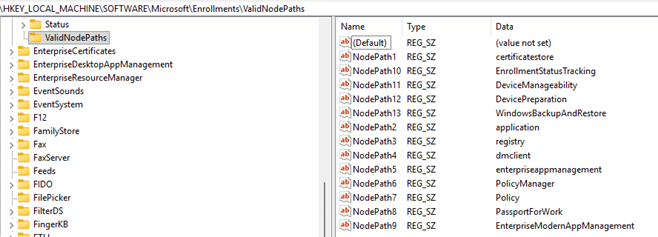
HKLM\SOFTWARE\Microsoft\Enrollments\ValidNodePaths
This checks which settings Windows will accept. It is not a check of the certificate’s expiry date, trust or private key. Those checks happen separately.
Why can an incomplete ValidNodePaths list cause the 0x83750005 problem
Here is the important difference. On the Windows build I checked, the normal list has 13 entries. If Windows finds no entries at all, it uses its own built-in list of 12 names. CertificateStore is included in that fallback list.
But if Windows finds even one entry, it uses the entries that are there.

It does not fill in the missing ones. That means a partly deleted list can block renewal, while an empty list can behave differently.
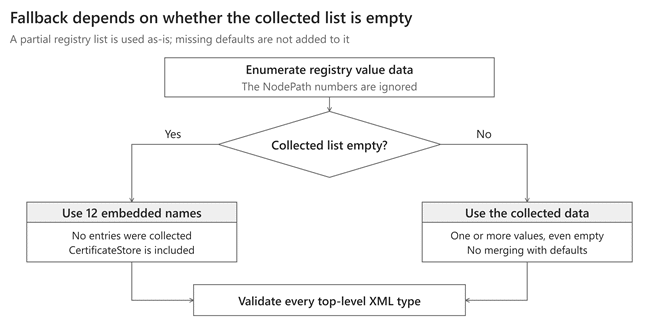
The fallback is not a replacement for the correct list. It does not include WindowsBackupAndRestore, which is one of the 13 entries on the tested Windows build. Deleting the key to force fallback is not the right fix.
And guess what… the devices that got the IME uninstalled and did not renew the certificate were missing a lot of keys in the ValidNodePaths registry key
The missing ValidNodePaths keys
Imagine only NodePath12 = DevicePreparation and NodePath13 = WindowsBackupAndRestore are left in ValidNodePaths. Windows sees two entries, so it only uses those two names rather than the fallback list.

Guess what happens if the ceritifatestore is not in the allowlist…..
Does this explain why IME was uninstalled?
An incomplete list can explain why Windows might refuse a replacement certificate. It does not, by itself, explain why IME was uninstalled, right? Well..
If renewal continues failing and Intune stops accepting the old certificate, IME may no longer be able to authenticate. But Microsoft also documents removal when the device is no longer managed or when IME remains irrecoverable for more than 24 hours while the device is awake.
So… with the device no longer “managed”… the IME could be uninstalled automatically.
Exporting and Importing the ValidNodePaths
I suggested comparing ValidNodePaths with a healthy device and exporting and importing the ValidNodePaths. After the admin imported the ValidNodePaths, they checked the device again… Guess what? The IME was already running again, and the Intune certificate had been renewed successfully!.
That fits with Windows being able to accept a later renewal response, but it leaves some questions unanswered.
The useful lesson is that getting a replacement certificate from Intune is not the same as installing it. Windows still has to accept the returned settings. If that check fails, the renewal can stop before the new certificate ever reaches the device.
Be careful when cleaning up old enrollments
ValidNodePaths is stored under HKLM\SOFTWARE\Microsoft\Enrollments, alongside individual enrollment records. But it is shared across enrollments. A cleanup script that removes too much from that location can also remove or damage this list.
A partial cleanup is especially risky. When a few entries remain, Windows uses those entries without restoring the missing defaults. If CertificateStore is removed from the allowed list, Windows can reject a renewal response that includes it.