
In this blog we will explain how Maintenance Windows work, how to configure them in Intune, and what to check before assigning the policy.
Maintenance Windows are back in Intune
I was reading the Intune What’s new notes for the week of November 16, 2026, and one announcement caught my eye: Maintenance windows for operating system and driver updates on Windows.
Microsoft now lets us choose which automatic Windows Update actions should wait for a maintenance window. We can also set when that window starts, how long it lasts, and whether it repeats. This gives us a new way to plan update activity around the hours when a device needs to be available.
For devices that need to stay available during the day, this can make a real difference. Think of shared PCs, kiosks or production devices. Windows can download updates when they are available, but installations and restarts can wait for a planned maintenance period.
Microsoft has published a separate configuration guide alongside the announcement. It explains the policy options and schedules, so let’s look at how Maintenance Windows actually work and how you would configure one in Intune.
I covered the earlier Maintenance Window story in Maintenance Window Settings for OS, Drivers, and Updates and Maintenance Window Settings Catalog… And It’s Gone.
This is not the same as Active Hours
As mentioned before, Active Hours help Windows avoid disruptive restarts when people normally use their devices. Maintenance Windows work the other way around. You specify when selected automatic Windows Update actions are allowed to begin.
For example, a shared device might be used all day but be available for servicing overnight. You might allow downloads at any time, while installations and restarts are restricted to a window between 02:00 and 06:00.
Microsoft says the policy covers Windows Update content such as quality updates, feature updates, Hotpatch updates, .NET updates, drivers, and firmware. It does not decide which updates the device receives. Your existing update policies still control that.
Three options, with very different results
The update action determines what Windows must wait for. Microsoft documents three choices:
| Update action | What can happen outside the window |
| Download, install and restart | None of these automatic actions, unless another policy or event takes priority. |
| Install and restart | Updates can still download outside the window. |
| Restart only | Downloads and installations can happen outside the window. |
An important detail: the action only needs to begin inside the window. If Windows starts installing something just before the window closes, it can continue afterward.
Windows also avoids starting actions
The window is not a hard stop at 06:00. Windows also avoids starting actions too close to the end of the window. Microsoft gives an example where a window ends at 06:00 and Windows only attempts to restart before 05:30. This reduces the chance of work continuing beyond the window, but does not guarantee everything finishes before it closes.
Creating a Maintenance Windows policy in Intune
Microsoft’s announcement points to Devices > Manage devices > Maintenance windows. That is where the new policy type belongs. The screenshot below shows the Maintenance windows page and its Create option.
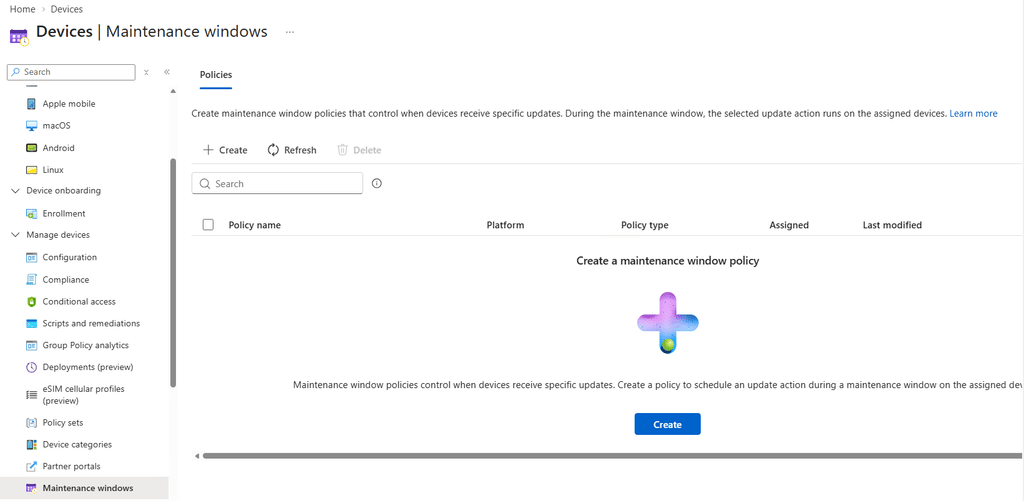
Please note: This is a mock-up based on how it’s described in the “What’s new in Intune”
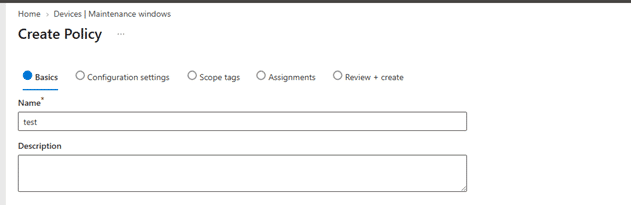
Selecting Create opens the familiar Intune policy wizard, with Basics, Configuration settings, Scope tags, Assignments and Review + create. Start by giving the policy a name and an optional description.
What Maintenance Window settings belong in the policy?
A Maintenance Windows policy brings the Windows Update scheduling settings together in one place. You choose which automatic update actions must wait for the window, when it starts, how long it lasts, and whether it repeats.
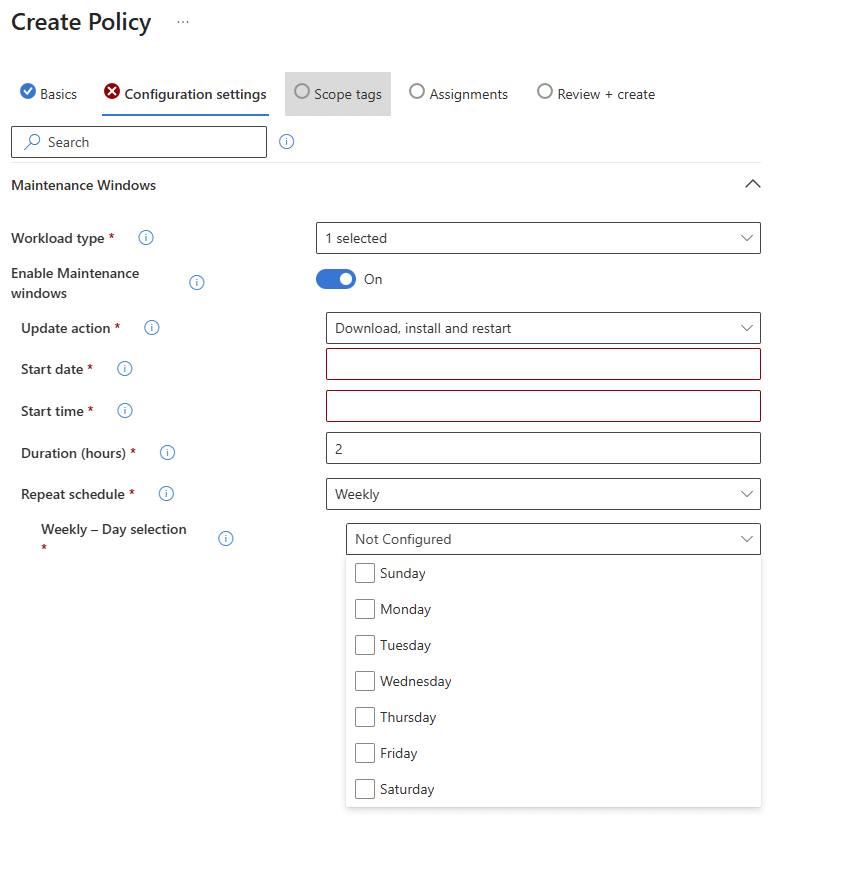
Under Configuration settings, set Workload type to Updates and Enable Maintenance windows to On. Then select the Update action you want to control: Download, install and restart, Install and restart, or Restart only.
Next, configure the schedule. You can create a window for a single date or choose a daily, weekly, or monthly schedule. Weekly schedules let you select the days. Monthly schedules let you choose a date from the 1st through the 28th, or an occurrence such as the second Tuesday or last Sunday.
The duration can be 2 to 24 hours, and all times use the device’s local time. The admin center requires a start date, although Windows uses the recurrence settings to calculate repeating windows. After configuring the schedule, set the scope tags, assign the policy to device groups, and finish with Review + create.
One missing option: an offset from Patch Tuesday
The documented monthly settings do not include an offset such as “one day after the second Tuesday.” Selecting the second Wednesday does not give you the same result.
Take April 2026. The second Wednesday was April 8, while Patch Tuesday was April 14. Your maintenance window would have happened before that month’s security updates were released. The Wednesday immediately after Patch Tuesday was April 15, which was the third Wednesday.
The missing offset means you cannot directly express that relationship in the recurring monthly schedule. ConfigMgr originally had the same limitation, but added monthly maintenance window offsets in version 2207.
Time zones add another complication. Microsoft normally releases monthly security updates on Tuesday at 10:00 Pacific Time. In New Zealand, it is already Wednesday. A local Tuesday maintenance window therefore comes before the release, while selecting the second Wednesday does not reliably solve the calendar problem.
Maintenance windows still work there. What is missing is a monthly schedule anchored to Patch Tuesday, with an offset that lets you choose when servicing should begin after the release.
So, what could the Maintenance Window settings page look like?
Based on the settings described in Microsoft’s documentation, I put together the concept below. It shows a weekly window on Monday, Wednesday, and Friday, starting at 02:00 and lasting four hours. The selected action is Install and restart. This is a mockup of a possible layout, not a confirmed screenshot of the final Configuration settings page.
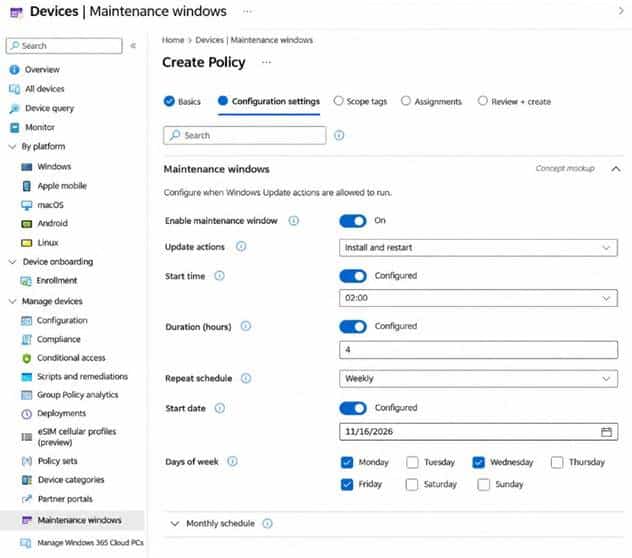
| CONCEPT MOCKUP, NOT FINAL MICROSOFT UI Microsoft’s guide includes a Workload type option and specifies the order of the schedule settings. The layout, labels and grouping shown here are an illustration based on those documented settings. The final Intune page may look different. |
Comparing the MOCKUP above with the official UI for Maintenance Windows…. Somehow I prefer my own version… It was pretty accurate I would say
What would this example actually do?
With those settings, Windows could download updates throughout the day. On Monday, Wednesday, and Friday, automatic installation and update-related restarts would be allowed to begin between 02:00 and 06:00, using each device’s local time.
That does not mean every device starts installing at 02:00 or finishes restarting before 06:00. The update needs to be available, the device needs to be online, and Windows must be ready to perform the action. Work that starts inside the window may finish later.
What You need to know About Maintenance Windows
Before assigning a maintenance window, check the update policies already targeting those devices. Microsoft generally recommends using either maintenance windows or update deadlines. For PCs people use for daily work, use the normal update experience with deadlines. For kiosks, manufacturing equipment, and other critical devices with a planned servicing period, use maintenance windows and leave deadlines unconfigured.
Why? Because an expired deadline can force update actions outside the maintenance window. Creating a maintenance window does not remove deadline settings from an existing update ring. If both apply, the device might install or restart at a time you were trying to avoid
Maintenance windows also control automatic update actions. Users can still start update actions outside the window when Windows and the other applicable policies allow it. Microsoft’s Intune guide lists additional exceptions, including expedited updates and device provisioning. However, the Windows guide describes expired deadlines as the only update settings that force actions outside the window. Those pages do not fully agree, so these scenarios need validation before relying on the window for a critical device.
Deferrals still matter. If an update is not yet available to the device because of a deferral, a maintenance window cannot make it available sooner. Once the deferral expires and Windows offers the update, a later window may be the first opportunity for the selected actions to begin.
Be careful with a maintenance window configured for a single date. Microsoft documents that leaving the expired window configured prevents the governed update actions for another 90 days. Once that date is more than 90 days in the past, Windows treats the setting as outdated and ignores it. Update the date or remove the configuration after the servicing period is complete.
Finally, check the Windows version before testing. The documented minimum is Windows 11, version 24H2 with KB5077181, build 26100.7840, or later. Assigning the policy is only useful when the device supports the underlying settings
How can you tell whether it worked?
Start with a small group of test devices. From the policy in Intune, check Device and user check-in status, Device assignment status, and Per-setting status. During a gradual service rollout, the exact portal experience may vary between tenants.
These reports tell you whether the policy reached the device. They do not prove an update was installed or that a restart actually happened in the scheduled period. For that, compare Windows Update or Autopatch reporting with the maintenance window and the device’s local time.
So, are Maintenance Windows back?
Yes. Intune now has a dedicated policy for maintenance windows, letting us choose when selected automatic Windows Update actions are allowed to start.
For kiosks, manufacturing equipment, medical devices, and other critical systems, that gives us more control over update timing. Check the policies already targeting those devices before assigning a window. Microsoft generally recommends using either maintenance windows or deadlines, because an expired deadline can force update actions outside the window.
There are still details to watch. Work can continue after the window closes, and windows configured for a single date need to be updated or removed afterward. Monthly scheduling also lacks an offset from Patch Tuesday, which makes it harder to plan servicing around the release, especially across time zones.
The feature gives us useful control, but the schedule and existing update policies need to match how the device is used.
Sources: Intune What’s new | Configure maintenance windows | Windows Update CSP