
This blog is about why Intune behaviour often feels inconsistent, even when everything is configured correctly. The answer isn’t timing. It’s the architecture behind it. Intune doesn’t use a single sync for everything. Policies are delivered via the MDM channel (OMA DM), while Win32 apps and PowerShell scripts are delivered via the IME/Sidecar agent. When you expect one flow, the results look random. When you see the separate paths, the behaviour becomes clear.
Intune Sync Introduction
Most people assume Intune has a single “sync” that delivers everything: policies, apps, scripts, and device actions.
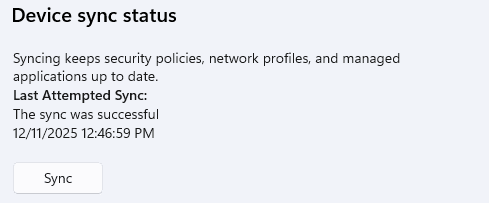
Well…It doesn’t… Windows has multiple delivery paths, each with its own purpose and different triggers. Let me start with OMA-DM.
OMA-DM
The OMA-DM client handles policy configuration. It initiates SyncML sessions to pull policy state, is woken by WNS notifications when changes occur (including CSP-backed device actions such as wipe), and routes the received configuration to the appropriate CSP providers for enforcement.
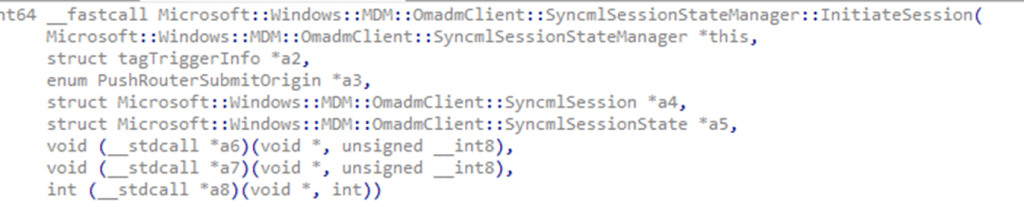
This path is state-oriented. It enforces configuration rather than really executing tasks. It does not install Win32 apps or run PowerShell, but it can install software delivered through CSP-based instructions, such as MSI deployments via EnterpriseDesktopAppManagement or Microsoft 365 Apps via OfficeCSP. Anything on this path must follow the CSP (get-set-get) model.
Intune Management Extension
The Intune Management Extension, in turn, handles all the workloads/tasks. It checks in on its own schedule to retrieve Win32 apps (60 minute), PowerShell scripts (8-hour), proactive remediations, custom compliance logic, and other workload assignments. It’s good to know that the IME is not limited to polling. Some IME-owned device actions receive direct push notifications, for device actions such as Remote Help, and Device Query / IntunePivot.
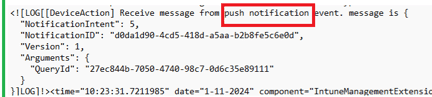
These push notification triggers bypass SyncML and are executed immediately through the IME’s real-time signalling notification engine.
OMA-DM vs IME
From the outside, this still looks like a single “device sync,” but inside Windows, these systems run on completely different rules. The OMA-DM client reacts to WNS (with a 5-minute delay), initiates SyncML sessions, and enforces policy configuration through CSPs.
The IME responds to IME-specific push signals for real-time tasks, and everything else follows workload timers: one hour for Win32 required app evaluation, eight hours for available apps, up to twenty-four hours for scripts, plus daily cleanup intervals. (more details later on, as this is, of course, not the whole picture)
One engine enforces policy configuration.
The other executes workloads.
Their timing never matches, which is why a CSP policy can be applied instantly while a required app could wait an hour (exaggerating a bit, but you get the idea).
How Windows Receives Policies Through the OMA-DM Client
The OMA-DM client is Windows’ built-in management engine. It communicates with Intune using SyncML, but the device always initiates the session.
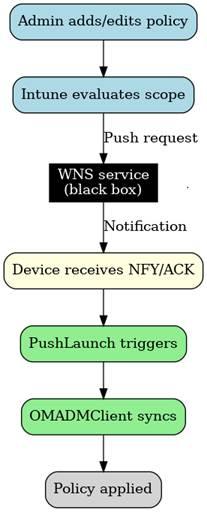
When a policy configuration or CSP-backed device action is changed in Intune, Intune sends a WNS push notification to wake up the device. Please Note: The notification itself does not contain policy data.
After being nudged, the OMA-DM client opens a new SyncML session with the Intune service and pulls the latest instructions. Intune responds with SyncML payloads, which the OMA-DM client routes to the appropriate CSP. The CSP then applies the policy itself. (get-set-get)
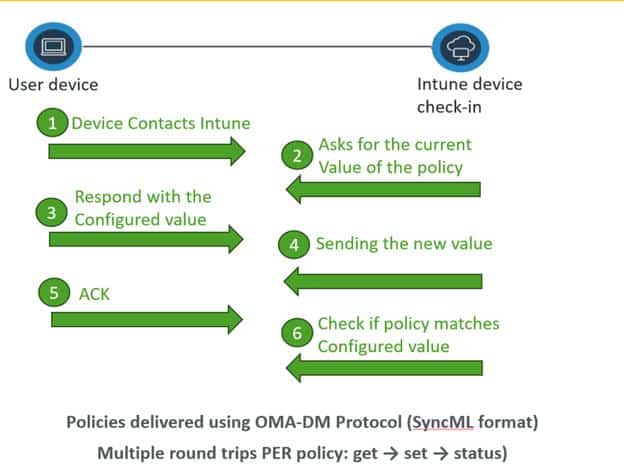
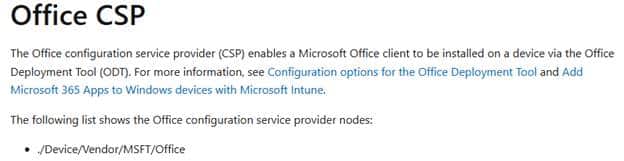
This model also handles CSP-backed application installation. MSI deployments via the EnterpriseDesktopAppManagement CSP and Microsoft 365 Apps via the OfficeCSP still use SyncML and CSPs to enforce the requested state.
OMA-DM Sync Schedule
The OMA-DM client doesn’t operate on a simple fixed schedule. Let me explain… During enrollment, the device syncs rapidly with the Intune service because Windows continuously pulls the configuration until the device reaches a stable state.
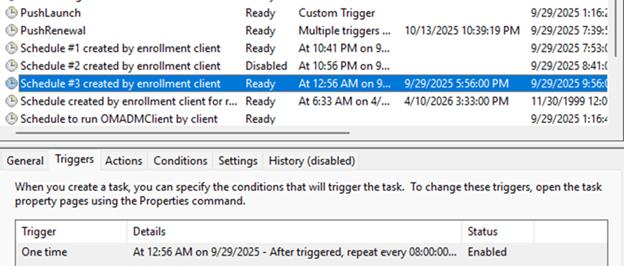
After that, most policy delivery is event-driven (PUSH). When something changes in Intune, WNS wakes the device, and the OMA-DM client immediately starts a new SyncML session to fetch the updated policies. A fallback cadence exists (an 8-hour maintenance task), but only to guarantee eventual convergence if no changes occur for an extended period. The real driver for policy delivery is the combination of WNS notifications and the device’s own dynamic behaviour, not the 8-hour timer.
For anyone who wants a deeper look at how this actually works internally, including why the “eight-hour sync” is only a fallback, aka safety-net, and not the norm, the earlier article walks through it step by step:
Intune Policy Delivery: Debugging the 8-Hour Sync Myth
https://patchmypc.com/blog/intune-policy-delivery-debugging-the-8-hour-sync-myth/
How the IME Works and Why It Exists
Not everything fits that CSP model. Installing Win32 apps, running PowerShell, evaluating remediation logic, and executing task-based instructions are not configuration states. They require an dedicated agent. That agent is the Intune Management Extension.
The IME installs automatically when specific workloads require it and connects to Intune independently of the OMA-DM client. It retrieves only the workloads it is responsible for. No SyncML. No CSP. Pure task execution. Internally, the IME relies on several timers:
- Default check-in: 24 hours
- Check-in if script exists: 8 hours
- Full result reporting: 8 hours
- Forced weekly report: 7 days
Generic IME policy timers
- Default check-in: 6 hours
- Check-in if policy exists: 3 hours
- Win32App Required App evaluation: 1 hour
- Available apps evaluation: 8 hours
- Content cleanup: 24 hours
These clocks run independently from the OMA-DM engine. The IME also supports dynamic scheduling. For example, the Win32 CheckinIntervalManager can adjust the one-hour interval based on instructions Intune sends, or reset to defaults depending on workload state.

The One-Hour Intune Win32App Sync Delay After Autopilot
This is where IME timing is most visible. After Autopilot, required Win32 apps often start installing exactly sixty minutes after the first user logon. This behaviour is not tied to OMA-DM or policy delivery. It is the Win32 app engine following its one-hour evaluation interval.
If the IME’s initial “available apps” evaluation runs before the user session is ready, the IME schedules its next attempt for 3600000 milliseconds later.

When that hour expires, the session is stable, the available app check succeeds, and required apps begin.
This behaviour is explained in detail here:
Why Do Required Apps Wait 60 Minutes After Autopilot Enrollment?
https://patchmypc.com/blog/why-do-required-apps-wait-60-minutes-after-autopilot-enrollment/
Administrators often “fix” the delay by restarting the IME service (rebooting the device). Doing so forces the IME to evaluate workloads immediately, bypassing the one-hour timer.
Real-Time IME Actions (Remote Help, Device Query)
Not all IME actions depend on timers. Some are push-triggered. When Intune initiates a Remote Help session, or Device Query, the IME receives a direct Sidecar push notification. This is not OMA-DM, not SyncML, and not dependent on polling. The IME processes the real-time signal, loads the relevant handler, and executes immediately.
Device Query, in particular, does not rely on any IME timer. It waits for a dedicated IME WNS Push notification and runs as soon as it arrives.
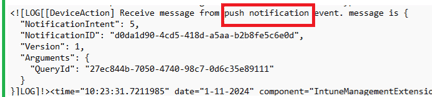
This category of actions demonstrates that the IME already has a real-time execution model alongside its timer-driven workloads.
Forcing Each Engine to Sync with the Intune Service (client-side)
If you want to speed up delivery from the client side, you must trigger the right engine (AKA IME or OMA-DM… or both).
Intune Policies Sync
To sync policies or any CSP-backed action:
Use Settings → Accounts → Access work or school → Info → Sync.
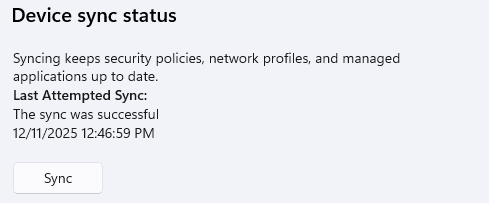
This wakes the OMA-DM client and opens a new SyncML session.
Win32App/PowerShell Intune Sync
To sync IME workloads (Win32apps, scripts/remediations, and custom compliance scripts):
Restart the Intune Management Extension service.

Or manually kick off the syncapp command to kick off the Win32App Workload policy:
$Shell = New-Object -ComObject Shell.Application $Shell.open(“intunemanagementextension://syncapp”)
This forces the IME to reevaluate workloads immediately instead of waiting for the next one-hour, eight-hour, or twenty-four-hour interval.
Trigger the Win32App/PowerShell AND Policies Sync
To trigger both engines at once:
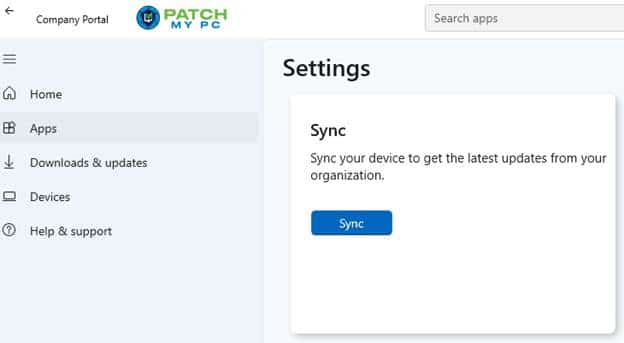
Use the Company Portal → Sync button.
This is the closest Windows has to a combined device sync (IME and OMADM). Well, if you don’t alter the IME Application Config file…
What the Intune Remote Sync Action Actually Does
The Sync remote action in the Intune portal does not send configuration or workloads to the device. It tells the device to wake up and initiate a check-in with the Intune service. From that point on, the same two engines take over. The OMA DM client opens a new SyncML session and pulls the changed/updated policies.
From the outside, this looks like a universal device sync. Which it isn’t! For anyone who wants the full technical breakdown of what happens on the device when the remote Sync action is pressed, including the push wake signal, queuing behavior, and when the session actually starts, the detailed analysis is here:
What Really Happens When You Press Remote Sync in Intune
https://patchmypc.com/blog/what-really-happens-when-you-press-remote-sync-in-intune/
Thinking Ahead: What IC3 Could Mean for IME Workloads
Recent IME builds include IC3 libraries, the same transport used by Teams for real-time signaling.
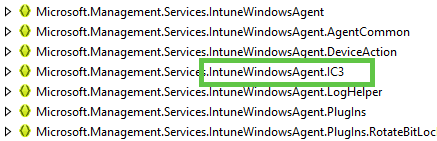
If the IME also begins using IC3 as a primary notification channel, several changes could become likely. IME workloads could become truly real-time. In my belief, specific Intune Device actions could bypass the Windows Notification (WNS) stack entirely, allowing them to execute faster and more reliably.

Could that be why all Intune remote actions are listed in the Intune Management Extension ActionName function?
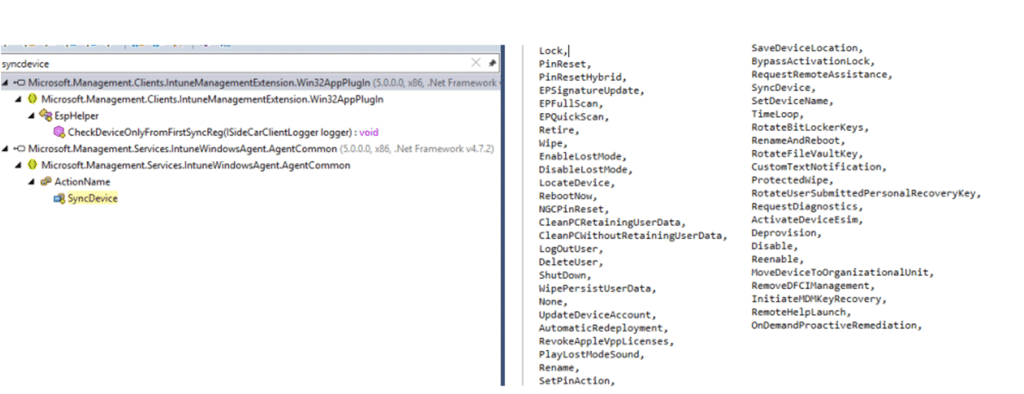
This would separate IME signalling from WNS, leaving WNS to focus on policy wake-ups rather than device action execution. The IME could eventually operate like a continuously connected agent, receiving instructions instantly (like a remote wipe??) and executing them as soon as they arrive… within seconds instead of maybe?
And Where Does MMP-C Fit?
I already covered MMP-C in detail in a separate blog, so no need to repeat the entire story here. With IC3 now appearing inside the IME, the bigger picture becomes much easier to see.
IC3 is the evolution of IME signalling.
It moves IME workloads toward real-time task execution for apps, scripts, remediations and IME-driven actions.
MMP-C is the evolution of OMA-DM.
It modernizes policy delivery by replacing a lot of SyncML round-trips with a declarative configuration model managed by the Windows Declarative Configuration (WinDC) service.
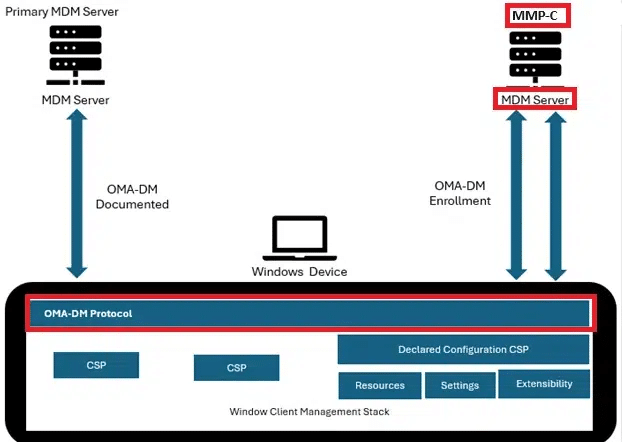
For anyone who wants the full breakdown of MMP-C, the dedicated article explains how the new policy pipeline works and why it was needed:
https://patchmypc.com/blog/mmp-c-the-future-of-windows-device-management-with-intune/
With MMP-C and IC3 coming, the future could look like this:
Policy side:
OMA-DM → OMA-DM + MMP-C
Workload side:
IME→ IME + IC3
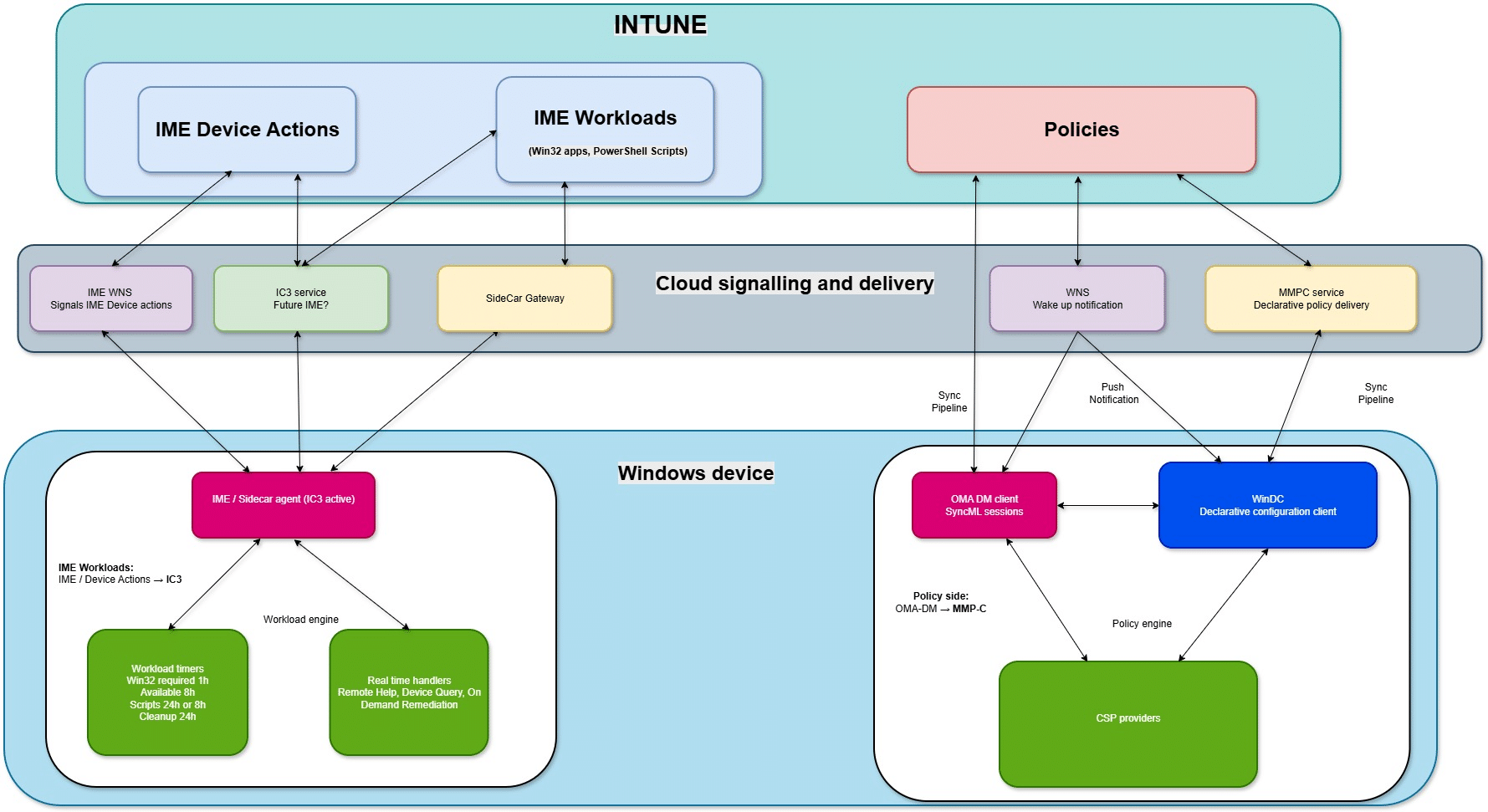
Two engines…Each gets its own upgrade path.
Final Summary: Why Two Engines Exist and Why Both Will Evolve
Windows device management was never designed to run on a single engine (OMA-DM).
The architecture is split by design:
OMA-DM exists to apply policies
It handles SyncML, CSPs, and policy state.
Its future evolution is MMP-C.
IME exists to execute tasks.
It handles Win32 apps, scripts, remediations, and push-triggered actions such as device query
Its future evolution is IC3.
They were built for different responsibilities; they run on different schedules and respond to different triggers. And they will continue to evolve in parallel, one becoming a modern real-time configuration pipeline and the other becoming a modern real-time workload engine.
Understanding that split is the key to understanding every “sync delay,” every “why didn’t this run,” and every strange timing mismatch administrators see today.
Windows isn’t inconsistent. Intune isn’t random. You’re just watching two different engines, doing two different jobs, on two different timelines, heading toward two different modern upgrades.