
This article is designed to help customers using the Patch My PC Publisher, particularly those with Intune publishing enabled, ensure that their configuration is accurate and aligned with its intended purpose.
In certain versions of the Publisher, when the new filter selection function was used and the user switched between tabs (for example, between Intune Apps and Intune Updates), some settings could unintentionally carry over to the other tab.
In this scenario, product selections, right-click options, or assignments may have been duplicated across tabs without the user intending it.
Topics covered in this article:
- Understanding the Issue
- Impact By Platform
- Impacted Versions
- Fixed Version
- Am I Impacted?
- Restoring Configurations
- Client-Side Remediation
- Contacting Support
Understanding the Issue
In Publisher version 2.1.37.0, released 28th August 2025, we introduced a new filter button in the Publisher UI. This feature allows you to reduce the size of the product tree by displaying only the products that are currently selected for publishing.
- Before
The product tree showed all available vendors and products, which could be lengthy and harder to navigate. - After
When the filter button is enabled, the tree is condensed to show only the products you’ve selected for publishing, making it easier to review and manage your configuration.
You can toggle the filter on or off at any time by using the filter button in the toolbar.
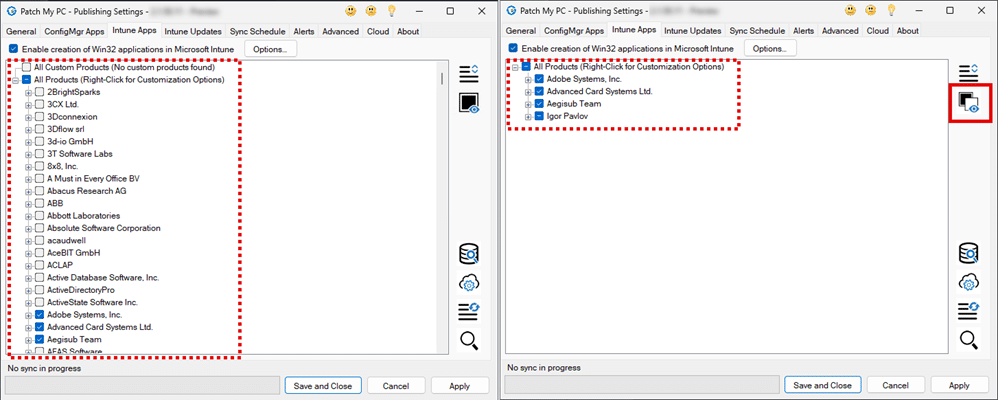
A configuration overlap could occur, settings and selections copied from 1 tab to another, if the following sequence was followed, using the filter option, in an impacted version of Publisher:
- Apply a filter on Tab 1 (e.g. Intune Apps).
- Apply a filter on Tab 2 (e.g. Intune Updates).
- Make a change on Tab 2.
- Click Apply to save changes.
- Return to Tab 1.
- Remove the filter (unfilter).
- Make a change on Tab 1.
- Click Apply again.
In this scenario, settings from Tab 2 may have carried over into Tab 1.
While this article primarily focuses on Intune environments, where configuration overlap could result in unintended application deployments, it’s important to note that customers using Publisher for ConfigMgr and WSUS updates may also find those tabs affected (ConfigMgr Apps / Updates). Although the impact in ConfigMgr and WSUS is typically low, we recommend reviewing your product selections and publishing configurations to ensure they match your intended setup.
Impact by Platform
When the filter scenario described above occurred, right-click options, customizations, product selections and assignments could carry from one tab to another. The way this manifests varies depending on the platform:
ConfigMgr
In ConfigMgr, unintended applications may have been created, although they will not deploy unless manually assigned.
- If product selections carried from the Updates tab into the ConfigMgr Apps tab, applications could have been created in ConfigMgr without the customer intending to select them.
- These applications are not deployed automatically, so while they may exist in ConfigMgr, they will only impact devices if the customer later chooses to deploy them.
- Impact level: Low
WSUS
In WSUS, additional updates may have been marked for publishing, which could influence ADR behavior
- If selections moved from the ConfigMgr Apps tab into the Updates tab, additional updates could have been marked for publishing to WSUS.
- If an ADR rule later evaluated those updates after a Software Update Point (SUP) sync, they may have been deployed unintentionally.
- In this case, devices may have received updates the customer did not explicitly plan to publish, though typically this will align with standard update workflows.
- Impact level: Low
Intune
In Intune, duplicated product selections across tabs may have resulted in applications or updates being deployed, even if that was not the original intent.
- If selections moved between the Intune Updates and Intune Apps tabs, product selections, options, and assignments could all carry across.
- Since Intune Updates are often deployed as required to device or user groups, those same assignments may also have been configured on the Intune Apps tab.
- This could result in some applications being deployed as required unintentionally.
- Impact level: High
Impacted Versions
This issue may arise in the following versions of the Patch My PC Publisher when the filter option is used.
- 2.1.37.0 – Released 28th August, 2025
- 2.1.41.0 – Released 4th Septermber, 2025
- 2.1.43.0 – Released 11th September, 2025
- 2.1.46.0 – Released 18th September, 2025
Fixed Version
The issue was identified and resolved in Publisher version 2.1.50.0. Any version higher than 2.1.50.0 includes the fix.
- 2.1.50.0 – Released 25th September 2025
Important: If the filter option was used in an earlier impacted version, configuration overlap may still be present in your environment. Please review the Am I Impacted? section below to confirm whether your configuration requires attention
Am I Impacted
You can determine if you have been impacted in two ways:
- Run the Provided Support Script (recommended)
- Perform a visual check in Publisher
Run the Provided Support Script
- Open PowerShell as Administrator on the server where Patch My PC Publisher is installed.
- Copy and paste the below into the console and hit enter
Set-ExecutionPolicy Bypass -Scope Process -Force; [System.Net.ServicePointManager]::SecurityProtocol = [System.Net.ServicePointManager]::SecurityProtocol -bor 3072; iex ((New-Object System.Net.WebClient).DownloadString('https://patchmypc.com/Publisher-ConfigOverlap-Impact-Check.ps1'))
You can review the PowerShell script here on our GitHub: CustomerTroubleshooting/PowerShell/Publisher-ConfigOverlap-Impact-Check.ps1 at Release · PatchMyPCTeam/CustomerTroubleshooting
Understanding the Script Output
Impacted: <Yes/No>
This value indicates if you are impacted.
- No
No further action is required. We reviewed thesettings.xmlfile and did not find any conditions suggesting you are impacted. - Yes
We identified a configuration in thesettings.xmlfile that indicates your environment has been impacted, to some degree, by this issue.
Date of Impact: <date>
If you are impacted, this value shows the date when an affected version of Publisher was installed. In the next step, if the advice is to restore from a backup, that backup must have been created before this date to ensure the restored configuration is not impacted by the issue.
Scenario: <1/2/3>
An integer value will appear here. The scenario number helps our support team provide clear, tailored guidance on whether and how you should restore your configuration.
Advice: <advice based on impact level>
The conditions we identify in the settings.xml file will determine the next course of action you should follow. The script will output one of:-
- Backup found on disk. Please restore from backup created on found at <path>
We recommend restoring the Publisher configuration to a point just before you installed an impacted version of Publisher. The .cab file we found on disk contains your saved configuration. When you restore it, your customizations and selections will be brought back to their previous state. - Backup not found on disk. Please restore from backup created on or before
We did not detect a suitable backup file on the system. If you maintain backups through a third-party solution such as Veeam, Commvault, Azure Backup, or another enterprise backup product, please restore a backup of the Publisher configuration that was created on or before the date you first installed an impacted version. - Remove these apps from Intune <guid><guid>
In some cases, we cannot confirm whether certain apps were intentionally published. However, there are apps in our catalog that should not be published as either an app or an update. If our checks against thePatchMyPC-PublishingHistory.csvfile show that these apps have been published, we will list their Win32 app IDs here. You should use these IDs to identify and delete the apps from Intune.
Note: Refer to Restoring Configurations for details on how to restore from backup and/or delete apps via the Intune Admin Center.
Perform a Visual Check in Publisher
For customers publishing apps and updates to Intune:
- Open the Intune Apps and Intune Updates tabs and check for products that appear in both when you would only expect them in one. For example, a product you intended to select only on the Intune Updates tab may also be selected on the Intune Apps tab.
- Verify that assignments applied at both the All Products level and the individual product level match your expectations. For example, a product you expect to be deployed as required on the Intune Updates tab should not also be deployed as required on the Intune Apps tab.
For customers also publishing apps and updates to ConfigMgr and WSUS:
- Open the ConfigMgr Apps and Updates tabs and look for the same products appearing in both where you wouldn’t expect them.
Cross-Platform Review
In addition to reviewing the Publisher UI, we recommend checking directly in the Intune admin center and the ConfigMgr console to confirm whether any applications or updates were published unexpectedly.
Restoring Configurations
Restoring your Publisher configuration from a known good backup is the safest way to prevent future issues where products may be unintentionally published to Intune or assigned incorrectly. While manual review of settings in the Publisher UI can help, it may not always catch subtle overlaps or assignment carry-overs caused by the issue. By restoring from a backup created before the impacted version was installed, you return your environment to a clean state where product selections, right-click options, and assignments reflect only what you intended, ensuring no unexpected apps or updates are published or deployed in Intune moving forward.
Option 1 – Restore Configuration from Backup
If a valid .cab backup file has been found on disk, or you are able to recover one from your own backup solution, the following steps will help you to restore your Publisher configuration.
IMPORTANT: Restoring from a backup will overwrite your current Publisher configuration. Any changes made after the impact date will be lost. However, we strongly recommend restoring a known good configuration to ensure stability and prevent future impact.
- Open the Advanced tab in the Publisher.
- Click Import settings from a file.
- Browse to the backup .cab file and select it.
- After the import completes, a confirmation message box will appear. Click OK.
Note: The restored settings will be visible in the Publisher UI immediately, but they will not take effect until you click Apply.
Option 2 – Manually Restore Configurations
If no valid backup file was found on disk, and you do not have one from another source before the impact date, we recommend manually reviewing your configuration in the Publisher UI.
We highly recommend deleting the existing settings.xml file and starting with a new configuration. We understand this reconfiguration work will take some time, but it is the most reliable way to remove hidden overlaps and prevent unintended product selections or assignments moving forward if you do not have a backup to restore to. See Contacting Support below to book a support session so we can guide you through this.
If starting fresh is not feasible, you should carefully review your existing configuration in the Publisher UI:
- Check product selections on both the Intune Apps and Intune Updates tabs to ensure only the intended products are selected.
- Review assignments at both the All Products level and the individual product level to confirm they match your deployment plan.
- Validate right-click options and customizations (such as scripts, settings, or overrides) to ensure they are only applied where expected.
If after this review you are confident that your apps are publishing and configured as expected, you can continue with your existing configuration.
Client-Side Remediation
If applications or updates have already been published or deployed unintentionally due to configuration overlap, the following steps can help remediate the impact across Intune, ConfigMgr, and WSUS environments.
ConfigMgr
Unintended applications created in ConfigMgr will typically just exist in the console and will not deploy unless manually assigned. Customers can safely delete these applications from the ConfigMgr console. No further remediation is required unless the apps were manually deployed after they were created.
WSUS
If updates were unintentionally published to WSUS, they may have been evaluated by an Automatic Deployment Rule (ADR) and deployed to devices. You can use the Publisher to decline these updates:
- Open Patch My PC Publisher.
- Go to the Updates tab.
- Click the Options button, then Run Wizard.
- Select the updates that were published unintentionally.
- Click Decline.
On the next Software Update Point (SUP) sync, these updates will be declined and no longer deployed.
Intune
Remediation in Intune may require more steps, especially if apps or updates were deployed with unintended assignments.
- Open the Intune Admin Center.
- Navigate to Apps > Windows and add the Last Edited column.
- Identify apps or updates published after the date you were impacted.
- Review the assignments for these apps:
- If assignments were added unintentionally, remove them.
- If the app was deployed unintentionally and needs to be removed from devices:
- Leave the app in place.
- Remove the unintended assignments.
- Add a new assignment with the Uninstall intent.
- Target an Entra ID group containing the affected devices.
Once client-side remediation is complete, we recommend deleting any apps or updates that were published unintentionally to ensure your environment remains clean and aligned with your intended configuration.
Contacting Support
If you have run the script and the script indicates that you have not been impacted, you do not need to contact us. If you need help with anything else, please create a support case.
If you haven’t run the script, but after reviewing this KB you believe you may have been affected by a configuration overlap and would like assistance, please feel free to schedule a support session.