
The App In Use feature adds a missing piece to Win32 app enforcement in Intune. It gives admins a way to tell Intune which process matters, what should happen if that process is still running, and whether the user should be notified before IME closes it.
That sounds simple in the portal, but there is more going on underneath. Intune combines the app rule with assignment settings, turns that into policy, and sends it to the Intune Management Extension. IME then decides whether the named process is running, whether it needs to show a prompt, and how it should continue with enforcement.
This article starts with the portal view, then shows the actual user experience on the device, then walks through the flow in a simple way before zooming in on the smaller parts that matter.
What the admin configures in Intune
On the Program page of a Win32 app, the admin can now tell Intune to look for a specific process before enforcement starts. In the example below, Intune is configured to check for cmd.exe. The admin chose to close the process and enforce the assignment, and also enabled the option to notify the user before the process is closed.
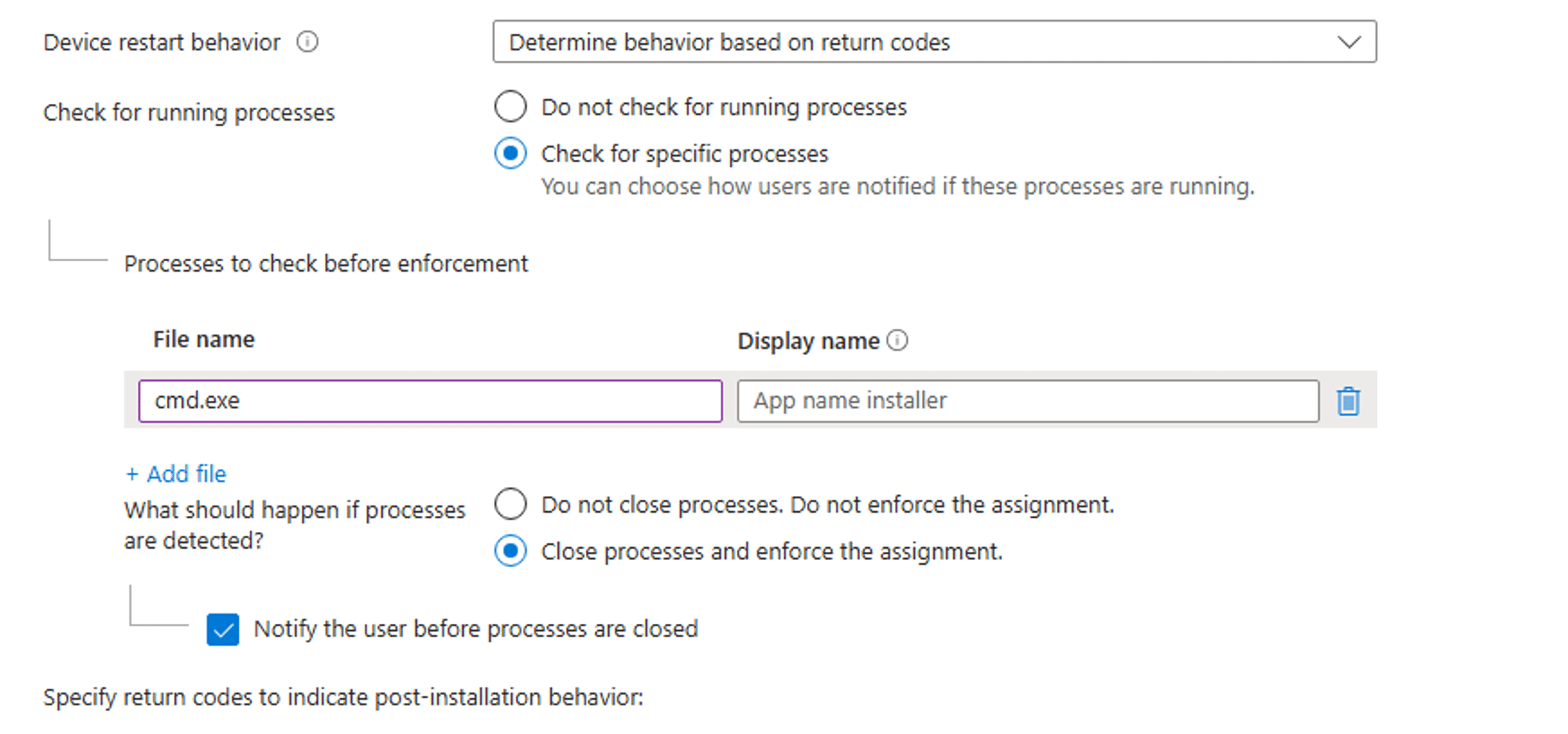
That is only the first half of the configuration. The assignment can also carry timing information such as the number of deferrals, the wait time between reminders, and the final countdown before the install continues. Those settings are later combined into the policy that IME receives.
What the user sees on the device
This is the most useful update to the article. The screenshot below shows the real user facing App In Use prompt style. Instead of a modern white dialog, the prompt uses the classic blue IME software distribution window.
The title reads Microsoft Intune software distribution. The body tells the user that the organization is installing the app and that software currently in use must be closed before the installation can continue. The running process is shown in a bullet list, the countdown is shown in the middle, and the action button is Close now and install.
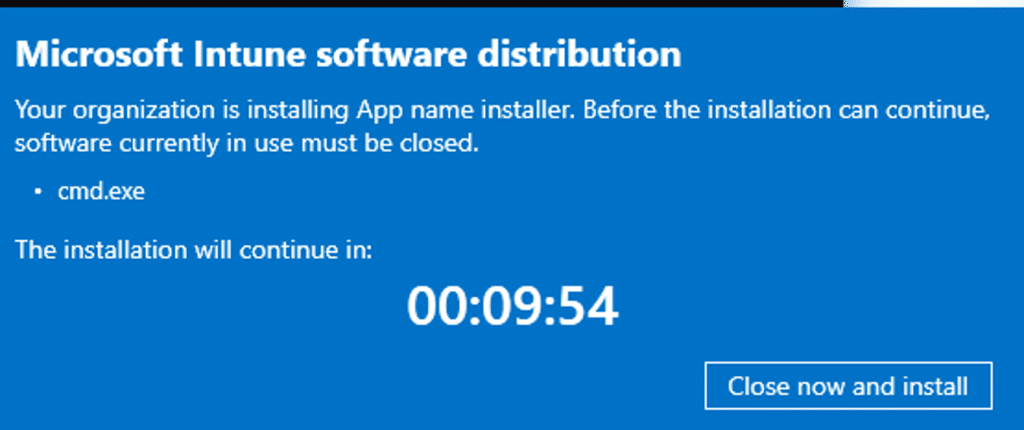
Observed App In Use prompt: the blue IME software distribution window shown on the device.
This screenshot also helps sharpen the wording around the feature. At least in this prompt state, the visible action is Close now and install. A defer option is not visible here, which suggests that the exact buttons can depend on policy or on the prompt state that IME chooses for that session.
The whole App In Use flow in one picture
At a high level, the flow is straightforward. The admin creates the setting in Intune. Intune turns that into policy. IME reads the policy, checks whether the process is running, and only shows the prompt when it is needed. If the process is not running, IME skips the prompt and continues with the normal Win32 app install.
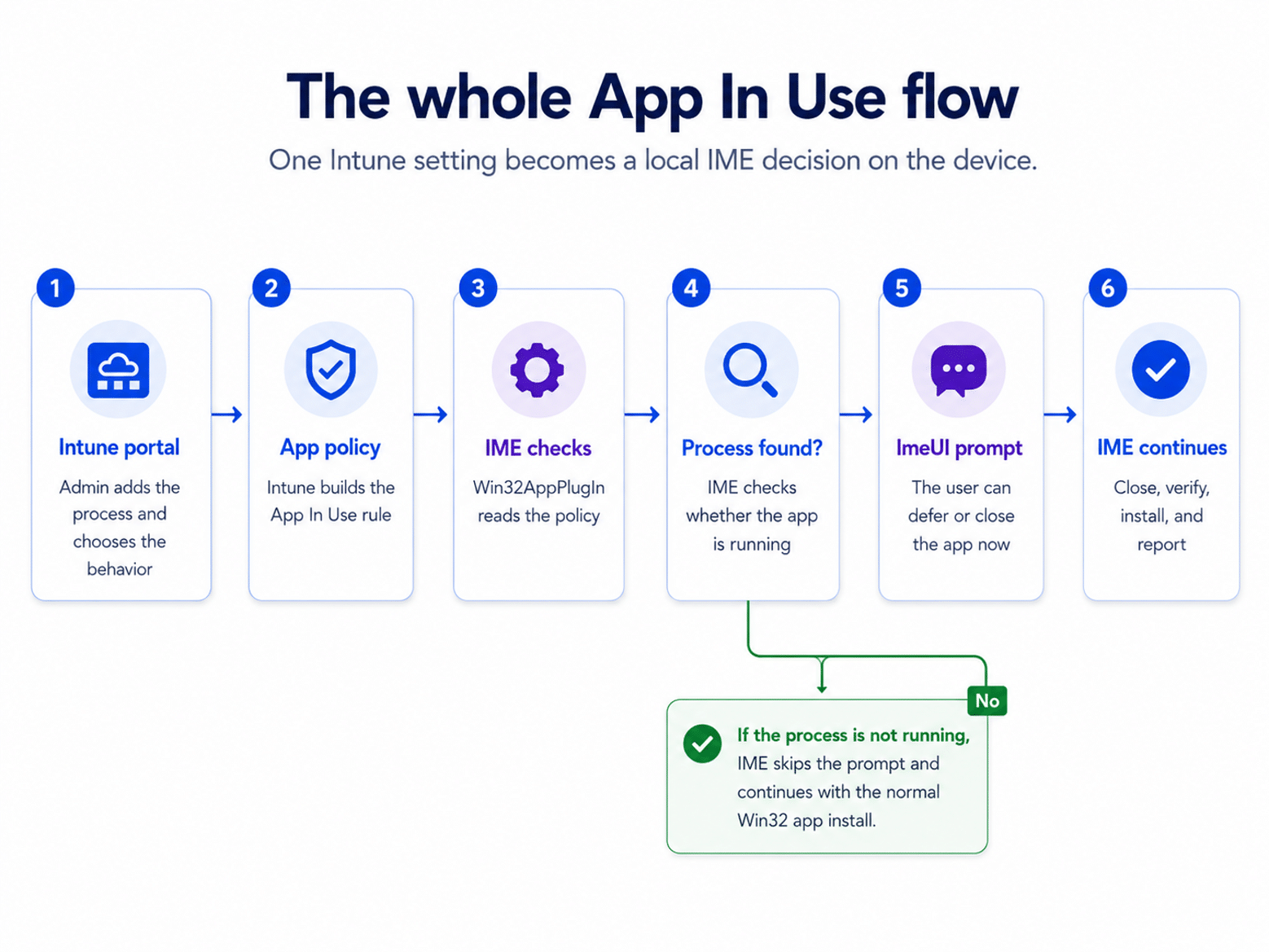
Simple overview: portal setting, policy, local check, prompt, and the final IME action.
How the portal setting becomes an IME policy
The next step happens before the user ever sees a popup. Intune combines the Program page configuration with the assignment settings and builds the policy that belongs to the app. During app check in, IME retrieves that data, and Win32AppPlugIn reads the InUseExperience section that defines the App In Use behavior.
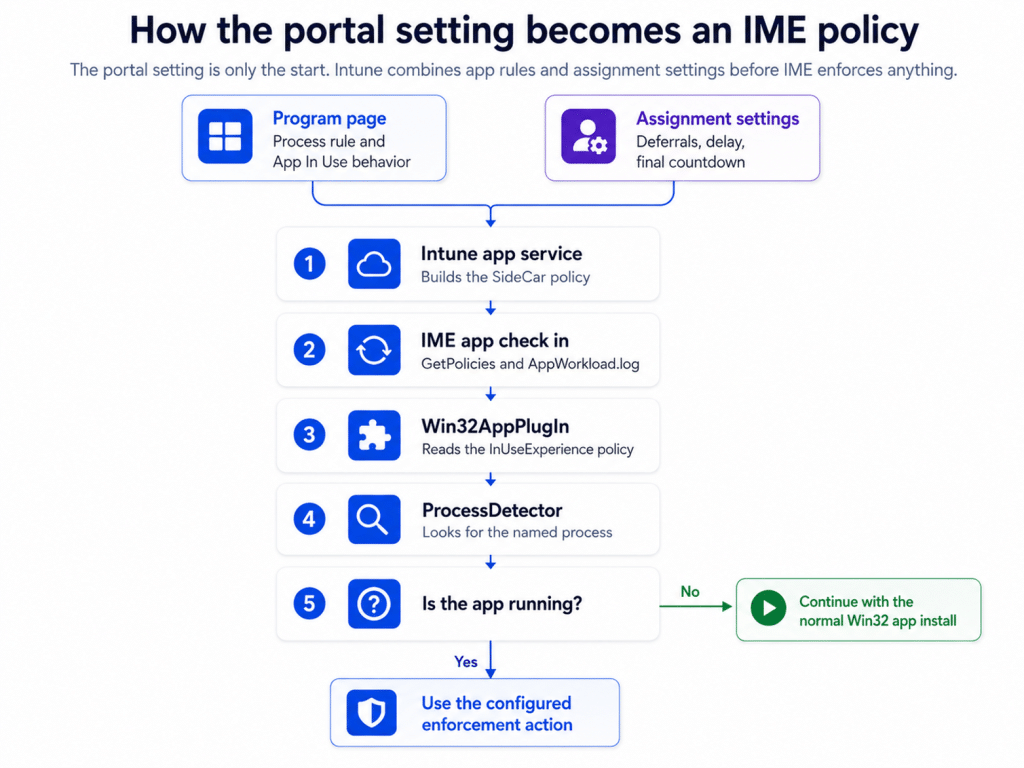
Portal settings and assignment settings are combined before Win32AppPlugIn reads the App In Use policy on the device.
This is why the portal screenshot only shows part of the story. The process rule starts the feature, but the full user experience depends on the combined policy that Intune builds and IME consumes.
How the prompt talks back to IME
ImeUI is the visible part of the experience, but it is not the final decision maker. Win32AppPlugIn decides whether a prompt is needed, launches ImeUI in the user session, checks the user notification state, and then waits for the result that comes back from the prompt.
That result can represent actions such as close now or defer, but it can also represent states like cancel, timeout, or launch error. IME then uses that returned result together with policy and local state to decide what the next enforcement step should be.
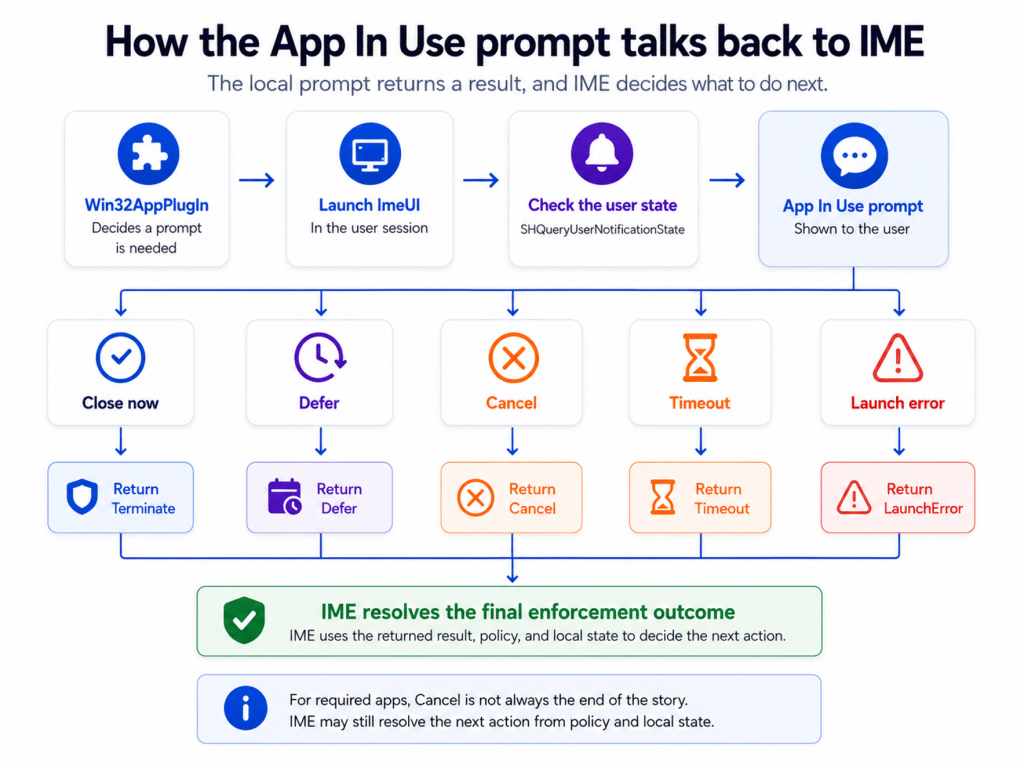
ImeUI returns a result to IME, and IME resolves the final enforcement path.
This also explains why the visible popup is only one layer of the design. The user action matters, but IME still owns the final enforcement outcome.
How IME closes a running app safely
The last important part is the close logic itself. App In Use is not just a friendly prompt. The code shows that IME verifies the process handle, chooses the close method, checks the outcome, and verifies that the process is really gone before it moves on.
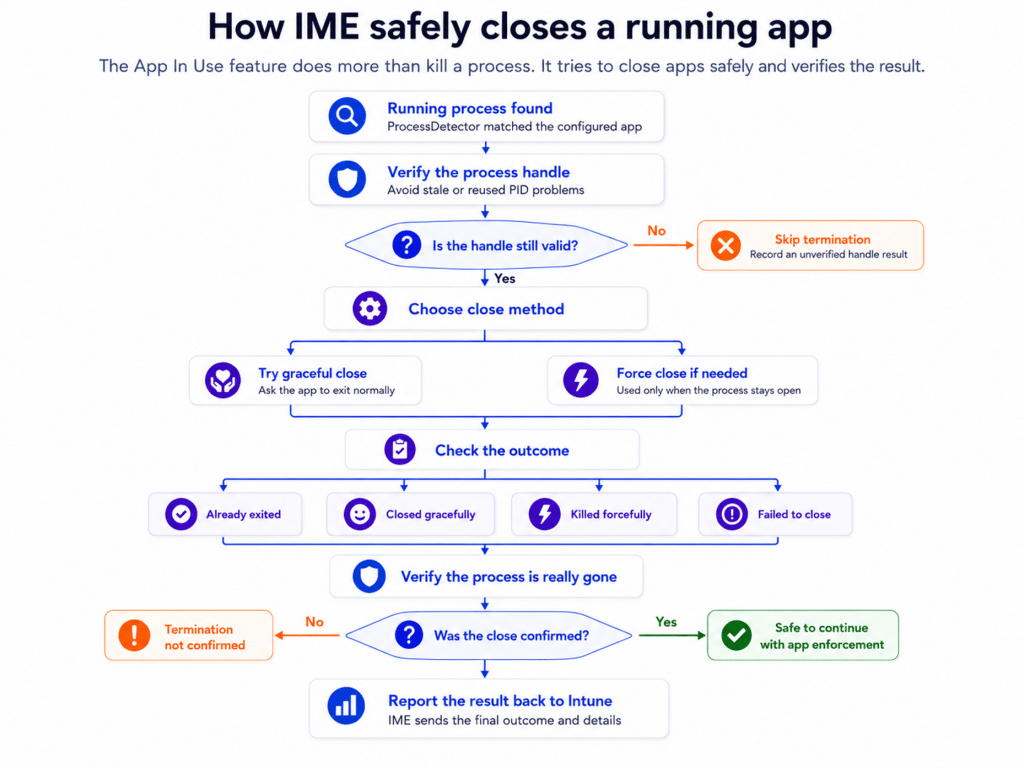
IME does more than kill a process. It tries to close the app safely and verifies the result.
That verification step is important because it reduces the chance of acting on a stale or reused PID and gives Intune a better enforcement result to report back.
Why the screenshot and the code fit together
The real screenshot tells us what the user sees. The code evidence tells us why the prompt behaves that way. The ImeUI resources in IME 1.105.101.0 expose the App In Use title pattern, the body wording, the countdown text, and the button strings. That is why the blue prompt screenshot and the resource evidence line up so well.
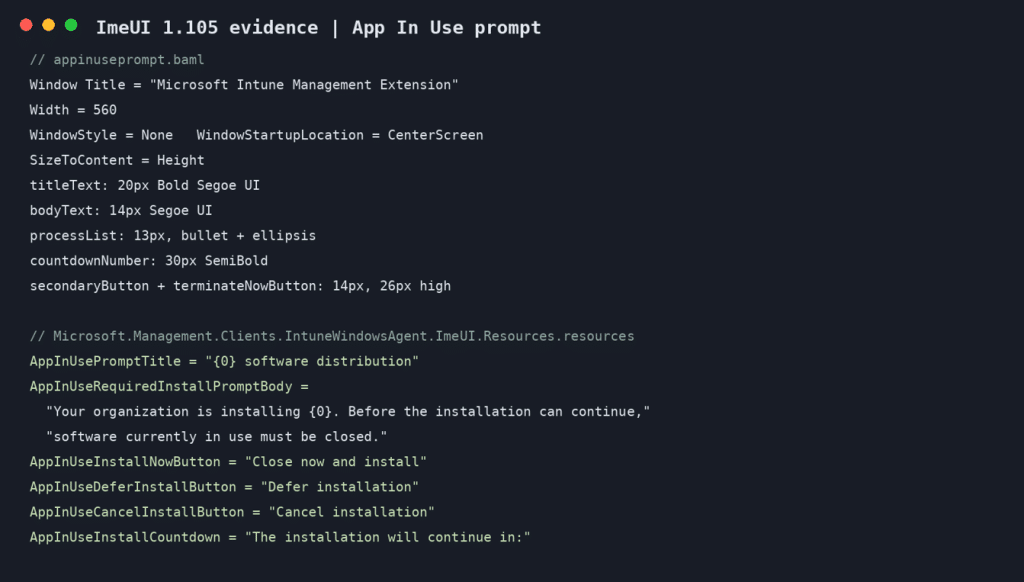
ImeUI evidence: App In Use strings and layout metadata from the real IMEUI resources.
The prompt contract and process handling code also help explain the behavior behind the window. One side describes the results that the prompt can send back. The other side shows how IME handles process verification and termination.
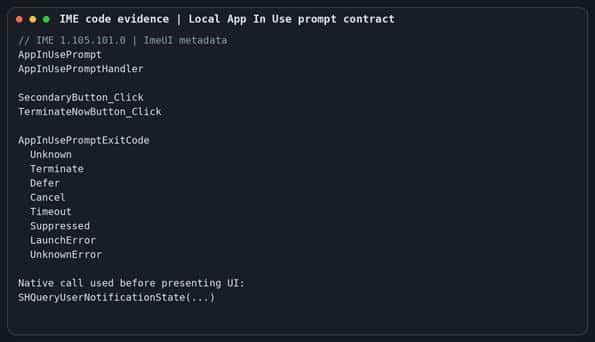
Prompt contract: the result values that ImeUI can return to IME.
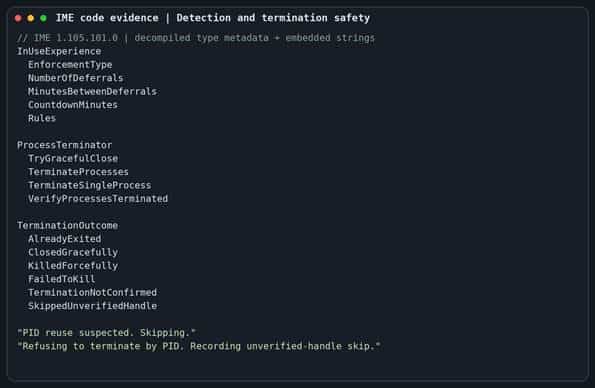
Process safety evidence: IME verifies the handle and records the final termination outcome.
Why this matters
App In Use matters because it improves a part of Win32 app enforcement that used to be rough for both admins and users. It gives admins a clearer way to define what should happen when an app is already open, gives users a clearer message on the device, and gives IME a safer and more predictable enforcement flow.
The most visible part of the feature is the blue IME prompt, but the real story is the chain behind it. Intune stores the setting, builds the policy, IME reads it, Win32AppPlugIn decides when to act, ImeUI shows the prompt, and IME finishes the enforcement. Once those parts are connected, the feature becomes much easier to understand.