
System Error 1612 occurs when Windows Installer cannot locate the .msi file for a product that is already installed on the system. This error most commonly appears during uninstall, repair, or update operations and indicates a problem with the Windows Installer cache, not with the application itself.
This article explains how MSI caching actually works, why error 1612 occurs, how to confirm the root cause, and the supported paths to resolution.
How Windows Installer uses MSI files
When an MSI-based application is installed or updated, Windows Installer does two critical things:
- Caches a copy of the MSI to:
C:\Windows\Installer\<random>.msi - Writes registry data that tells Windows Installer where it can find the MSI in the future. These locations include:
- The cached MSI in
C:\Windows\Installer - One or more original source locations (for example:
ccmcache,IMECache, network shares, or local folders)
- The cached MSI in
Note: The directory
C:\Windows\Installeris hidden by default; to browse to it you need to either enter the full folder path in the address bar of File Explorer, or show hidden files and disable the folder option Hide protected operating system files.
Windows Installer requires access to the MSI for any future operation on that product. Specifically: uninstall, repair, modify, and patch operations. If Windows Installer cannot find the MSI using these mechanisms, the operation fails with exit codes such as:
- 1612: “The installation source for this product is not available. Verify that the source exists and that you can access it.“
- 1706: Many software use this exit code for this scenario but with a custom message:
- “No valid source could be found for product Adobe Acrobat Reader. The Windows Installer cannot continue.“
- 1714: Many software use this exit code for this scenario but with a custom message:
- “The older version of Google Chrome cannot be removed. Contact your technical support group.“
- “The older version of Microsoft SQL Server Native Client cannot be removed.“
- “The older version of Adobe Flash Player 32 ActiveX cannot be removed. Contact your technical support group.“
- 1603: “Fatal error during installation.“
- You may see these in WUAHandler.log for the ConfigMgr client failing to install a third party software update in this scenario:
- 0x8024002d (-2145124307): “A full-file update could not be installed because it required the source.“
- 0x80240022 (-2145124318): “The wrong diskette is in the drive. Insert %2 (Volume Serial Number: %3) into drive %1.“
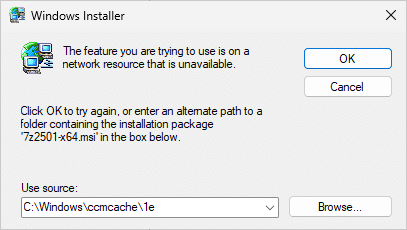
If you’re trying to perform any of these operations interactively, the failure can present itself like so:
Where Windows Installer looks for the MSI
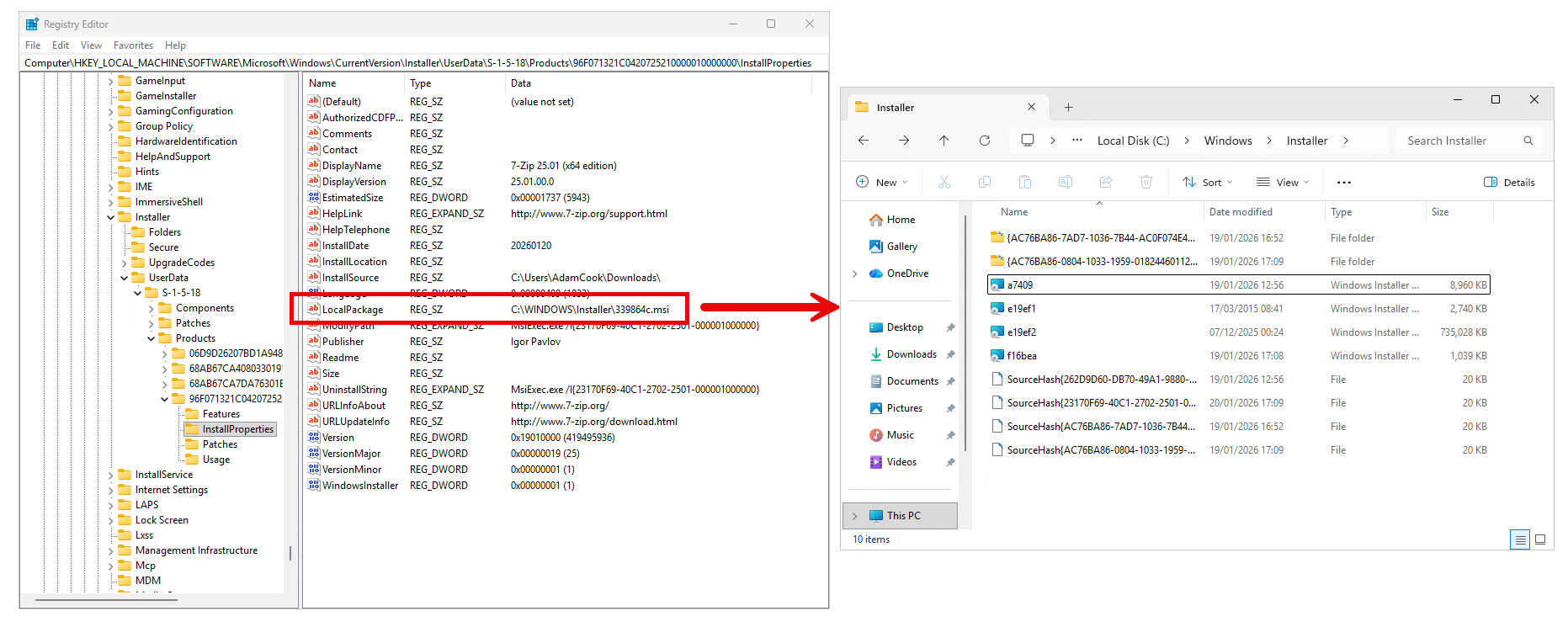
When trying to perform an uninstall or update, the first location Windows Installer checks is the cached MSI referenced by the LocalPackage value in the registry:
HKEY_LOCAL_MACHINE\SOFTWARE\Microsoft\Windows\CurrentVersion\Installer\UserData\S-1-5-18\ProductsUnder this key:
- Each subkey represents an installed MSI product
- The subkey names are compressed (transformed) ProductCode GUIDs
- The
LocalPackagevalue contains the full path to the cached MSI inC:\Windows\Installer
Note: To convert a compressed GUID to an MSI product code, or vice versa, see these PowerShell examples:
– Convert-ProductCodeToCompressedGuid.ps1
– Convert-CompressedGuidToProductCode.ps1
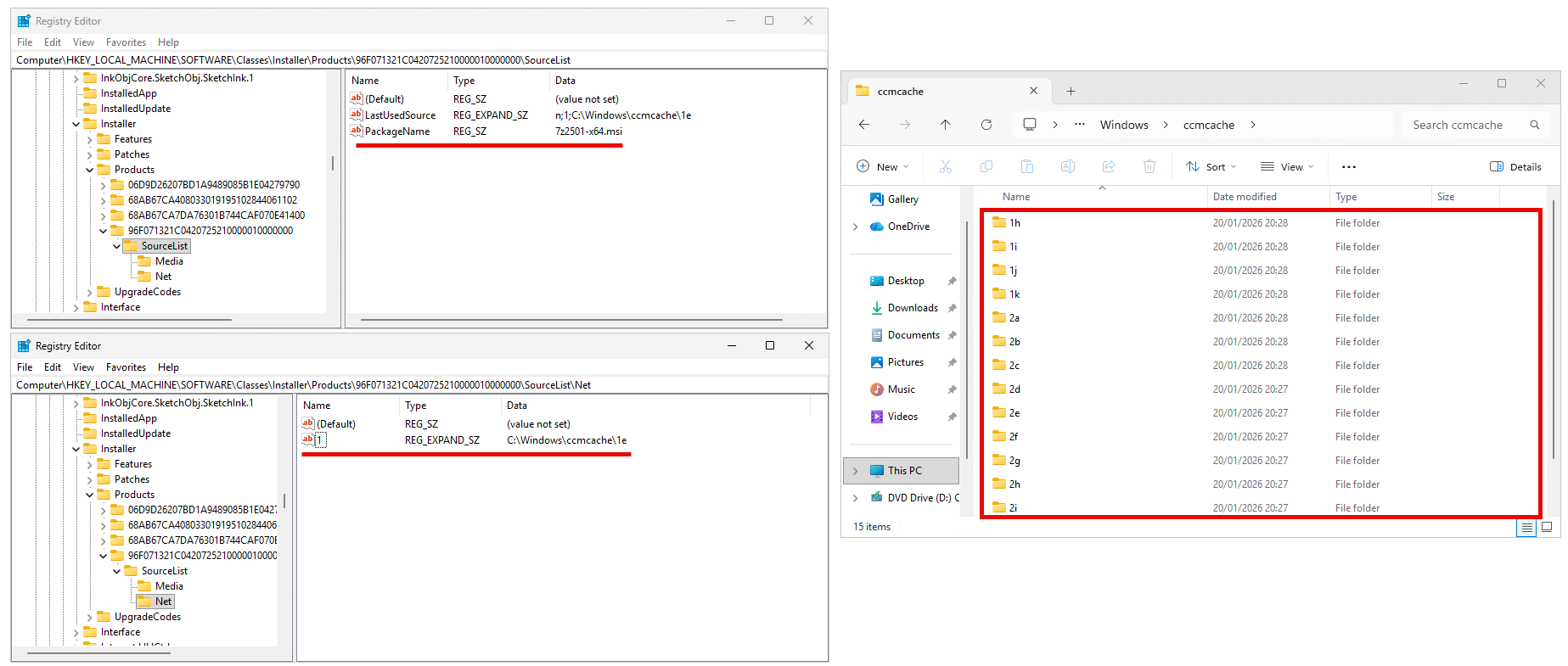
If the MSI file referenced by LocalPackage does not exist, Windows Installer falls back to what’s called the SourceList locations; it enumerates every key beneath this key:
HKEY_LOCAL_MACHINE\SOFTWARE\Classes\Installer\ProductsFor the same matching compressed GUID, it:
- Reads the
PackageNamevalue within theSourceListkey - For each path listed under
Net- Appends the
PackageNamevalue - Checks to see if the file exists
- Appends the
These paths represent historical install locations or paths inserted into the registry via the installer itself at the time of install – they’re not guaranteed to still exist.
Note: For modify or repair operations, Windows Installer does not leverage the
LocalPackagepath and only looks for the original .msi using theSourceList. In other words, if the .msi exists in theLocalPackagepath but not inSourceList, modify and repairs will fail.
In the above example, the install location is within ccmcache which is by design used to store temporary installation files for applications or updates delivered from Microsoft Configuration Manager. Intune uses the C:\Windows\IMECache directory for similar reasons.
Because ConfigMgr and Intune commonly install from ccmcache or IMECache, customers often assume these locations are required long-term. They are not.
These SourceList folders are not designed to be a persistent directory for MSI installer caching, unlike C:\Windows\Installer. However, Windows Installer attempts to look up these last known directories as a fallback mechanism in the event of the installer being missed from C:\Windows\Installer.
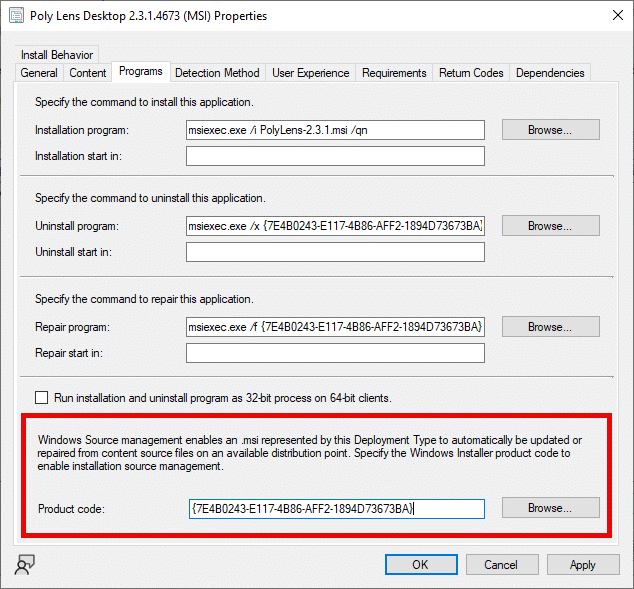
It is worth mentioning that Microsoft Configuration Manager has a built-in feature to replace missing .msi sources from local Distribution Points on client devices within the Deployment Type for Applications:
How does this happen?
In the vast majority of cases, the 1612 error occurs because the cached MSI in C:\Windows\Installer has been deleted.
Common real-world causes for this are:
- Disk cleanup scripts
- Manual cleanup by helpdesk or field engineers
- Third-party “disk cleanup” or “de-bloat” tools
On long-lived Windows devices, this folder’s storage capacity can grow over time. On a machine with a lot of software installed and a lot of history, it can be tempting to delete its contents when you see how much space it is consuming.
However, do not touch this folder! Uninstall any unneeded applications instead, to free up space in the directory. Microsoft states that deleting files from C:\Windows\Installer is unsupported and can permanently break servicing for MSI-installed applications.
If you delete content from this folder, you may not immediately see any problems until you take action such as uninstalling, repairing, or updating a product.
It is strongly recommended that you investigate what is causing the contents of C:\Windows\Installer to be deleted and prevent it from happening again.
Solutions
In this section we will propose three options to you as a means to fix a computer with this issue.
Option 1: Run Microsoft’s program install and uninstall troubleshooter
Microsoft provides a supported utility designed for broken software installations: Fix problems that block programs from being installed or removed – Microsoft Support
It is unfortunately not possible to use this troubleshooting programmatically or silently, only interactively via its UI. As a result, this may not be a suitable solution if you are experiencing this issue on many devices.
However, this is the safest and simplest option and should be considered first.
Option 2: Recache the MSI (if available)
If you are able to retrieve the exact .msi (same software and version) needed by the device, you can use the below msiexec.exe command to recache it on the device. This will update all the necessary registry values for you, too.
msiexec /fvomus "C:\path\to\installer.msi" /qnSome people report reboots occur when using the above command for some software. If you experience the same in your testing, you can use this command instead:
msiexec /i "C:\path\to\installer.msi" /qn REINSTALLMODE=vomus REINSTALL=ALL REBOOT=ReallySuppressBoth of these commands recreate the cached MSI inside C:\Windows\installer and thus restores servicing functionality to uninstall, repair or patch the software again.
Important: The .msi file must match the installed version on the system exactly.
This option is more achievable at scale if you have many devices experiencing the issue because all you will need is a script accompanied by the .msi file(s) needed to recache with the above command.
Option 3: Manual registry cleanup (last resort!)
As an absolute final option, affected registry entries can be removed manually.
Only delete the specific subkeys from the below paths that correspond to the affect application. Do not delete the parent registry keys themselves, as doing so will break Windows Installer for other installed software.
You can use the previously shared PowerShell code in this article to help convert MSI product codes to compressed GUIDs and vice versa to help you identify the correct registry keys.
HKEY_LOCAL_MACHINE\SOFTWARE\Microsoft\Windows\CurrentVersion\Installer\UserData\S-1-5-18\Products
HKEY_LOCAL_MACHINE\SOFTWARE\Classes\Installer\Products
HKEY_LOCAL_MACHINE\SOFTWARE\Microsoft\Windows\CurrentVersion\Uninstall
HKEY_LOCAL_MACHINE\SOFTWARE\WOW6432Node\Microsoft\Windows\CurrentVersion\Uninstall
For example, following the “7-Zip 25.01 (x64 edition)” example in the screenshots I’ve used in this article:
- Compressed GUID:
96F071321C0420725210000010000000 - MSI product code:
23170F69-40C1-2702-2501-000001000000
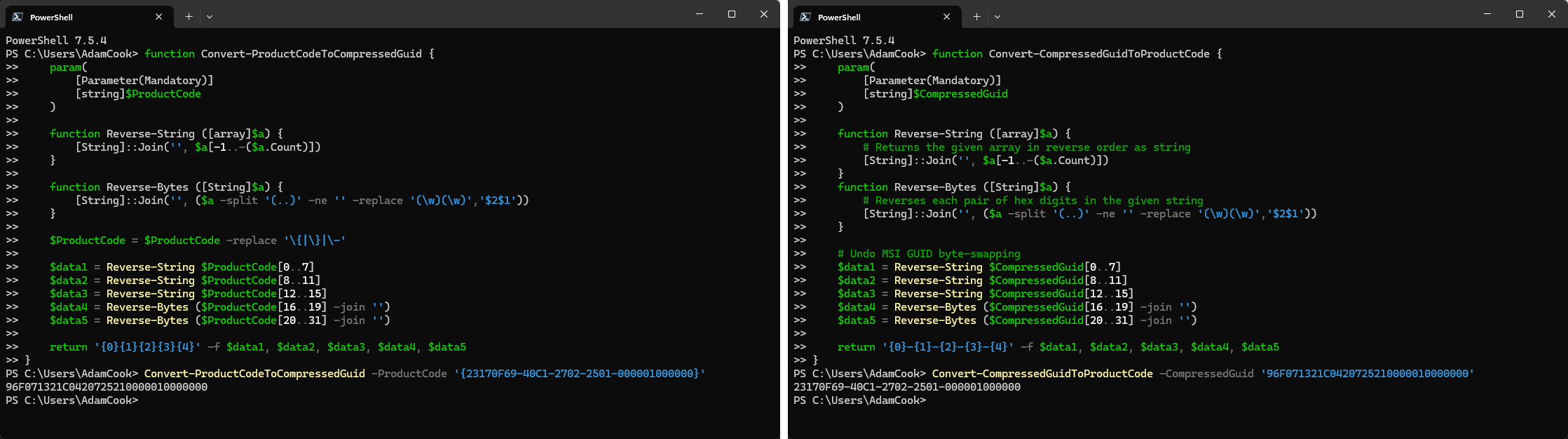
Therefore I would delete the following registry keys (as an example):
HKEY_LOCAL_MACHINE\SOFTWARE\Microsoft\Windows\CurrentVersion\Installer\UserData\S-1-5-18\Products\96F071321C0420725210000010000000
HKEY_LOCAL_MACHINE\SOFTWARE\Classes\Installer\Products\96F071321C0420725210000010000000
HKEY_LOCAL_MACHINE\SOFTWARE\Microsoft\Windows\CurrentVersion\Uninstall\23170F69-40C1-2702-2501-000001000000
Important: This approach might not be supported by Microsoft and may introduce future instability. However, it usually works by allowing you to install the new version.
Resources
Restore missing Windows Installer cache files – Windows Client | Microsoft Learn
Can you safely delete files in the %windir%Installer directory? | Microsoft Learn
Windows Installer source list update fails – Configuration Manager | Microsoft Learn
Restore the missing Windows Installer cache files – SQL Server | Microsoft Learn
Managing Installation Sources – Win32 apps | Microsoft Learn