
There is an option in the Patch My PC Publisher to store the encryption keys used to create the Intune package files (.intunewin). This is configurable in the advanced tab.
With the keys stored, you can use the Intune Application Manager to download and extract the content of the Patch My PC published Intune applications and updates.
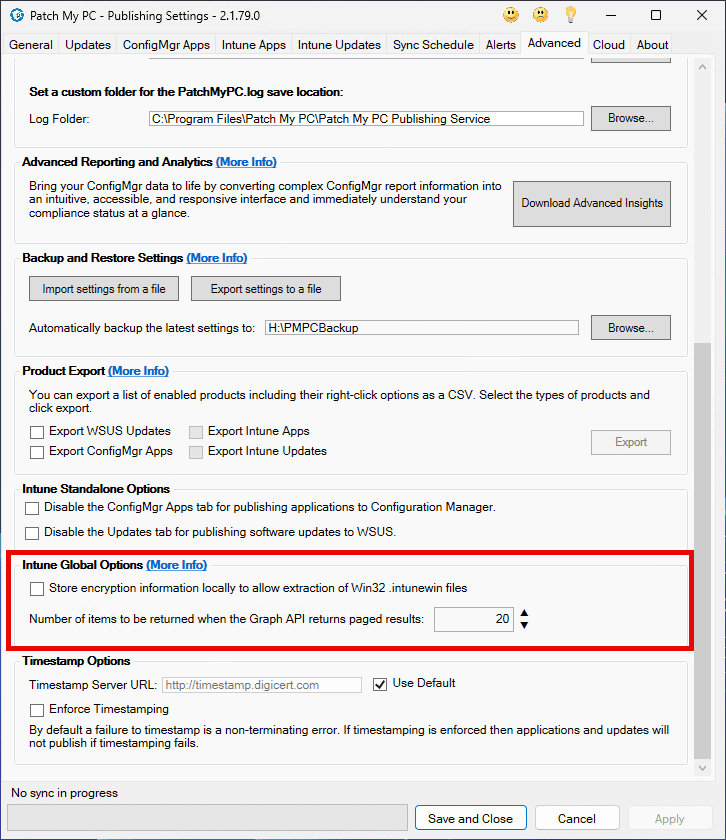
Enable the option to track the encryption keys used to create Intune package files
Navigate to the Advanced tab in the Patch My PC Publisher and under Intune Global Options check the box labelled Store encryption information locally to allow extraction of Win32 .intunewin files

After you click Apply, this new setting will be reflected in the IntuneTenants RetainCryptoInfo element in settings.xml. It will change from False to True
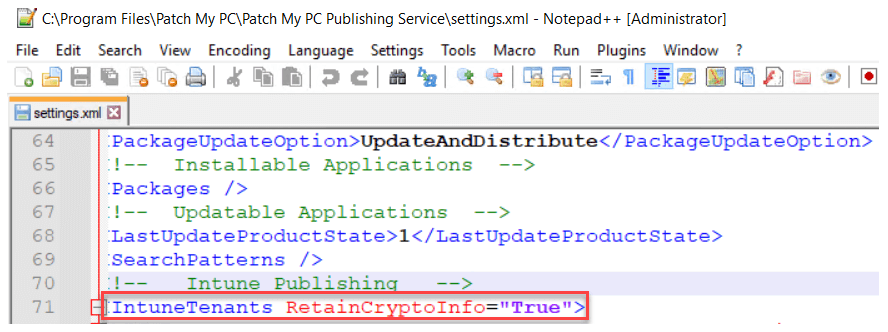
Note: The default location for settings.xml is C:\Program Files\Patch My PCPatch My PC Publishing Service
Using the Intune Application manager to download and extract applications and updates published by Patch My PC
From either the Intune Apps or Intune Updates tab, open the Intune Application Manager
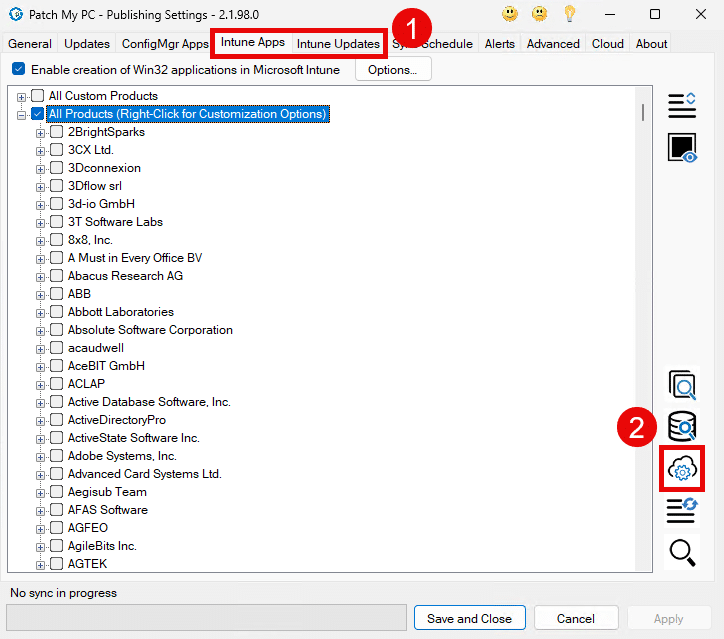
Right click an application and select Extract Content.
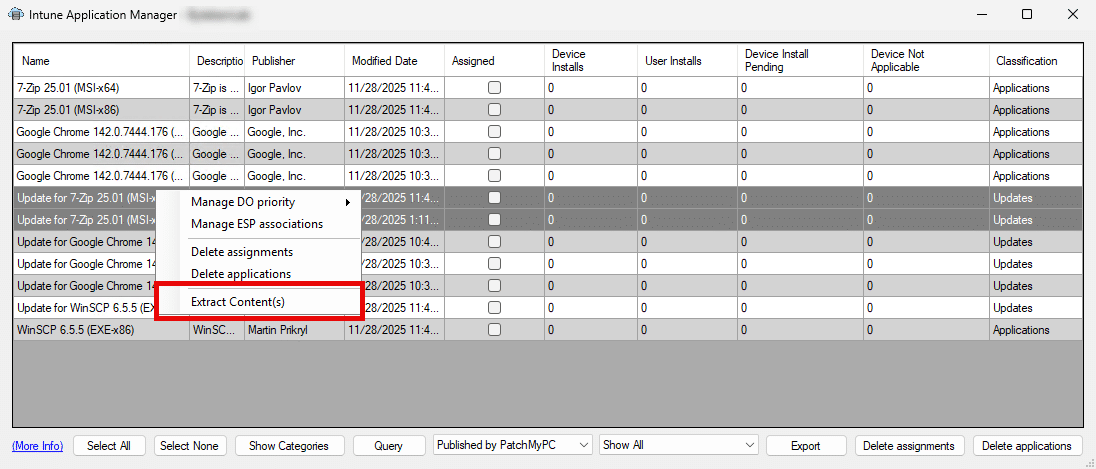
Note: If the Extract Content option is greyed out, it means that the encryption keys were not gathered when the app was published. This is most likely due to the feature being enabled “after” the app or update had been published.
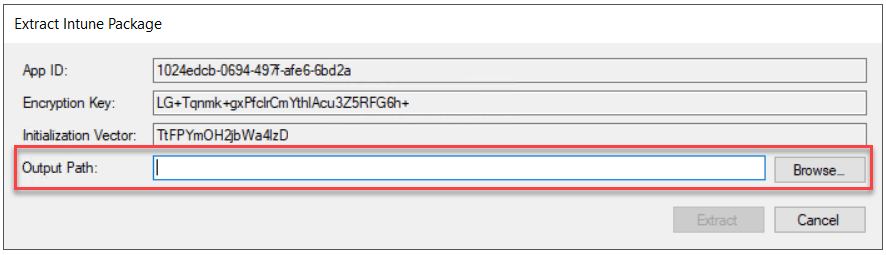
Either enter an Output Path manually or click Browse to choose the output directory.
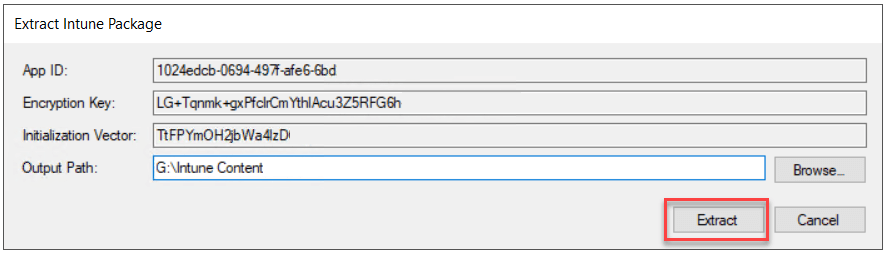
Click Extract
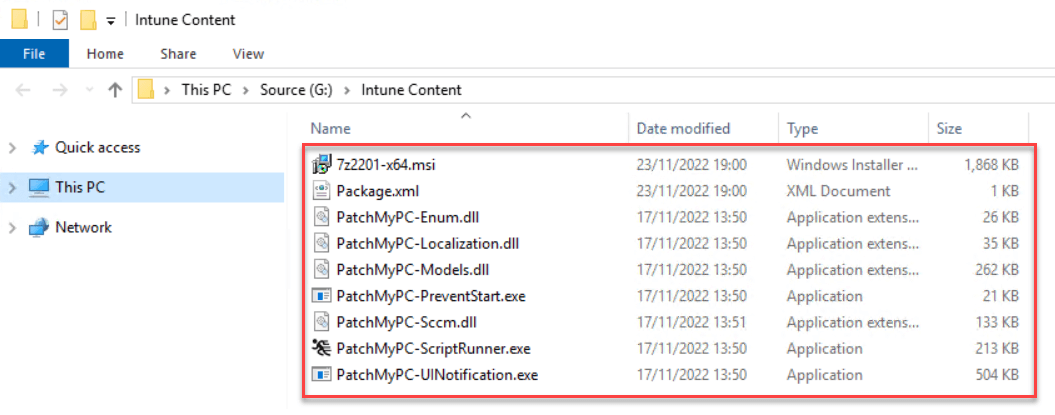
Explorer will open the window to the path specified and display the extracted content
Adjust the number of items to be returned, per page, from Graph
Navigate to the Advanced tab in the Patch My PC Publisher and under Intune Global Options and review the Number of items to be returned when the Graph API returns paged results.

This setting controls how many Intune objects are returned per page when the Publisher queries Microsoft Graph. It’s mainly useful in tenants with a large number of apps, updates, or assignments. Lower values reduce the size of each response (helpful for slow or constrained networks), while higher values reduce the number of round-trip requests needed to retrieve all items. In most environments the default value is recommended.