Frequently Asked Questions

Home Updater

As of August 19, 2025, Home Updater Version 4 is officially deprecated. This means:

  • All users on Version 4 will be automatically upgraded to Version 5.
  • Version 4 will no longer receive updates, security patches, or support.
  • If you were still running the portable build of v4, it will be replaced by the MSI-based Version 5 going forward.
  • Important: Users on 32-bit Windows OS will not be auto-migrated, since Version 5 is only supported on 64-bit Windows. Because we will no longer maintain the catalog for Version 4 or provide updates, we recommend upgrading to a supported Microsoft Windows OS to continue receiving updates and support.

Yes, you can enable the beta updates in Settings > Technical Options > Use the beta channel when checking for Patch My PC Updates.

You also download the latest beta version directly at:

No, the Home Updater is provided for free and is restricted to non-commercial use only.

Please review Section 7 of our Terms of Service in the Home Updater installer for more details; the Home Updater is intended for consumer use only.

For business purposes, please explore our commercial solutions.

To report a bug:

  1. Create an account on our Support Forum
  2. Create a new topic on our Bug Board

To request a new feature for Home Updater:

Check if it has already been requested on our ideas portal. If not, add a new idea on the portal and choose the category “Home Updater (Features).”

To request a new app for Home Updater:

Check if it has already been requested on our ideas portal. If not, add a new idea on the portal and choose the category “Home Updater (Apps).

Yes! We now offer a portable version of Patch My PC Home Updater.

You can download it directly here: https://homeupdater.patchmypc.com/public/PatchMyPC-HomeUpdater-Portable.exe

This version doesn’t require installation and is perfect for running on-demand from a USB drive or other devices.

Patch My PC Updater can do both. You can install new applications by going to the App Library, selecting the app you want, and checking the box next to it. Even if the app isn’t currently installed, Patch My PC will install it for you.

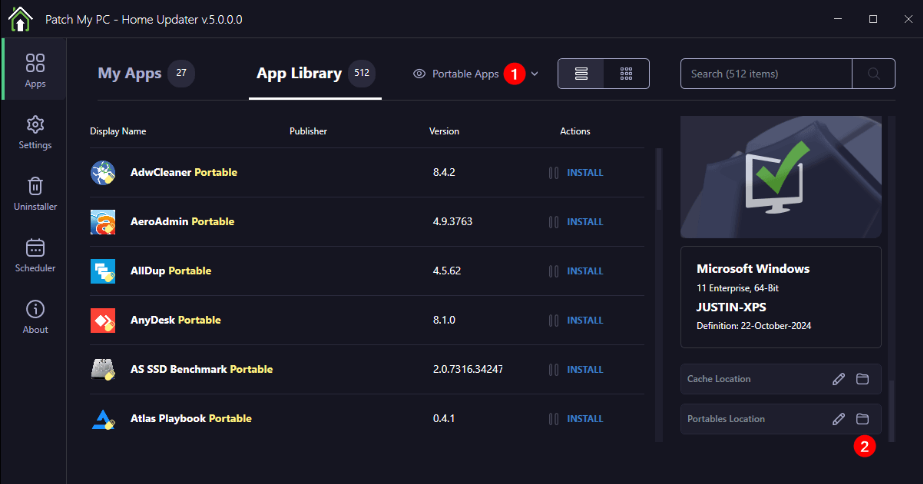
A portable app in the Home Updater is an application that doesn’t actually install on your PC. Instead, portable apps download into the folder you select in the “Portables Location” as shown in the screenshot below.

Portable apps will download as an EXE or ZIP file directly. We will only detect and update portable apps that were originally downloaded through the Home Updater.
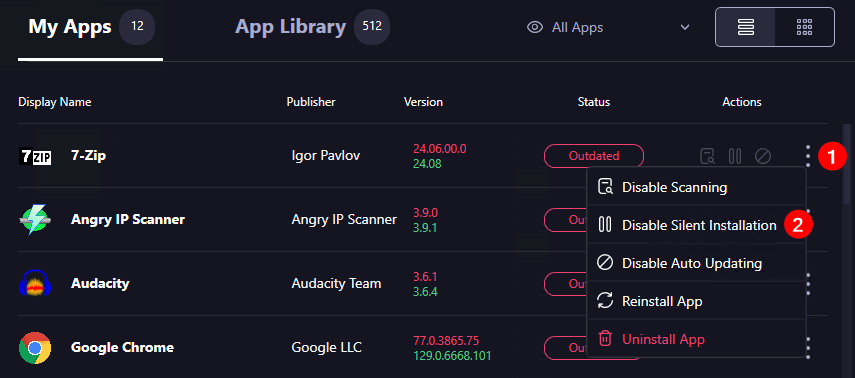
To stop a specific app from auto-updating, simply click the three dots (⁝) next to the app in the “My Apps” list, and select Disable Auto Updating. This will prevent the app from being updated automatically in the future.

Version 5 was initially released as an MSI download for new users on October 22, 2024. Over the next few months, we’ll gradually begin auto-upgrading v4 portable users to v5.

  • Users on the v4 beta channel began automatically migrating to v5 on March 15, 2025.
  • Update (August 19, 2025): Home Updater will now automatically upgrade all users to Version 5. Version 4 is officially deprecated and will no longer receive updates or support.

You can run our Home Updater using the following command lines.

  • /s (Will run any needed updates automatically with no graphical interface)
  • /auto (Will run any needed updates automatically with a graphical interface)

Patch My PC Updater automatically checks for updates daily via a scheduled task and also when you close the app. If a new version is available, it will update itself automatically.

You can also manually check for updates anytime by going to the About tab and clicking Check for Updates. If you prefer, you can disable the auto-update feature in the options panel.

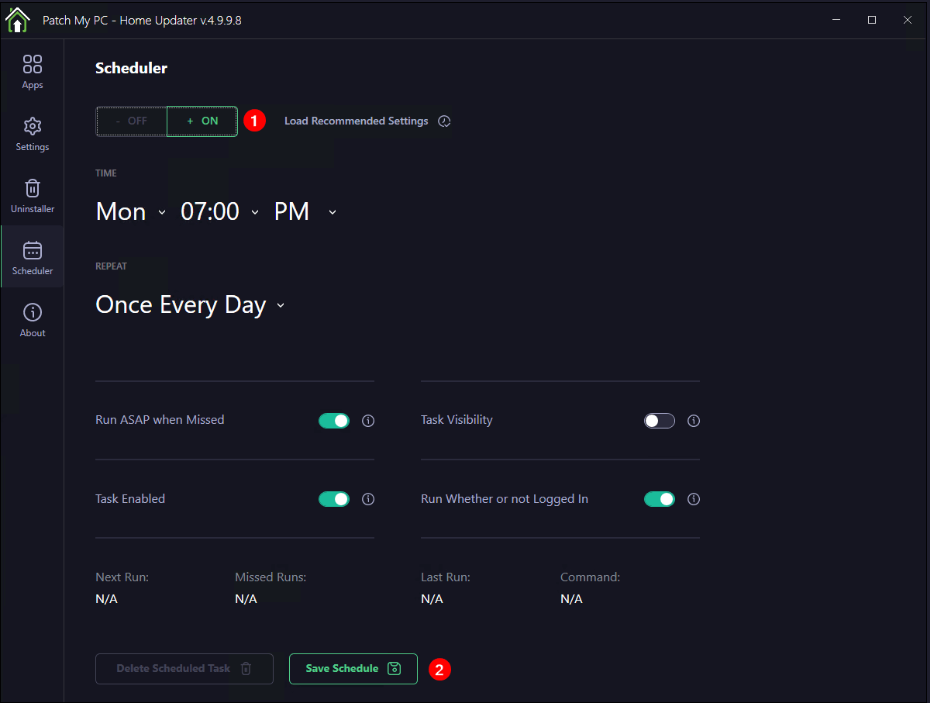
Yes, Patch My PC Updater allows you to automatically update software on a schedule. You can configure the scheduler by turning it on, selecting your preferred time, and setting the frequency (daily, weekly, etc.).

Once set, the updater will run automatically at the specified times. You can also enable additional options like running updates ASAP if missed or ensuring updates occur even if you’re not logged in. Be sure to save your schedule after configuring it.

To uninstall Patch My PC Home Updater:

  1. Open the Start Menu and type Add or Remove Programs, then press Enter.
  2. In the search bar at the top of the window, type Home Updater.
  3. Click on Home Updater in the list of installed programs and select Uninstall.
  4. Follow the prompts to complete the uninstallation process.

You can always find the latest release notes here:
🔗 https://patchmypc.com/home-updater-release-notes

We post details about new versions, fixes, and improvements. If you’re wondering what changed or when something was added, that’s the place to check.

System Requirements for Home Updater:

  • Internet access
  • Microsoft Windows Desktop Runtime 8.0 (64-Bit)
  • A 64-bit version of Windows that supported by Microsoft
  • Operating System:
    • Windows Client: Windows 10 or later
    • Windows Server: Windows Server 2016 or later
Show More Show Less