

This blog examines why the Local Network Access Allowed For URLs policy (LocalNetworkAccessAllowedForUrls ) appeared on managed devices without being deployed from Intune. It also explains why Edge and Chrome treated it as an organization policy and why the OneDrive Sync Client ultimately wrote it.
Introduction
It started as one of those situations where nothing is technically broken, yet something clearly does not add up. On several managed devices, Local Network Access Allowed For Urls suddenly appeared under edge://policy. The funny thing…Chrome showed the same thing.

The same domains. The same timing. And no, it was not coming from Intune, Group Policy, a security baseline, or that one teammate who swears they changed nothing. The question was simple, but uncomfortable. How does a policy you never deployed from Intune arrive on a managed device, and why does the browser insist on calling it managed?
Something flipped the Local Network Access Allowed For Urls
The timing was not random. Starting with Edge Stable 143 in mid September 2025, local network access is enabled by default as part of Chromium’s Local Network Access privacy model.

This is a browser-level change, not an Intune one, and it introduces a new boundary between web pages and the local network because it now requires local network access permissions.

This simple change could have a significant impact… Let me explain. When OneDrive for Web, SharePoint document libraries, or Microsoft Teams try to access the local network for offline functionality or performance optimizations, the browser can now interrupt the flow with a stupid permission prompt.

If you, as an IT admin, do nothing, users get interrupted. If users are interrupted (and maybe even click on Block), support desks are notified very quickly… Which we don’t want, right? Microsoft describes this change as a privacy improvement that still enables fast, offline Microsoft 365 web experiences, provided access is explicitly granted.
Deploy the Local Network Access Allowed For Urls policy.
Microsoft’s guidance is pretty simple. Administrators are expected to allow their SharePoint Online tenant URLs by configuring an Intune policy and setting LocalNetworkAccessAllowedForUrls (Allow sites to make requests to local network endpoints) to On.

Chrome is a bit more difficult as there is no built-in Intune ADMX to do so (of course, we should all use Edge, but… well..). You could also import the Chrome ADMX, but replacing the ADMX later on is always a pain. So I created a simple PowerShell script to do exactly the same.
Doing so suppresses the prompt and ensures that offline and performance-related features continue to work as designed. At that point, this blog should have ended with a quiet “fine, we will deploy the policy”. Except….As I was explaining in the introduction, the “Allow sites to make requests to local network endpoints” policy was already present.
Local Network Access Allowed For Urls was already configured
On affected devices, Local Network Access Allowed For Urls (Allow sites to make requests to local network endpoints) appeared as managed inside both Edge and Chrome. That detail matters because browsers do not invent that label. The reason is where the policy lives.
The allow list is implemented as a machine-level browser policy, stored under the standard policy locations for Edge and Chrome in the local machine registry hive.

Once “something” writes values there, the browser does not care who did it. It simply treats the setting as organization-managed and surfaces it as such. That is precisely why this smelled like Intune, even though Intune had nothing to do with it.
First checks that wasted the most time
The troubleshooting path was predictable. Intune assignments looked clean. There were no Settings Catalog entries, no templates, no custom OMA-URI policies, and no unexpected baseline behavior. At that point, there was only one explanation left. Something on the device itself configured the Chrome and Edge Local Network Access Allowed For Urls policy.

The suspect that makes no sense until it does: OneDrive
The next clue was hiding in plain sight. The permission prompt also appears when users interact with OneDrive for Web and SharePoint document libraries.

Microsoft’s own documentation consistently describes the impact of the Local Network Access change around Microsoft 365 web surfaces, not random third-party sites. So the question changed a bit. Instead of asking who deployed a policy, the more useful question became: why does that policy need to exist at all? That is when the OneDrive Sync Client became interesting.
Microsoft confirms this behavior in the Edge known issues documentation. The OneDrive Sync Client was updated specifically to support the new Local Network Access behavior, and as part of that update, it applies the required registry values as a one-time mitigation.

The behavior depends on how OneDrive is installed and which version you are running
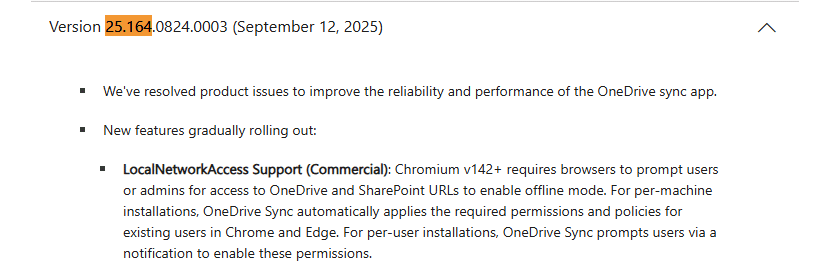
In a per-machine setup, the permissions are applied automatically. In a per-user setup, existing users are prompted instead. So yes, the OneDrive client is the component writing the policy. But it is not doing so randomly. It is doing so because Edge changed a default, and Microsoft needed OneDrive for Web to keep working without turning a browser permission prompt into an IT support nightmare.
Why OneDrive had to add: Local Network Access Allowed For Urls
This part is easy to miss if you only look at the registry change. OneDrive for Web is no longer a simple cloud-only website. When offline mode is enabled (OneDrive Web or UWP App), the OneDrive Sync Client starts a local web service on the device and maintains a local copy of file metadata.

That local service keeps the web app responsive, continues to work when connectivity drops, and handles operations such as renaming, moving, copying, and even opening files without constantly round-tripping to the cloud.

At certain moments, the web page is no longer just talking to SharePoint Online. It is talking to that local OneDrive service on the same device. That local hop is what powers offline mode and the tight integration between the OneDrive web UI and the desktop client.
The Allow or Block Prompt
Before the Chromium change, this happened silently. With Local Network Access enabled by default, the browser now treats this as a privacy boundary. A remote web origin attempting to reach a local endpoint triggers a permission prompt. If the user clicks Allow, everything continues to work.
If the user clicks Block, nothing crashes. The regular OneDrive Sync keeps running. Files are still visible. But the bridge between the web app and the local OneDrive service is gone. Offline OneDrive Web access with the OneDrive web app quietly stops working, file operations fall back or behave inconsistently, and maybe the worst thing… OneDrive Web App sync issues will happen.
At the Microsoft 365 scale, that is an unacceptable failure mode. Leaving this decision to individual users (or waiting on IT Admins to deploy it on time) would guarantee a shitstorm, depending on whether users clicked Allow or Block. That is the reason OneDrive intervenes.
If administrators have not already configured LocalNetworkAccessAllowedForUrls, the OneDrive Sync Client applies the minimum required allow list once, so the browser never prompts, and the offline OneDrive web experience remains intact.
The OneDrive switches that expose the whole thing
OneDrive.exe contains explicit command-line switches for this offline experience work, and they are pretty clear.
“C:\Program Files\Microsoft OneDrive\OneDrive.exe” /offlineImprovement /offlineExperienceEdge “C:\Program Files\Microsoft OneDrive\OneDrive.exe” /offlineImprovement /offlineExperienceChrome

Those switches lead to a repair flow that configures LocalNetworkAccessAllowedForUrls to allow the browser to access required resources without prompting the user. And then you hit the name that explains the rest. Nucleus WindowsLocalNetworkAccessRepair

Please Note: There are a lot of dependencies on when and whether the Nucleas Local Network Access Repair will kick in, so running OneDrive with those parameters doesn’t guarantee that LocalNetworkAccessAllowedForUrls will be added.
Under the hood: the repair logic
Once you look at the Nucleus Repair implementation, the behavior appears predictable (it is not). The repair logic checks whether the device is eligible (HasEnterpriseUser = 1), and verifies whether it has already run.

From there on, it checks whether Edge or Chrome already has SharePoint domains configured in the allowlist (HKLM or User based). If they do, the repair stops immediately. The presence of some strings, such as “Skipped because Edge already has sharepoint domains” makes the intent unambiguous. This is not enforcement logic. It is a one-time remediation designed to back off as soon as administrators take ownership.

If no Local Network Access Allowed For URLS policy exists, the repair reads the local network domain list from the OneDrive Nucleus configuration under a per-user context, writes the required entries to the machine policy locations for Edge and Chrome, and then marks itself as completed (CompletedLNARepairVersion) so it never runs again.

The per-user versus per-machine distinction matches Microsoft’s documented behavior exactly and explains why some environments see prompts while others do not.
Why this mattered, even if you do not care about OneDrive
This policy is not a OneDrive policy. It is a browser privacy control that decides which sites may access the local network without prompting the user. Once present, it becomes part of your browser security posture, regardless of who wrote it or why.
That is why the blast radius is not limited to OneDrive (more on that later on). The moment it exists, you have a managed local network access allowlist you did not explicitly plan for.
Don’t let OneDrive configure the Local Network Access Allowed For Urls
If you want this behavior to stop feeling spooky, deleting registry values and hoping they stay gone is not the answer. Ownership means manually configuring the LocalNetworkAccessAllowedForUrls in an Intune Settings Catalog policy for both Edge and Chrome (ADMX or PowerShell). Once those entries exist, the OneDrive repair logic detects them and permanently backs off.
Please Note: You need to configure and target it at devices; otherwise…. You will encounter conflicts on the device itself and possibly 65000 errors in Intune.

That still leaves one question. If OneDrive already applies this policy, why take ownership at all?
This is not just OneDrive
This behavior is not limited to OneDrive. Microsoft message MC1189910 describes the same Local Network Access impact for Microsoft Teams. The new Teams client is built on WebView2, which means it follows the same Chromium rules as Edge and Chrome.
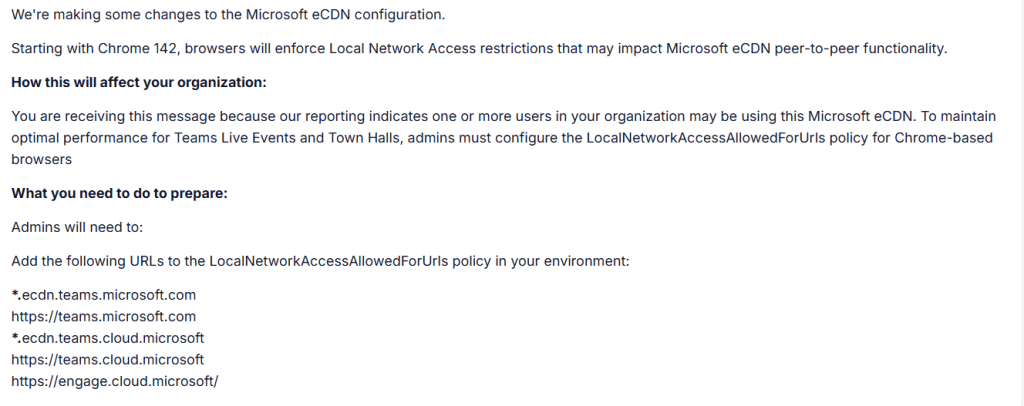
When Teams needs to communicate with local services for media handling or device access, it now crosses the same boundary. Without a Local Access Network allowlist, that communication can be blocked or interrupted. OneDrive applies LocalNetworkAccessAllowedForUrls automatically to avoid disruption. Teams does not. Microsoft documents the change and expects administrators to configure the policy themselves, but there is a significant gap between Microsoft’s reality and how it actually works.
LocalNetworkAccessRestrictionsTemporaryOptOut
Some time later, a new policy appeared in the catalog that was not there before.
LocalNetworkAccessRestrictionsTemporaryOptOut.
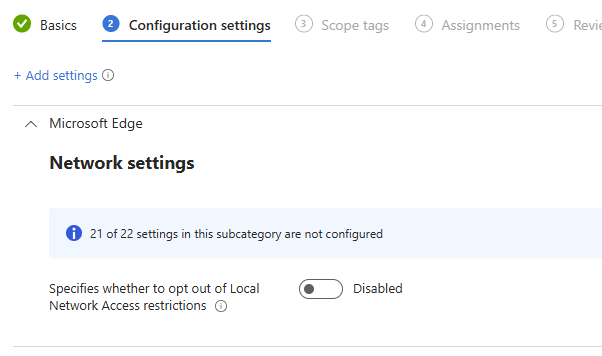
Microsoft clearly saw the impact of the enforcement rollout and introduced a temporary safety valve. Not to reverse the change, but to give organizations time to understand what would break and prepare properly.
When enabled, enforcement is downgraded to warnings in DevTools. Traffic is no longer blocked, but you still see which requests would have failed. That gives you room to move towards the real solution instead of firefighting production issues.
In short:
- TemporaryOptOut = downgrade enforcement to warning only
- RestrictionsEnabled = force enforcement
- AllowedForUrls = granular allow list
- RestrictionsEnabled overrides TemporaryOptOut
- TemporaryOptOut disappears after v146
Conclusion
LocalNetworkAccessAllowedForUrls did not come from Intune. It appeared because Chromium changed how web content can access the local network. That change affected Microsoft 365 web experiences. OneDrive responded by applying a one-time browser policy to prevent user prompts and broken offline OneDrive Web App behavior. Microsoft Teams exposes the same change, but relies on administrators to handle it instead.
Once written to the machine policy location, the browser treats the setting as organization managed. That is why it looked like an Intune deployment when it was not. If you want predictable behavior, the fix is simple. Configure LocalNetworkAccessAllowedForUrls yourself. Once you do, OneDrive backs off, Teams behaves consistently, and the policy stops appearing mysteriously.