

In this blog, we will show why Intune timing often feels inconsistent when we are not aware of the different workload paths inside Windows and Intune. Once those paths become visible, the behavior stops looking random. It starts to make sense.
Intune Timing
If you manage devices with Intune, you have probably seen behavior that initially feels inconsistent. A configuration policy appears on the device not long after deployment. At the same time, you assign a PowerShell script, and nothing happens for hours. You press Sync in the Intune portal, expecting everything to refresh immediately… and still nothing happens.
At that point, people usually start looking for some hidden Intune refresh timer that everything must be waiting on. That is also the moment when someone inevitably jokes that the S in Intune must stand for Speed, as if every workload were sitting behind the same timer. But that is not what is happening.
The Mistake We All Make First
The easiest assumption is that Intune has a single universal sync engine.
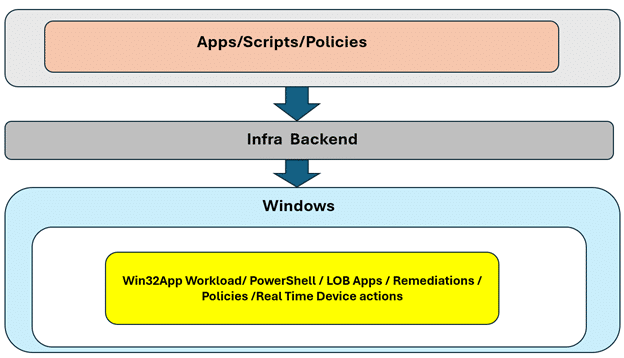
Please Note: This Image above is absolutely NOT the reality!!!!!
If we deploy “something” from the Intune portal to the device, it is natural to expect that policies, Win32 apps, LOB apps, PowerShell scripts, and remote actions all travel through the same channel and follow the same timing. But Windows and Intune do NOT work that way.
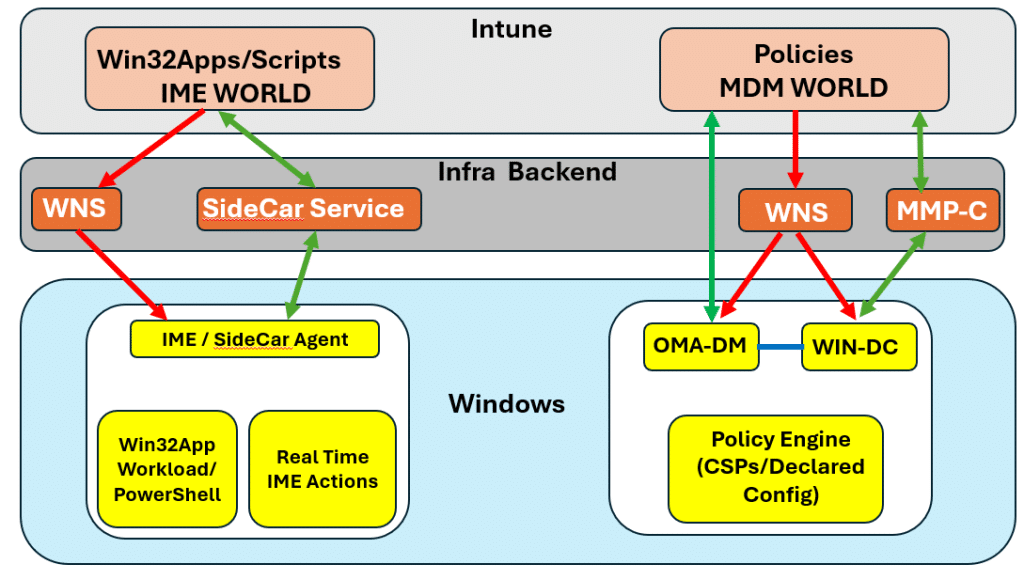
As shown above, there are different engines/traffic lanes involved, each handling a different type of workload. The built-in MDM stack (OMA-DM) handles the policy state. The Intune Management Extension handles task-based workloads such as Win32 apps, scripts, and remediations. On top of that, push notifications can wake some of those paths (Device Query/ Remote Help), but not all of them. That is exactly why two assignments (Win32App and a Policy) created at the same time can still reach the device in very different ways. That split is the key to the whole story.
The Policy Side: Fast, Push-Driven, and State-Based
Let us start with the most famous one…Policies. Configuration policies rely on the Windows MDM engine built into the operating system. This is the OMA DM side of the Intune world.
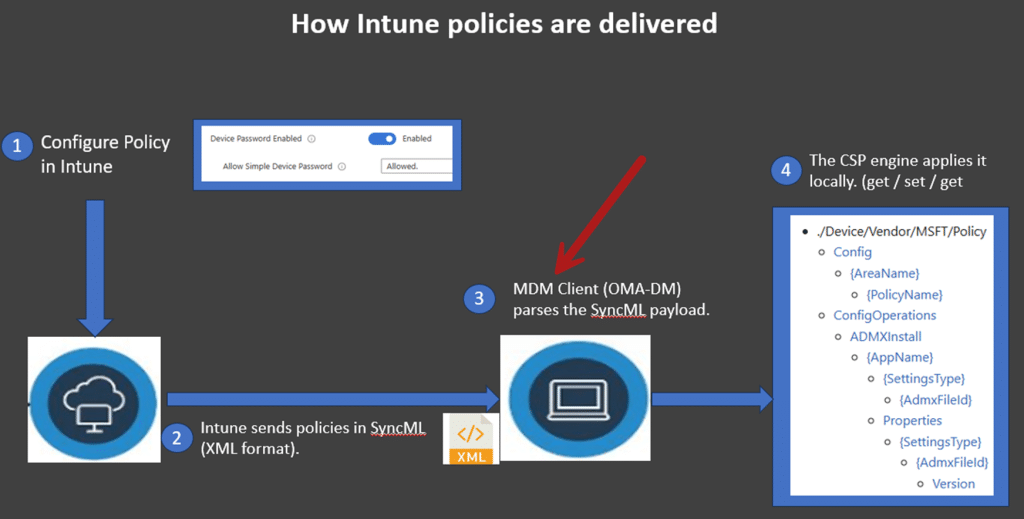
When “something” changes in Intune, Intune does NOT open a direct management session to the device and push the policy down. Instead, it asks WNS (Windows Notification Service) to send a push notification. Windows receives that nudge, and then the device starts an OMA-DM SyncML session to pull the latest instructions (policies).
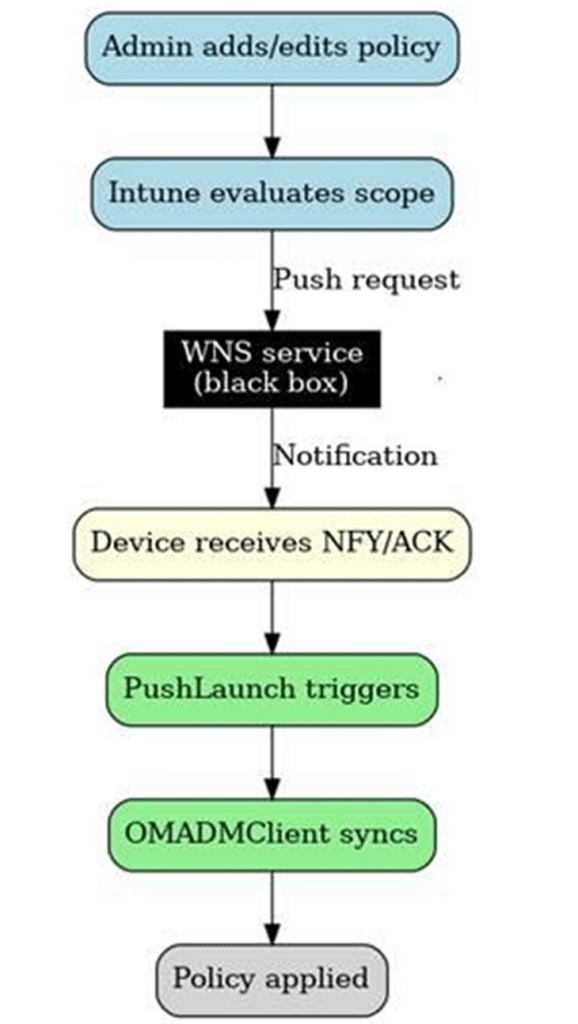
As shown below, the push notification wakes the engine. It does NOT contain the policy itself.

Once that OMA-DM session starts, Windows retrieves the configuration and routes it to the right CSP.
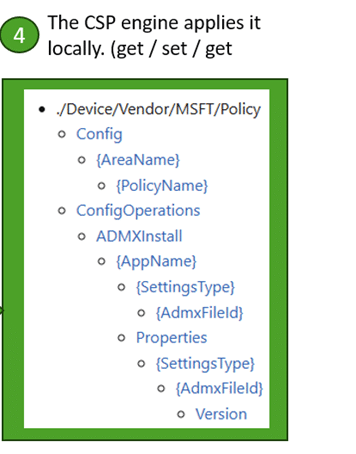
How the policy is applied
From there, the operating system applies the desired state (get-set-get). That is why policy delivery is best understood as state enforcement. Windows is not being told to “run a task.” It is being told what state should exist, and the CSP layer enforces it.
This is also where the famous “The device will only sync every eight hours myth” starts to fall apart. Policy delivery is NOT waiting on a single 8-hour maintenance timer. During enrollment, Windows checks in every 3 minutes for the first 15 minutes, then every 15 minutes for the next 2 hours, and only after that does it drift toward the longer maintenance cycle.
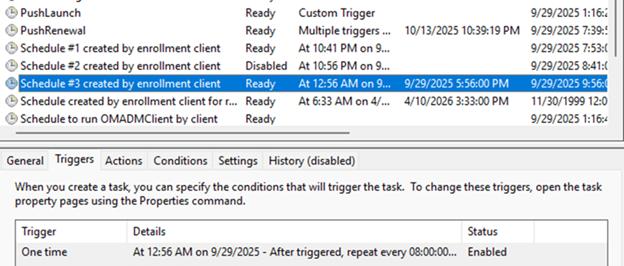
AFTER enrollment is complete, the policy path is largely wake-up-driven through WNS, with the longer cadence serving more as a safety net than as the main delivery mechanism. It is also good to know that this WNS push mechanism ALSO has its own timers and throttling in place.
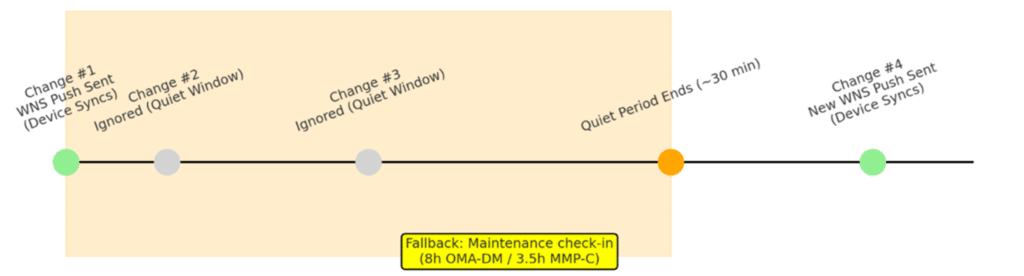
That is why configuration changes often feel random. Not because Intune is treating policies more kindly, but because the policy engine follows a different wake up and timer model.
When an App Is Not Really an App
This is where things are starting to get even more confusing. Some things that appear as applications in the Intune portal are still managed on the policy side (OMA-DM Client). Microsoft 365 Apps is a well-known example. As shown below, the Microsoft 365 Apps is nothing more than a policy (CSP) being sent to the device.

MSI’s line of business apps delivered through Enterprise Desktop App Management is another.

From the operating system’s point of view, those are NOT the responsibility of the Intune Management Extension (IME). They are CSP-backed instructions that belong to the policy pipeline.
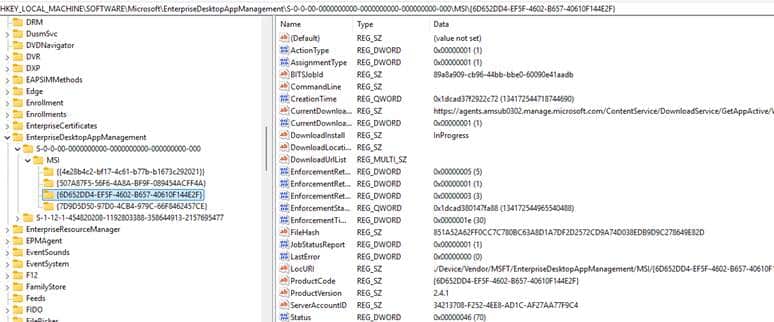
That is why they can show up faster than Win32 apps or scripts. They are not faster because they are more important. They are faster because they are not going through the Intune Management Extension at all… With it, they don’t rely on the internal IME Win32App workload Timer.
The IME Side: Separate Workloads, Separate Intune Timing
Now let us move to the side that causes even more confusion.Win32 apps, PowerShell scripts, remediations, and other task based workloads are handled by the Intune Management Extension (IME).
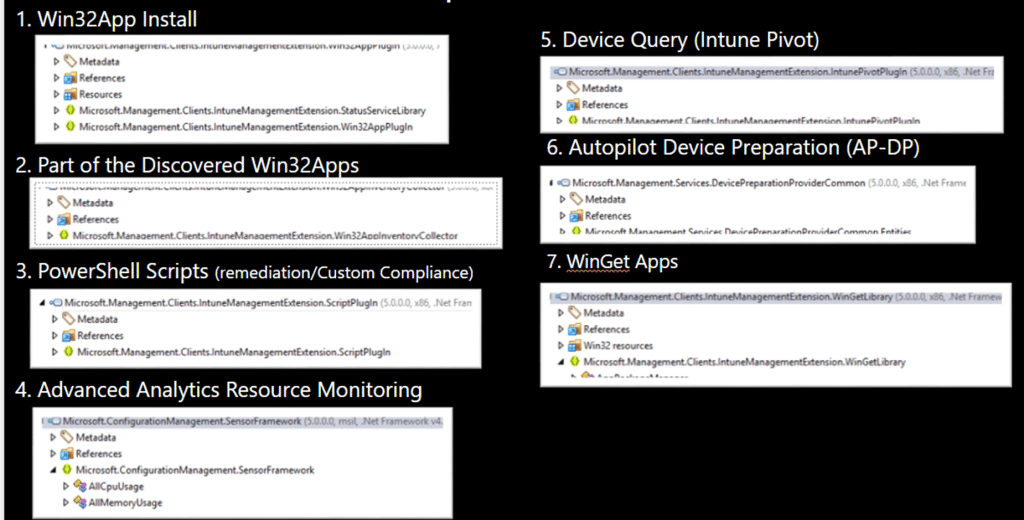
This is NOT the same engine as OMA DM, and it does not behave like OMA DM. It does NOT speak SyncML.
The IME does not enforce the state through CSPs. Instead, it retrieves its workloads and processes them through the local SideCar agent. This is the moment where timing starts to feel inconsistent if we do not realize what is happening behind the scenes. The IME/Sidecar Agent has its own workload timers, and they are all different…..
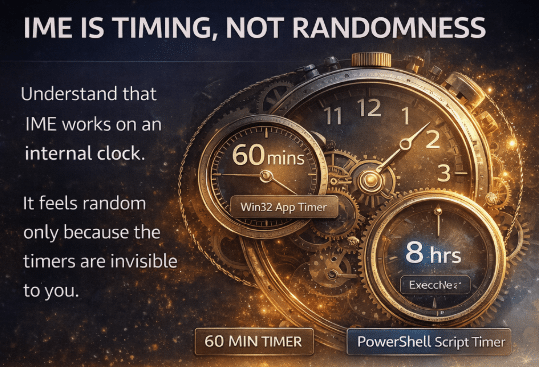
That means the question is not simply, “Why didn’t my device received the change” The real question is, “Did the correct workload engine evaluate it yet?” Once we ask that question instead, a lot of weird behavior suddenly becomes much easier to explain.
Why PowerShell Scripts Intune Timing feels So Different
PowerShell scripts are one of the best examples. From our point of view, everything looks ready. The script is assigned. The device is online. The IME service is installed and healthy. So it feels logical to expect the script to run immediately. But that expectation is based on the wrong timing model.
The PowerShell workload is not waiting on the OMA DM path. It is waiting on the IME’s own workload engine. Our PowerShell script delay article shows this very clearly. When a user logs on, that event can trigger the same timer-driven workload engine that handles scheduled script evaluation
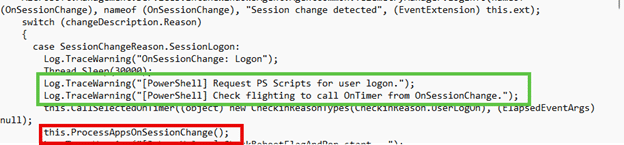
This means that the PowerShell check can happen immediately. Without that trigger, the script may simply wait for the next timer interval of 28800000 milliseconds, which is 8 hours.
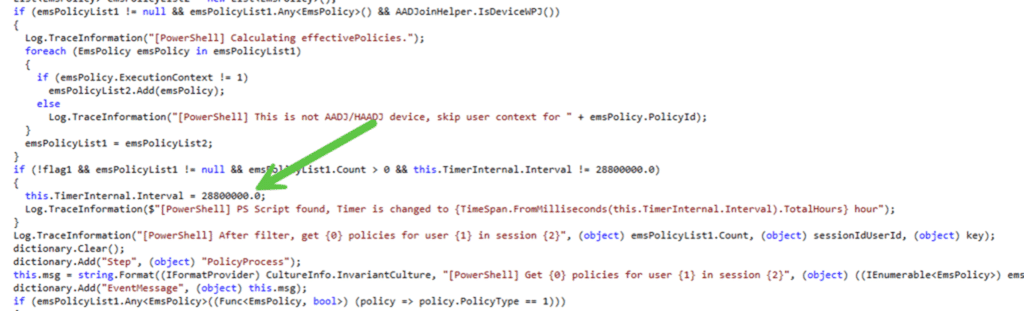
That is the real reason PowerShell script timing feels so different from policy timing. A PowerShell script can be assigned right away, but until the PowerShell IME workload wakes up, NOTHING will happen on the device. If we are not aware of that behavior, it just looks like Intune is being slow for no reason.
Why Required Apps Sometimes Wait Exactly One Hour
The required Win32 app story is another perfect example, especially during Autopilot. This one often feels even stranger because the delay is so exact. Once the required Win32 apps are assigned, and the user reaches the desktop, nothing happens. About an hour later, the apps suddenly start installing.
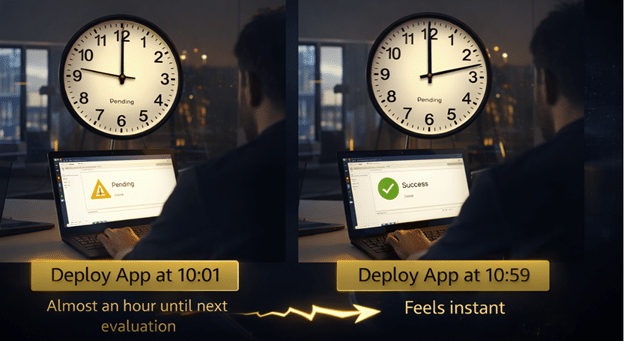
Exactly that kind of behavior looks random until we look at the logs and code. The IME does not jump straight into the required app workload. It first runs through the available app workload. That order matters. If the available app pass exists early because no valid user is ready yet, the session is still too early, or the ESP state is not in the right place, the IME does not immediately continue to the required apps. Instead, it schedules the next attempt for 3600000 milliseconds later. That is one hour.
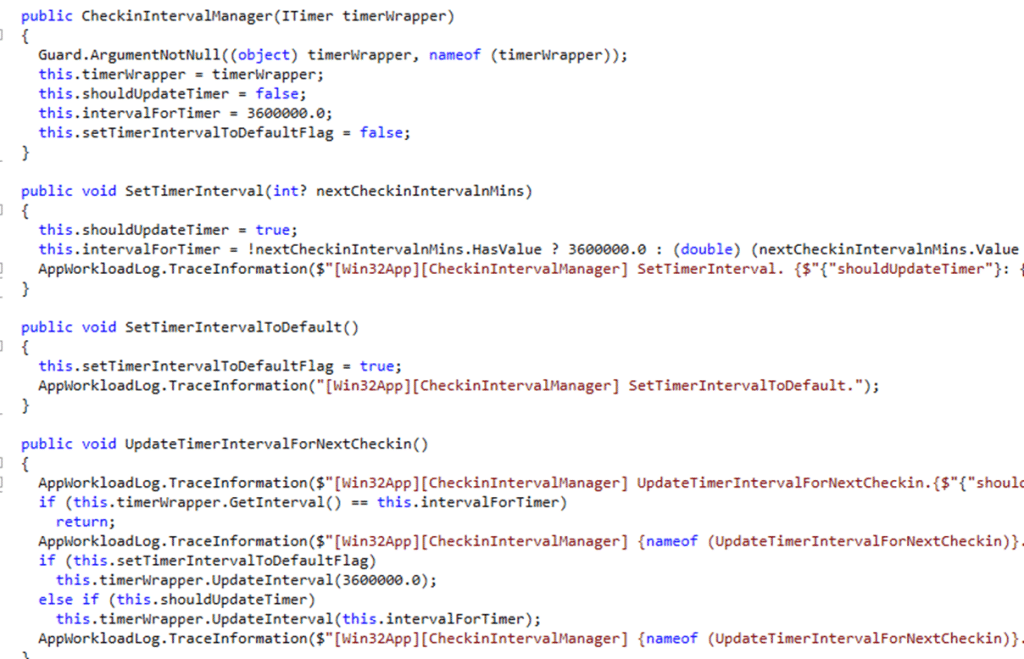
The delay often looks very exact for a reason. This is not some mysterious pause, nor is it the policy engine being slow. Nor is it really an Autopilot problem. What you are seeing is the Win32 app workload following its own scheduling logic. Autopilot simply makes that timing easier to notice because the first user session and the first IME application evaluation often collide.
That distinction matters a lot. Required apps are still workload-based in general. Autopilot is just the place where that behavior becomes easiest to see.
What the Sync Button Really Does
The magical Sync button is another of the biggest sources of misunderstanding in Intune. Let me explain. Because when we press Sync in the portal, it is tempting to think we just told the whole device to do everything now. But again….that is not what happens.
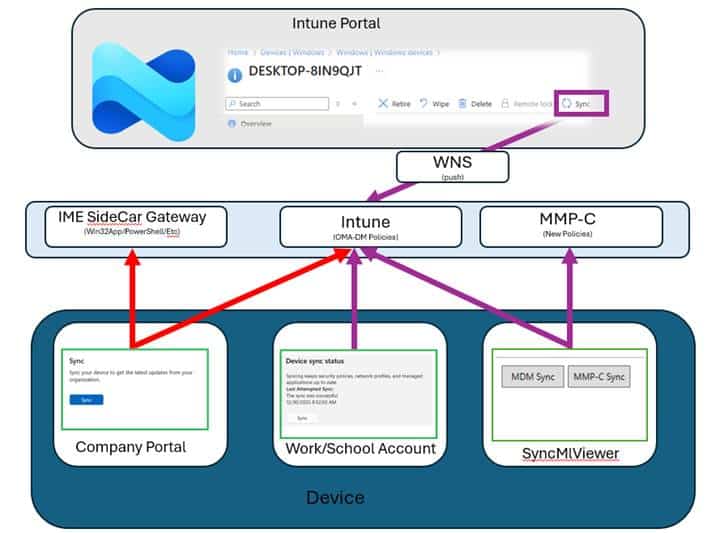
The remote Sync action wakes the MDM path. Intune asks WNS to deliver a push. Windows records that state change internally, the PushLaunch task reacts to it, deviceenroller.exe gets involved, and only then does the device decide whether to start the OMA DM session immediately or queue it before omadmclient finally syncs policies. In other words, pressing Sync mainly wakes the policy side. It does NOT directly force every IME workload to run.
That is why pressing Sync can make policies appear quickly while PowerShell scripts and Win32 apps are still waiting on the IME timer to expire. The sync button did something. It just did not wake the engine we were expecting.
Why the Split Exists in the First Place
Hopefully, at this point, the inconsistency starts to look a lot less inconsistent. Policies are state. Scripts, apps, and remediations are tasks. Those are NOT the same thing, and Windows does not treat them as the same thing.
The old OMA DM model works, but it is chatty. This MMP C article explains that the classic enforcement flow follows a Get, Set, Get loop. Multiply that across many CSPs, and every setting becomes another chain of cloud round-trips. If one part of that chain fails, the device can end up waiting until the next scheduled sync. That is exactly why Microsoft started building the next model.
With WinDC and MMP C, Intune can send down a single declarative document that describes the intended state. The device stores it locally, applies it through WinDC, and then a scheduled refresh task checks for drift and reapplies as needed. Even offline, drift correction can continue because the device already has the desired state locally. The old model becomes much closer to “get once, set, and self heal.” That tells us something important. The split between policy and task execution is not accidental. It exists because different workloads need different execution models.
Where This Is Heading Next with Intune Timing
That brings us to the interesting part. If the policy side is moving toward MMP-C and declared configuration, what happens to the IME side? This is where IC3 (I SEE 3) becomes interesting.
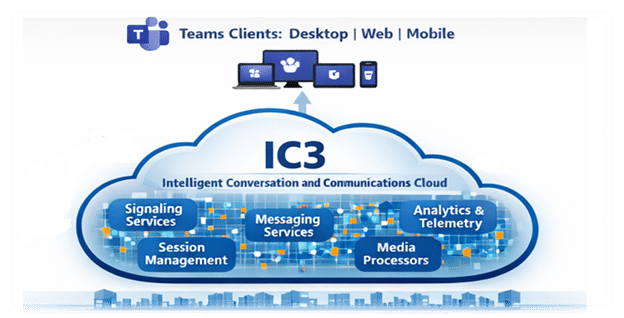
Our IC3 article shows that the Intune Management Extension is learning a very different communication model from the older WNS pattern. Instead of waiting on built-in IME timers, the IME could keep a socket open to Microsoft’s IC3 backbone. That means real-time awareness, connection state, retry logic, and a more direct delivery path for device actions and other IME-owned work.
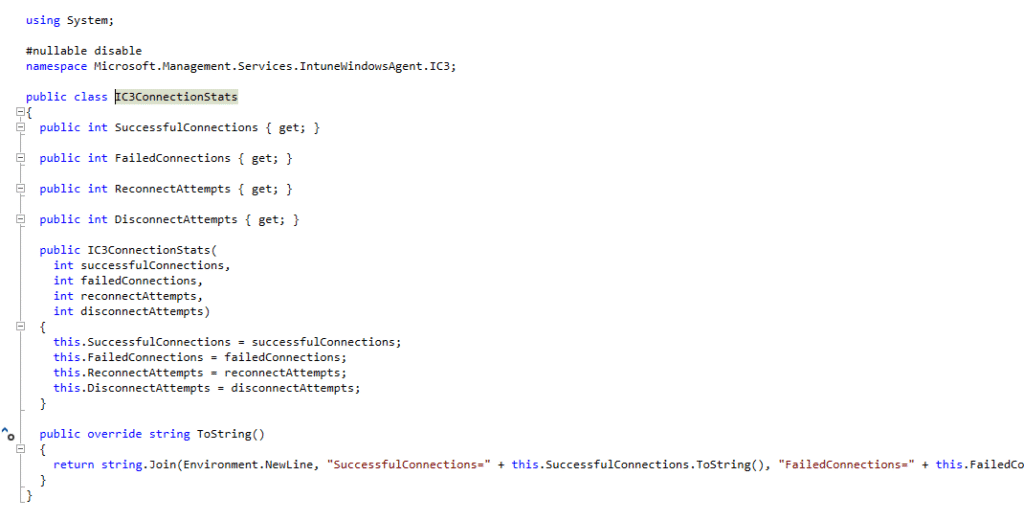
The same post describes that IC3 is direct, while WNS was the middleman for policy delivery. That naturally raises the question we should be asking. What if IC3 becomes the real-time communication channel for IME workloads /MMP-C and current MDM device actions?
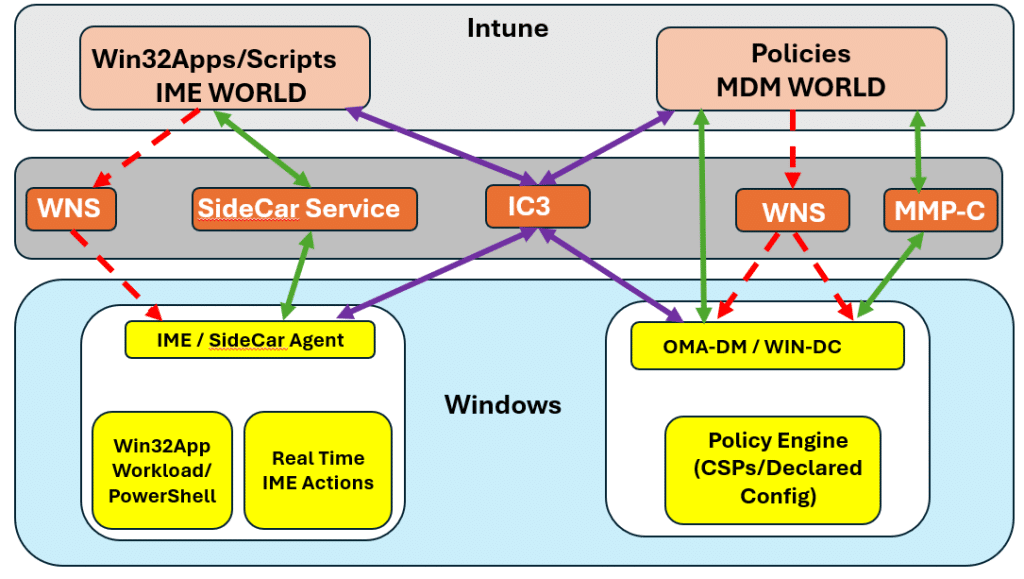
If that happens, Win32 apps, scripts, remediations, and other IME-owned tasks may no longer need to rely so heavily on waiting for the next timer-based evaluation. Instead of polling and hoping the next workload cycle arrives soon, the IC3 service could notify the IME directly when new work is ready.
The policy side would continue evolving through MMP-C and declared configuration. The IME side could evolve into a more direct real time task channel through IC3. In other words, the future may not be one engine doing everything. It may be two different engines becoming better at their own job.
Why Intune Timing could feel Inconsistent
Once we can see the different engines, the timing story changes completely. Policies travel through the Windows MDM stack and are mostly wake-up driven through WNS. Some things that look like apps still ride that same path because they are really CSP-backed policy. Win32 apps, scripts, and remediations belong to IME, which means they follow their own workload logic and their own timers. Some remote actions can wake more direct paths, while future IME workloads may move toward IC3 instead of relying so heavily on timer-based evaluation.
So the next time timing feels inconsistent, the better question is not, “Why is Intune slow?” The better question is, “Which engine owns this workload?” That is usually where the answer starts.