

You create a new PowerShell platform script in Intune to fix something and expect it to run immediately. That sounds pretty reasonable. Well…. It just does not work that way. In this blog, I will explain what actually triggers the Intune Management Extension (IME) to evaluate and execute PowerShell scripts. I also show why pressing the magical Sync button, in Intune or on the device, does not automatically start the IME PowerShell workload.
Prefer watching instead of reading?
I also recorded a short Patch-n-Rant video explaining how the Intune Management Extension timers actually work and when Win32 apps and PowerShell scripts are really evaluated.
Deploying the PowerShell Script
Let’s start at the beginning. We needed to fix something on a device that could not be done natively through Intune. So, we wrote a PowerShell script, added it as a platform script in Intune, and assigned it to a device group.
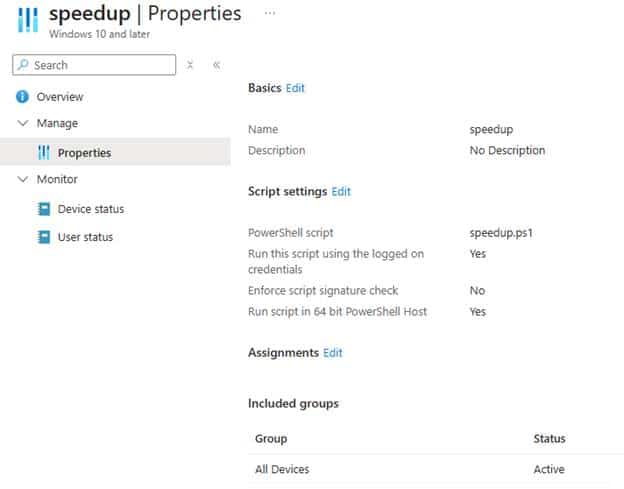
The device was online and the Intune Management Extension service was running. Everything looked healthy. So, we expected the PowerShell script to be executed almost immediately… Well…It did NOT. 6 hours later, the device status still showed no PowerShell execution. Then someone logged out and logged back in to the device, and within seconds….. the PowerShell script was executed successfully. At first glance, that feels random…. but it is not! Once you look at the IME logs and the IME code, the PowerShell Script execution behavior becomes very predictable.
What happened after deploying the PowerShell Script
Let’s start with the basics. The device was powered on and sitting at the Windows logon screen. No user session was active, no user profile was loaded, and no user bearer token existed. The Intune Management Extension service was already running under the system context, quietly waiting for its next check-in or another internal trigger. This is where the MSFT documentation is easy to interpret too broadly.

When it states that users are not required to sign in, it does not mean user context scripts can execute without a session. It simply means the IME does not require someone to manually launch PowerShell. Device-scoped scripts can run in the background because they execute in the system context. User context scripts still require a real logon, since without a session, there is no user token to attach to.
The PowerShell script had already been assigned to all devices in Intune. From the portal perspective, everything looked correct. On the device, however, nothing appeared to happen. That is the part that often causes confusion. The IME does not continuously poll the Intune Service in real time for new PowerShell assignments. It does NOT maintain a live connection waiting for script changes either. (Maybe this could change with IC3?)
It is also important to understand that WNS will not wake up the IME to perform a PowerShell policy check-in. Push notifications are used for specific workloads, but the PowerShell script engine follows its own evaluation cycle. The IME reacts to predefined hardcoded triggers and internal timers. If the appropriate condition has not occurred yet, the PowerShell workload simply waits. From the Intune portal, it may look instant, but on the device side, everything depends on those local cycles.
The Moment That Changed Everything
So we reached out to the employee. The employee explained she was at a customer site and not physically behind the device. The machine had been powered on, sitting at the Windows logon screen the entire time.
Once she returned and signed in, she called us back almost immediately. We refreshed the Intune portal, and there it was. The PowerShell script was deployed successfully just a few minutes earlier. The logs told the same story. The execution aligned exactly with the start of the user session. The IME logs showed us that a Session Change was detected (the user logging in)

And within a minute or so (after checking the required/available apps), it showed that it had started requesting the PowerShell scripts for the user logon: [PowerShell] Request PS Scripts for user logon.

That line is the turning point. Let me show you by looking at the IME Code
What Happens Inside the IME code
When examining the IME code, once again, we noticed that the IME service implements a method called: OnSessionChange(SessionChangeDescription changeDescription)
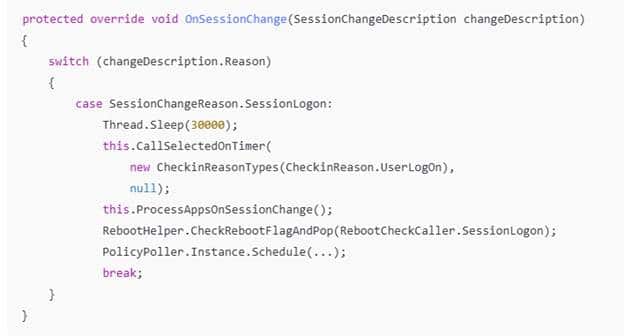
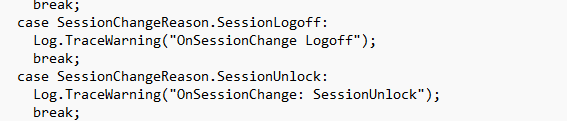
When a Windows service registers for session change notifications, the Service Control Manager notifies it whenever something happens to an interactive session. The SessionChangeDescription object contains the session id and the reason, such as SessionLogon, SessionLogoff, SessionLock, or SessionUnlock.
When the reason is SessionLogon, the IME does more than just record the event. In the Sessionlogon branch of the code, it calls upon the PS Scripts AND the ProcessAppsOnSession change function

The first call routes into the same timer-driven workload engine that is normally responsible for scheduled evaluations. That path includes the PowerShell plug-in, which means a user logon can immediately trigger a PowerShell workload check instead of waiting for the next timerInterval cycle (28800000 MS) / 8 Hours.)

The second call handles the application side. It triggers an application evaluation when the session changes, which is why required apps do not necessarily have to wait for the standard app check in 60-minute interval.

So, bottom line (even when this blog is about PowerShell scripts), a simple logoff and logon can be enough to kick off the required app check. But.. circling back to the PowerShell delay.. This is exactly why the logs show both application activity and PowerShell activity right after sign-in. The device did not suddenly receive something new from the cloud. The logon event itself caused the IME to reevaluate its workloads. Let’s dig a bit more into the PowerShell workload (scriptplugin).
What Happens Inside the PowerShell Script Workload
Once the IME scriptplugin timer triggered, the execution flows into the PowerShell Scripts Workload (who would have guess that…)

Inside the PowerShell Scripts Workload, the IME builds a PolicyRequest and sends it to the Intune service. The response contains serialized EmsPolicy objects. These represent the PowerShell platform scripts assigned to the device or user. We can spot the same in the logs

The response is deserialized into an array of EmsPolicy. At that point, the device knows which scripts are assigned. But knowing about scripts is not the same as executing them. The policies are first passed through: this.policyProcessor.FilterPolicies(…)
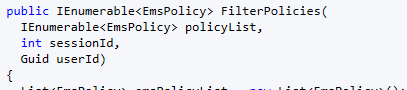
That ensures only applicable scripts for the current session and context remain. Then the decision phase begins: this.policyProcessor.ProcessPolicies(…)
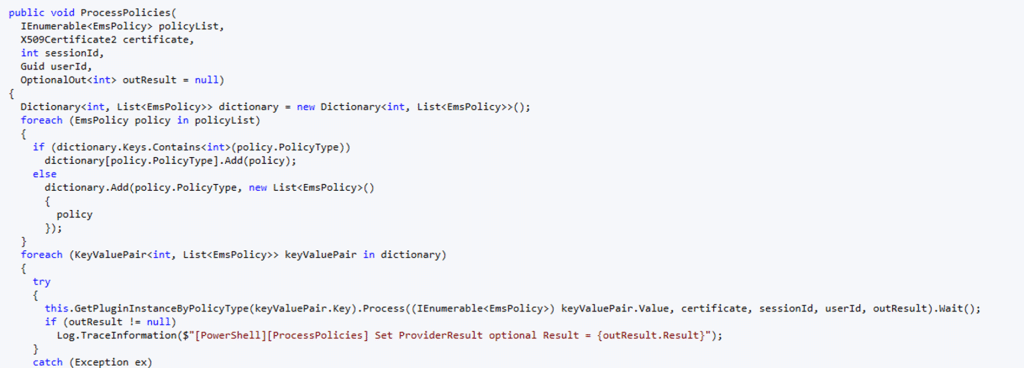
Inside that flow, the schedule manager evaluates each powershell script. This is where execution history is checked. The schedule manager determines whether the script has already run, whether it exceeded retry counts, whether it is run-once, and whether it should execute now. That is the scheduling logic in action. When the schedule manager determines execution should occur, the IME executes the PowerShell script.
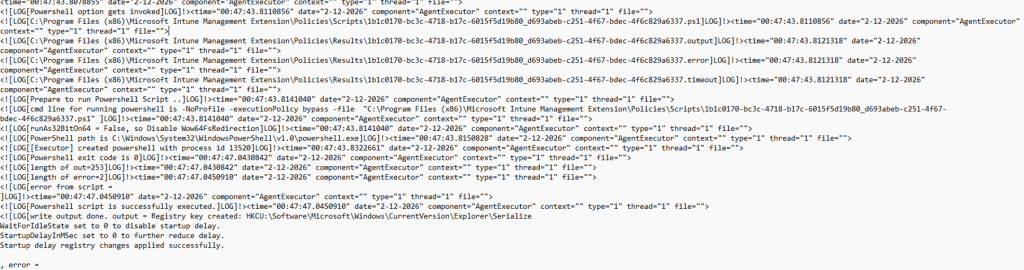
Some time later, the results were sent back to the service, and the Intune portal was updated to show a successful status. The entire PowerShell script was triggered by a simple session logon.
Where the 8 Hour Interval Comes In
I guess I need to zoom in on this one a bit more, on where this 8-hour timer originates from. As this is NOT the 8-hour maintenance/safety net I discussed in this blog. In the PowerShell plug-in code, there is a line that sets the workload timer interval:
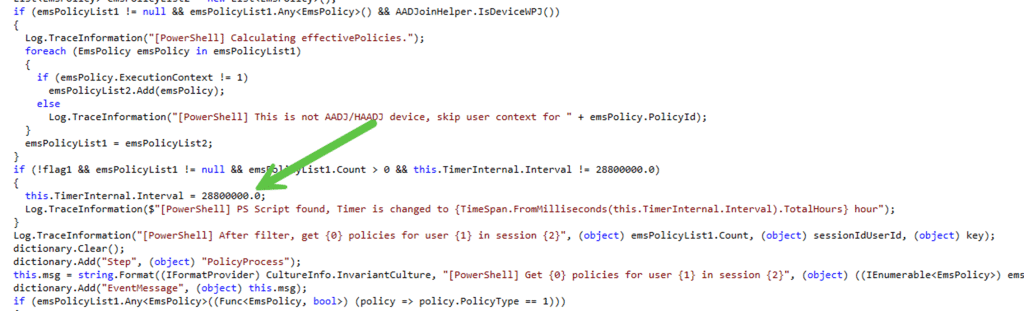
That value is 28,800,000 milliseconds. (Eight hours). When PowerShell scripts are present, the IME adjusts its internal timer to evaluate the PowerShell workload on that cadence.

But that IME timer does not constantly poll. It sits and waits. If a PowerShell script assignment happens in between timer intervals, the device will not re-evaluate until one of the following occurs:
- The next eight-hour IME timer cycle
- The IME service restarts
- A session change event occurs
In your case, the device was sitting at the logon screen. The eight-hour interval had not yet elapsed. No restart occurred. So, nothing triggered a new policy evaluation. The PowerShell script assignment existed in Intune. The device simply had not checked again. When the user logged in, the session change forced that check.
Why Pressing Sync Does Not Help
It is natural to press the Sync button in Intune or on the device itself and expect immediate script execution. But remote sync or triggering the sync from the work or school settings ONLY communicates with the MDM stack (OMA-DM Client). The PowerShell platform script workload runs inside the Intune Management Extension, which is a separate component, AKA a separate traffic lane!
As explained in the deep dive on what really happens when you press Remote Sync in Intune, that action does not directly wake up the IME PowerShell workload.
- Session change does.
- Timer expiration does.
- Service restart does.
- Triggering the sync from the company portal
What This Means When You Deploy a New Script
When you deploy a new PowerShell platform script to a device, the device executes it when the PowerShell workload is triggered, and the scheduling logic determines it should run. This could be when the user logs in, when the device is rebooted (IME restart), or when you wait long enough (8 hours). The IME is simply event-driven, NOT push-driven.