
This blog is about a strange Win32 app installation issue where the Company Portal stayed stuck on “Downloading” even though everything seemed to be perfectly fine. We’ll walk through what the Company Portal App was doing, why the Intune Management Extension never started the Win32 App installation, how token validation broke the entire Win32 flow, and how outdated IME Application configuration files on “older” devices caused the issue. By the end, you’ll understand exactly why the Win32app never downloaded, why the Company portal was stuck on downloading, and how a single binding mismatch blocked hundreds of devices at once.
Company Portal Stuck On Downloading
It started as one of those strange issues where nothing in the UI really tells you what went wrong. The Company Portal refused to move past “Downloading.” No progress bar, no percentage, no installation step, nothing.
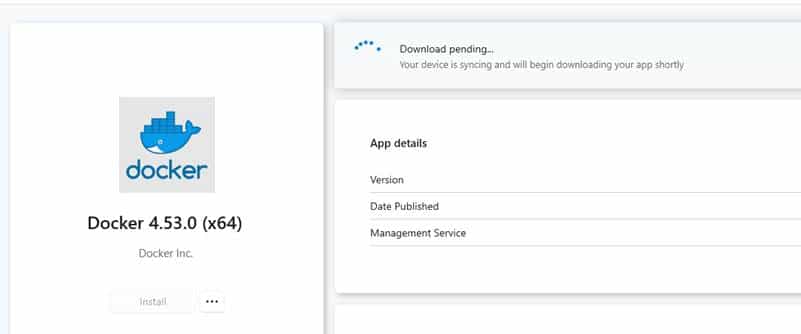
Just a static Download Pending that never changed. At first, it looked like a Delivery Optimization content delay or maybe something throttled on the service side, but the behavior didn’t add up. The devices weren’t failing or timing out. They were just waiting on the download. And the waiting never ended.
The Company Portal Log
Digging into the Company Portal log (Log_1.log), which you can find in the User’s localappdata, made the situation even more confusing.
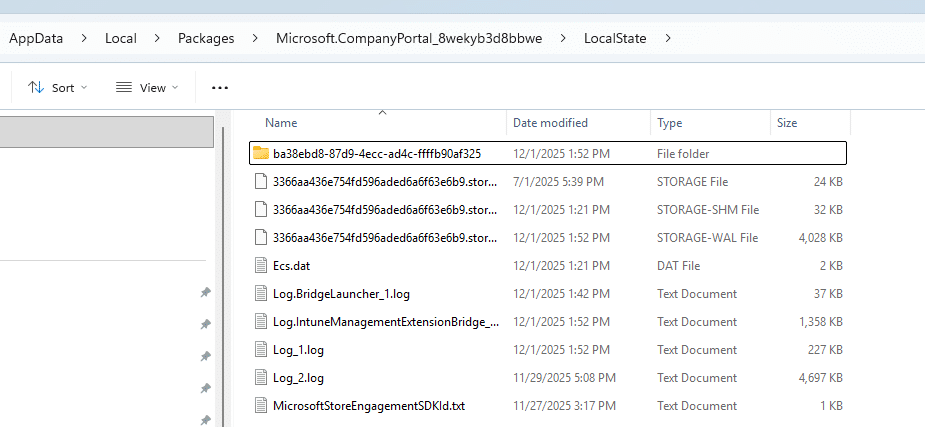
The Company portal was doing exactly what it was supposed to do. It kept polling the Intune service for the app’s status, receiving 200 OK and 304 Not Modified responses and updating its local “PendingInstall” state.

The log showed request after request returning successfully, complete with correct device identifiers, proper client request IDs, and the expected polling intervals. From the cloud’s perspective, everything was healthy. The portal was behaving correctly. The assignment existed. The service returned a valid state. The Company Portal was stuck on downloading and kept displaying “PendingInstall” because that was the state the service kept returning.

And then came the pattern that finally made the problem interesting. It only happened on older devices. Newly enrolled devices installed the same applications instantly. The same user, the same network, the same Company Portal build, the same tenant. But all of the older devices behaved exactly the same: the Company Portal polling cycle worked perfectly, the service returned the correct application state, and yet the local machine never transitioned from “PendingInstall” to “Downloading” or “Installing.”
The Company Portal was waiting for the status service update, which never arrived. That was the moment the focus shifted away from the portal itself and onto the part of the device that actually does the work: the Intune Management Extension.
How a Win32 App Install Actually Works
When a user clicks Install in the Company Portal, the Portal does not download the app. It hands the request to the Intune Management Extension (IME) through the IME Bridge. From that point, the IME is responsible for everything: retrieving metadata, acquiring a token, creating a StatusService session, preparing the Win32App plugin, and finally starting the actual download and installation.
Every step in that chain depends on the IME being able to authenticate the session. If token validation fails, none of the downstream components initialize. The Win32 plugin never starts, the download never begins, and StatusService never comes online. From the outside, it looks like a UI issue in the Company Portal, but nothing is running underneath.
That was the exact situation. The Company Portal kept polling the Intune Service and showing PendingInstall, but the IME never reached a point where it could even start the Win32 app install itself.
Understanding the Actual Flow Behind a Win32 App Install
To verify this, I mapped the full flow between the Company Portal, IME Bridge, IntuneTokenManager, StatusService, and the Win32App plugin. Seeing the sequence laid out makes the failure point obvious.
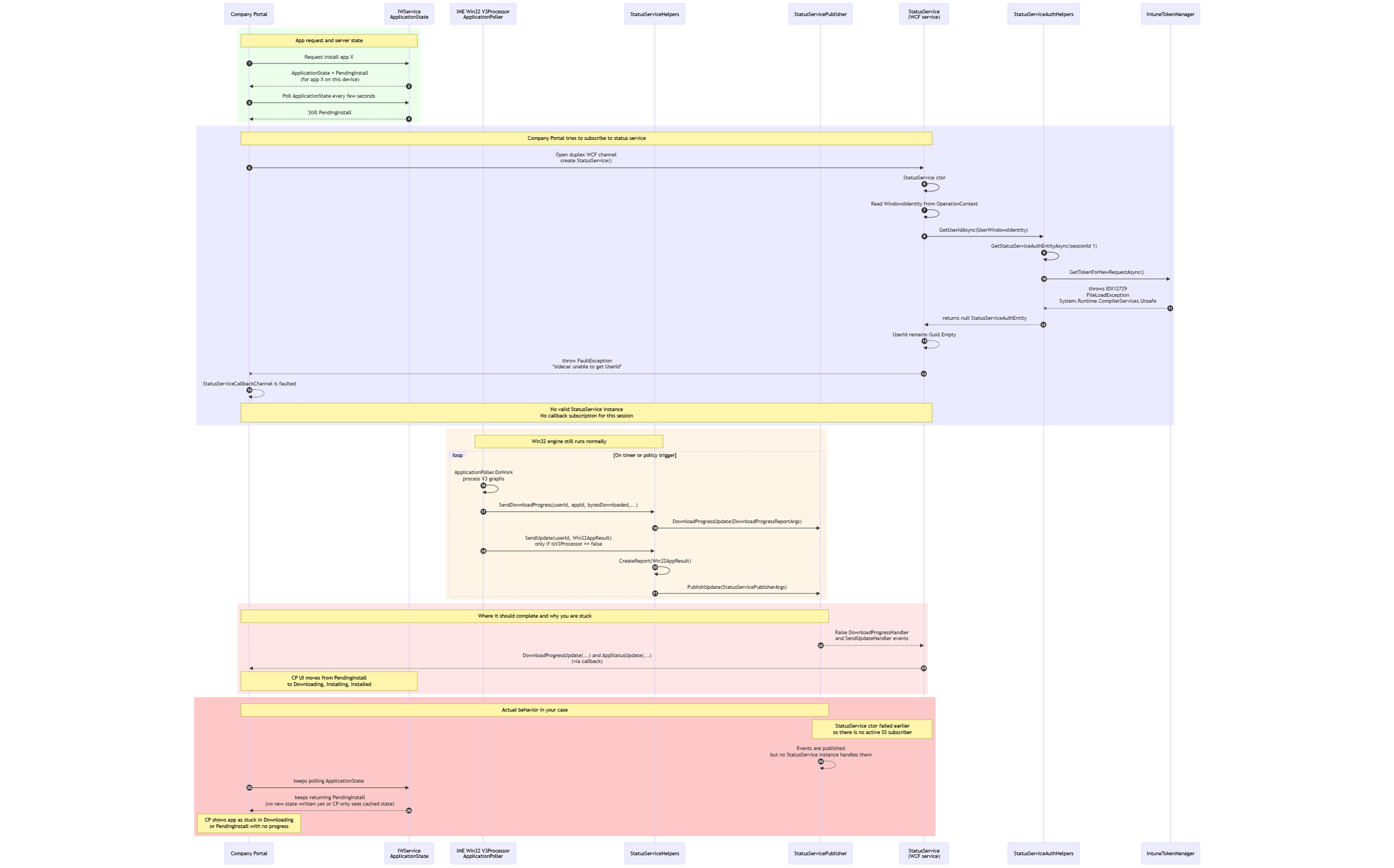
Once the token step fails, the entire chain collapses. StatusService never initializes, and the Win32App plugin never starts, because the IME session cannot authenticate. There is no download, no content staging, no installer, and no state transitions. The device is not silently installing the app, it never reached that point. The Company Portal keeps showing “Downloading” simply because the cloud has nothing else to report. Let’s zoom in on why the token validation step failed.
Why StatusService Depends on Token Validation
The Intune Management Extension cannot begin a Win32 installation without a valid AAD token. When the user clicks Install, the IME impersonates the user’s session and requests an access token via IntuneTokenManager, which then passes it through the Web Account Manager.

That token is handed to the IdentityModel libraries, which decode the JWT header, validate the signature, and extract the user identity.
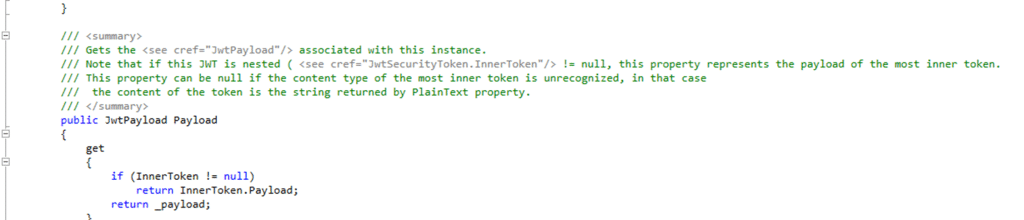
This part is extremely sensitive to assembly versions. IdentityModel loads System.Text.Json, System.Buffers, System.Runtime.CompilerServices.Unsafe, Microsoft.Bcl.AsyncInterfaces, System.Numerics.Vectors, and several other tightly coupled libraries.
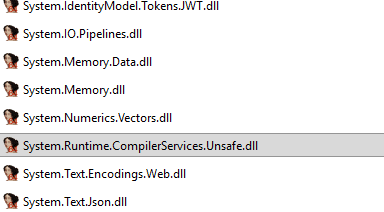
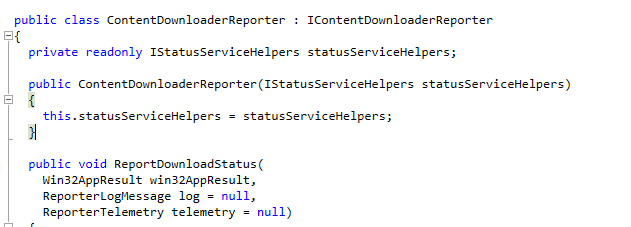
If the IME attempts to load the wrong version of any of these assemblies, the JWT header cannot be decoded. Token validation fails immediately…. as we can spot in the code as well.
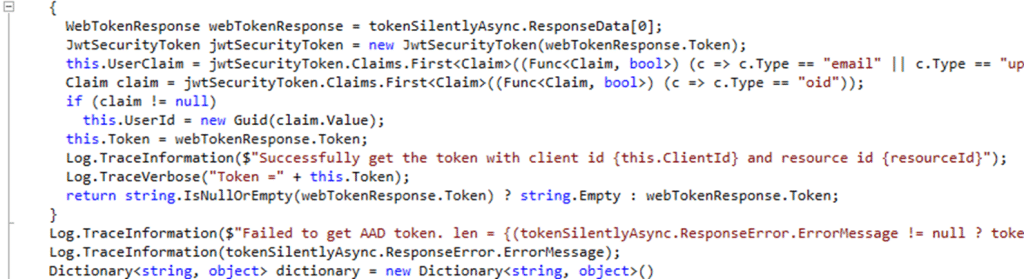
And when token validation fails, the IME does not continue. StatusService never initializes, but more importantly, the Win32App plugin never starts. There is no content download, no caching stage, no installer invocation, and no state transition written anywhere. The Win32app Installation stops at the first authentication step.
From the outside, this looks like a Company Portal bug, but the portal is behaving exactly as designed. It keeps polling the Intune service and sees nothing new because the device never sends any local status. The cloud remains at “PendingInstall,” the company portal displays “Downloading,” and the actual installation never begins.
This made the behavior clear: the Company Portal wasn’t waiting for progress that never arrived, the IME never got past the token step, so there was no installation to report. The reason for that failure showed up in the IME logs.
The IDX12729 Error That Revealed the Real Cause of the Company Portal Stuck on Downloading
On every affected device, the log files showed the same two errors: “IDX12729: Unable to decode the header” and “0x80131040:

The located assembly’s manifest definition does not match the assembly reference.”

That combination always indicates that the CLR attempted to load an assembly version based on the application config, but found a different one on disk.

All of these DLL files are extremely sensitive to version mismatches because the entire token parsing process depends on a consistent set of tightly linked assemblies. If one library is the wrong version, the whole chain collapses.
These errors made it clear that this was not a content download issue. The IME never even reached that stage. The AAD User Check failure occurred before StatusService could initialize.
Using Fusion Logs to Expose the Binding Mismatch
To understand why the IME was choosing the wrong assembly version, we enabled fusion logging and restarted the IME. Within a few seconds, the binding trace made the cause clear.

The IME applied the binding rules from machine.config before reading its own config file. machine.config contained global redirects that forced System.Text.Json to version 8.0.0.5.

However, the IME config itself contained System.Text.Json version 9.0.0.5.
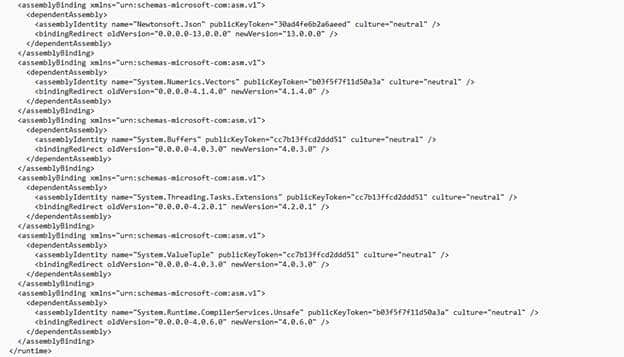
Because the IME config file did not override that machine policy, the IME tried to load version 8.0.0.5 but ended up with 9.0.0.5 from disk. The moment the IME compared the requested version with the version in the app config file, the strong-name validation failed, which caused IdentityModel to stop parsing the token. With the token rejected, StatusService could not start, and the Company Portal never received progress updates.
The Real Problem: An Outdated IME Config File
The next step was understanding why only older devices were affected. The answer came from inspecting the IME installer. Opening the MSI in ORCA showed that it includes the IME executable, the IdentityModel libraries, and a single copy of Microsoft.Management.Services.IntuneWindowsAgent.exe.config.
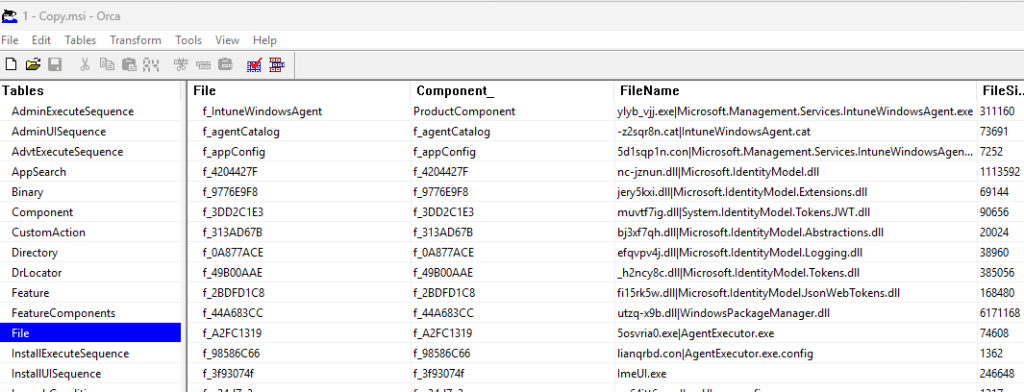
That config file contains all the bindingRedirect entries that tell the CLR which version of each assembly to load. The important detail is that this config file is NOT versioned, which means the Windows Installer never overwrites it during upgrades when the file itself has been touched/changed.

This is a typical MSI pattern that preserves user modifications to configuration files. Still, it has an unintended side effect: the config file is installed only once, and subsequent IME updates seem to leave the application config file untouched. Having procmon running with the writefile filter, showed me the same…no mention of the config file!
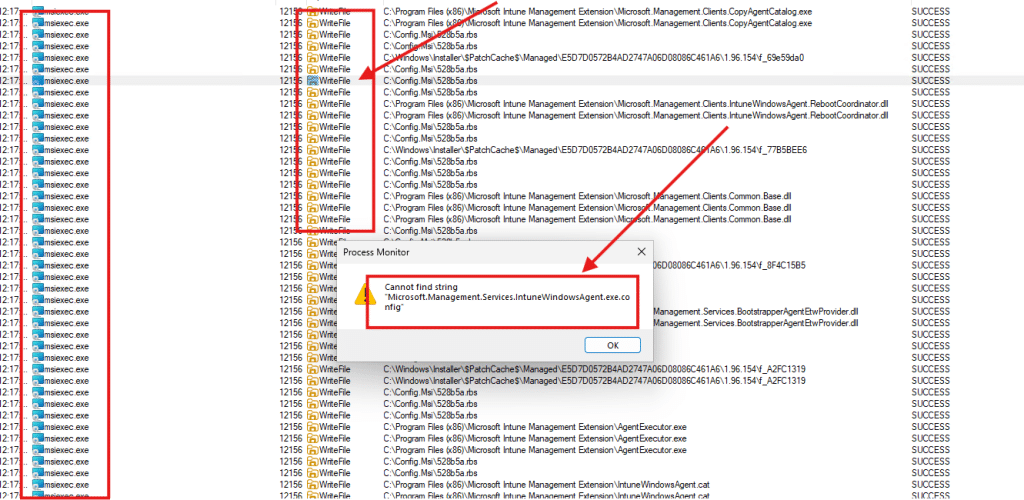
Meanwhile, the IME is updated regularly, and its DLLs are replaced with newer versions, but the config still stays stuck in time. Normally, this isn’t a big deal for most of the regular DLLs. But guess what happened with the latest IME update? The CompilerServicesUnsafe.Dll was also renewed. The previous version dates back to 2021.

Missing Redirects in the Application Config File
This became even more problematic on devices where the IME config file was not only outdated but also missing redirects entirely (AKA really old). When a required assembly is missing from the IME config, the CLR falls back to machine.config and applies its global binding rules. (fun with OS upgrades!!)
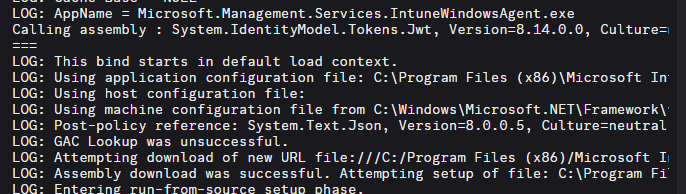
Those rules typically point to older Microsoft Identity library versions. The IME then loads the version defined in machine.config, compares it with the newer version in the IME folder, and triggers another strong-name mismatch. Missing entries, therefore, cause the same failure as incorrect ones, because the fallback mechanism silently introduces a version mismatch that only becomes visible when you inspect the fusion logs.
Older devices with long enrollment histories had gone through multiple IME upgrades. Each upgrade replaced DLLs, but none of them seem to have updated the config file (if something touched the file). Over time the DLL versions and the config entries drifted far enough apart that machine.config’s redirects are no longer aligned with what was on disk. Newly enrolled devices never saw the issue because they started with a matching application config file and a matching DLL set.
The First Fix: Reinstalling the IME
A manual uninstall and reinstall of the Intune Management Extension forces MSI to lay down a fresh new config file that matches the current DLL versions. Doing this on a test device resolved the issue immediately. IdentityModel loaded the correct assemblies, StatusService started, and the Company Portal moved past “Downloading” as soon as the IME restarted.
This confirmed that the outdated config file was the root cause. However, manually reinstalling the IME was not feasible at scale.
Fixing the Company Portal stuck on Downloading
To address the problem across hundreds of devices, a custom detection and remediation script was created. The detection script scanned the IME directory, read the actual assembly versions, and compared them to the entries in the config file. If the versions did not match, it reported the device as non-compliant.
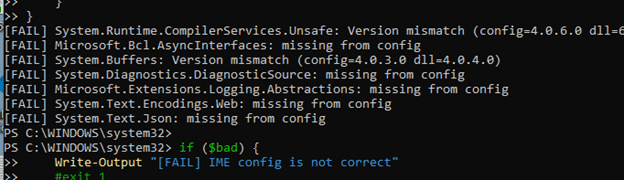
The remediation script regenerated each bindingRedirect entry using the real assembly versions found on disk, corrected the public key tokens, added missing assemblies, saved the updated application config file, and restarted the IME service so the changes took effect immediately.
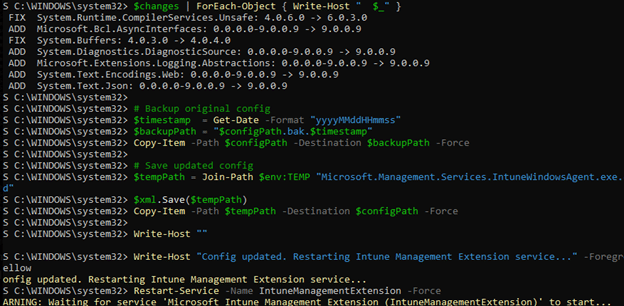
After deploying the PowerShell solution via Intune, more than 700 affected devices recovered at once. StatusService started cleanly, the Win32AppPlugin resumed reporting progress, and the Company Portal instantly transitioned from “Downloading” to “Installing” on devices that had been stuck for weeks.
Windows Installer File Version
After the proactive remediation was built and running (and fixed it), the real question was why devices ever reached this state at all. IME updates itself regularly, so in theory every new version should have corrected whatever was broken in the previous one. But that never happened. The IME updated, the DLLs changed, the agent restarted, and the same changed config file stayed exactly where it was. Nothing in the update process touched it.
That pushed the investigation back to the MSI behaviour behind those self-updates. IME updates are, in fact, just MSI upgrades under the hood, so the expectation was simple: if a new version arrives, MSI should replace anything the old version left behind. Instead, the MSI left the changed config untouched every single time. And then the documentation explained why.
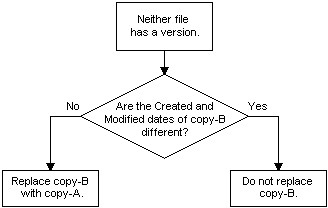
As mentioned before, the config file has no version information, and the Windows Installer treats unversioned files differently.

If an unversioned file looks modified since the last installation, the Windows installer will not overwrite it during an upgrade. It doesn’t matter whether that modification was intentional or the result of a previous failure. The MSI installer protects the file because it thinks the user changed it. For IME, that means every update inherits the same possible broken config and keeps running with it.
How Microsoft Could Fix it
Once that rule was understood, the behaviour made perfect sense. The IME wasn’t failing to update the config; it was never allowed to update it in the first place. So the update sequence brought in a fresh set of DLLs, paired them with an outdated and sometimes broken config, and the agent collapsed at runtime. The only way to fix that is to remove the config before the installer runs InstallFiles. So we added this row below in the existing IntuneWinagent installer.
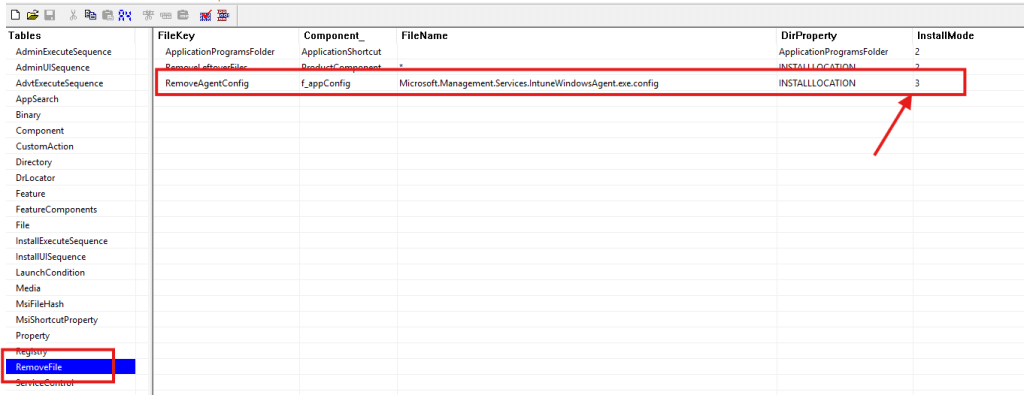
The idea was simple: if the file isn’t there, the MSI installer won’t apply the unversioned-file protection rules and will simply write the clean version from the cab. Adding the config to the RemoveFile table does exactly that.

The update removes the old file first, the new config version is installed, and the IME finally starts with a config that matches the assemblies it ships with.

We escalated this to Microsoft and the Intune engineering team to ensure it is fixed. As long as the MSI Installer treats the IME config as untouchable during an upgrade, any corruption or drift in that file persists across new releases. Removing the file during install could be a reliable workaround until the upgrade logic is adjusted to handle this scenario.
A Subtle Drift With Major Consequences
What looked like a simple frozen download turned out to be a long-term configuration drift caused by IME updates and a touched config file. The IME updated its DLLs regularly, but the configuration file responsible for binding those DLLs never changed (because something touched it?), and eventually the version mismatch became severe enough to break IdentityModel’s token parsing and with it the whole Win32app Installation process