
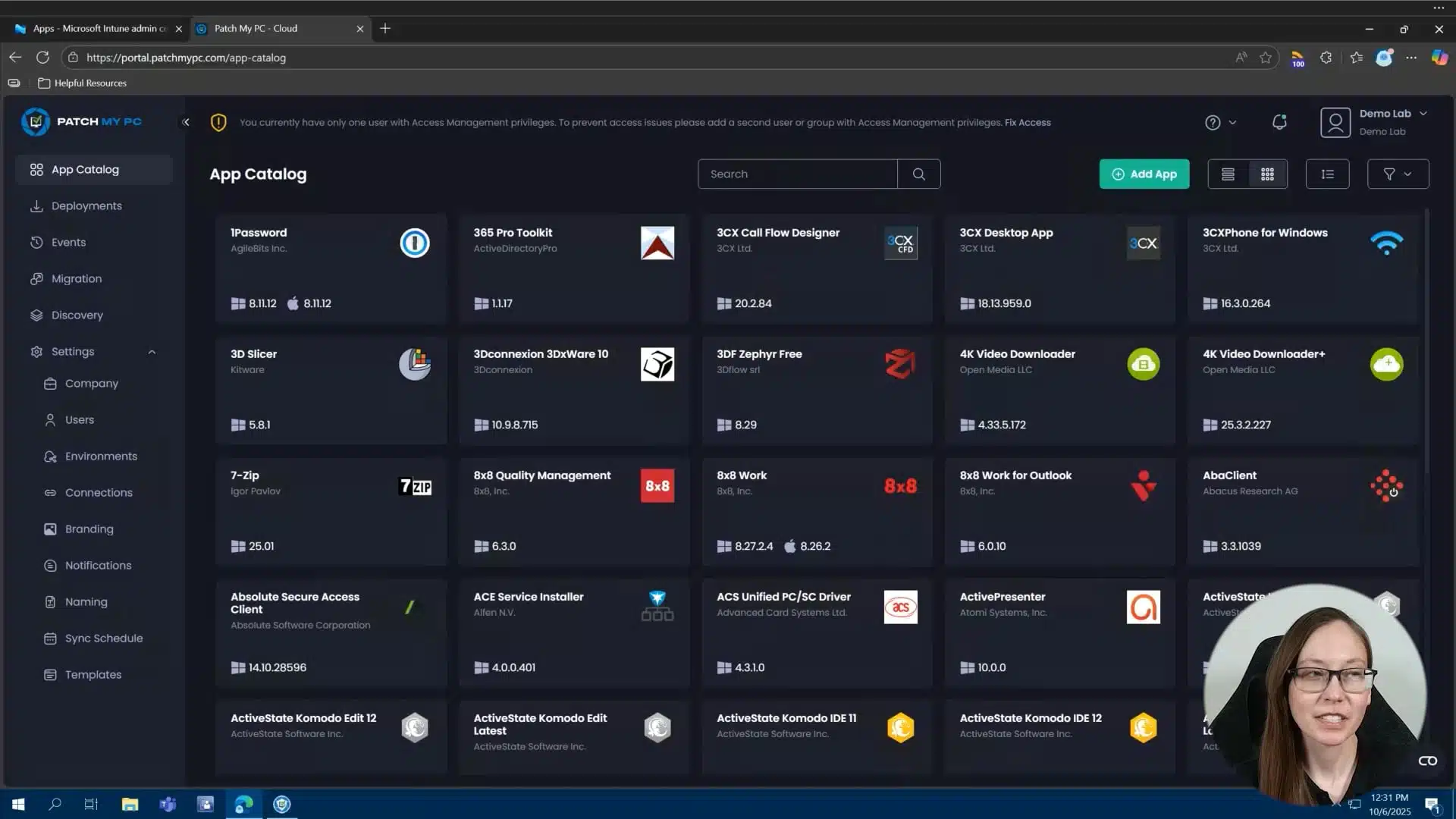
Review the Doc article on Using Pre and Post Scripts in Patch My PC Cloud — https://docs.patchmypc.com/patch-my-pc-cloud/cloud-deployments/deploy-an-app-using-cloud/cloud-configurations-deployment-tab/cloud-scripts-deployments
In this video, we explore how Patch My PC Cloud and Patch My PC Publisher let you take advantage of pre- and post-scripts to customize application deployments. You’ll see how to integrate your own scripts, extend functionality, include extra fiels with your deployment and tailor installations to your environment.
Hi, my name is Melissa. And today I am going to walk you through customizing your third party apps and updates with scripting and extra files. I have a couple of examples that I want to show you how to leverage pre and post scripts in both the cloud portal and the publisher. Then we’ll go through adding extra files like an MST file to your deployments. I’ll wrap this video up with an example of using both scripts and extra files together, which includes a pre and post script that references an extra file.rnrnWe’ll start out in the cloud portal. The very first thing I want to show you is adding.rnrnand a postscript to my Google Chrome deployment. So let’s go ahead and edit my existing deployment here. I’ve selected to deploy the 64-bit MSI for Google Chrome.rnrnThe configurations tab is where you can add all of your extra tools, including pre and post scripts and extra files. So for this particular deployment for Google Chrome, you’ll notice if I hit add, you’ll see extra scripts. Scripting is already selected here. So we’ll go ahead and take a look at my post install script. So all I’ve done here is set a Google Chrome homepage.rnrnSo what I can do is just hit import and I can import a existing script, which is what I’ve done here. So if I go to scripts, add my Google Chrome homepage, it’s gonna go ahead and import that. will select the script format that the script is already written in. Now this is a text editor in our cloud portal. So I could actually change this to something else if I wanted to and edit that script once I import it. I can also write a script from scratch.rnrnReal quick here under script formats, we do support PowerShell, Batch, VBScript, and CMD formats. I can also easily pass arguments into my script. This particular script doesn’t require additional parameters to be passed, but if it did, I could easily add those arguments here. I do have an example later of how you might be able to use that. Let’s go ahead and hit save here.rnrnAnd then I’ve already got this assigned out, so we can go ahead and hit save in order to deploy this.rnrnLet’s move over to the on-prem publisher and induce the same thing here.rnrnNow pre and post scripts are going to be in the same spot. So you see manage custom pre and post scripts. It’s going to look very similar. All I have to do is open this up and then I browse to my PowerShell script and add that as my post installation script for Google Chrome.rnrnAll right, so that was a simple post installation script that we’ve added for Google Chrome that sets that homepage. You’ll see here, I have a couple other examples. The other example I want to go through real quick is VLC media player. So let’s go ahead and edit this deployment here as well. Starting in the cloud, you’ll notice I picked the 64 bit EXE. A very common requirement for VLC media player is if you want the latest version,rnrnsince the vendor is supporting the EXE up to version 3.0.21 at the time of this recording. If you already have the MSI installed, the next step is to remove the MSI as a pre-installation script and then install the EXE. So what I’ve done here is I’ve set this up for the 64-bit EXE, which has the latest version of VLC Media Player. Gonna hit next here, same thing, going into my scripting tool.rnrnIf I hit edit, do have, and this is from our GitHub, but what I’ve done is I’ve downloaded this PowerShell script. What it’s going to do is it’s going to look in the registry to see if there is an existing windows installed or MSI for VLC. If it finds it, so you’ll go through here. If it does find it, it will remove it and then move forward with the installation that I’ve set up here for the deployment of the VLC media player EXE.rnrnSo I’m going to go ahead and hit save. Same thing, I’ve already assigned this out. So I’ll go ahead and save to get that deployed. Let’s switch again over to the publisher and do the exact same thing. This is going to look very similar to what we just did for Chrome. Again, I want to deploy the EXE out. So I’m going to go to manage pre and post scripts, run that pre-installation script where this is an uninstall script that’s going to run prior to the installation of VLC. So if any MSIs for VLC media player is detected as installed on the device, you will find it and uninstall it prior to running that full install for the EXE. And then you’re good to go.rnrnOkay. So before we do, and I do have an example of leveraging both extra files and a post installation script, but before we get there, I do want to go over adding additional files. So a great example is something like Snagit where you may have an MST file should you be deploying the MSI for Snagit. So I’m going to go ahead and hit edit here. Now this deployment is the 64 bit MSI for Snagit 2025.rnrnWhat I’ve done is I’ve downloaded the TechSmith deployment tool and I’ve used the Snagit 2025 MSI to build out my MST file. Once that MST file is built, all I have to do here is go to extra files. So you’ll notice there is a section here for extra files. And you’ll see it’s also telling me I have a dependency for Snagit, which is really helpful. And then let’s go back over to extra files.rnrnOkay, so I can add an extra folder, an extra file. And in this case, because it is an MSI that I’m customizing here, I will be able to add an MST file, which is what I’ve done here. So my snagit.mst that I’ve customized for this deployment, I’ve already uploaded this. So now I’m good to go. So this is a perfect example of just needing an extra file with this particular deployment and not really needing a scripting as well.rnrnalready assigned that out. Let’s go ahead and hit save. And before we get to our final example, I do want to show on the publisher side, let’s go to Snagit 2025, that MSI option. And then you’ll notice there’s a section here for manage MST transformation file.rnrnSo if I go there, I’ve already browsed and uploaded my MST file, which I can do that one more time.rnrnThere we go. All good to go. I’ve added my MST file. You’ll notice when I right click this, that little checkbox next to that option is already selected. So I’m good to go there. Go ahead and hit apply. Awesome. So, so far we’ve gone through some pretty basic pre-installation scripts, post-install scripts, just extra scripts in general. And we’ve also gone through an example of using extra files in a deployment.rnrnLet’s do an example of using both. So what I’m going to do here is I have a post script that runs for notepad plus plus that requires a zip file and it’s looking for a zip file that I’m going to upload as an extra file and just kind of going through how to actually accomplish that. So let’s start in the cloud. I can doing the 64 bit EXE for notepad plus plus. This time I need to enable two additional tools here at the same time, so we’ll enable scripts and extra files.rnrnLet’s go and look at that extra file. So in this case for notepad plus plus, uh, there’s a couple of customizations that you may need to do. So the first one is going to be plugins. So any plugins that you do want to support, you can easily download those from a notepad plus plus on GitHub and then leverage a post install script to install those plugins after notepad plus plus updates or installs. So this is kind of what I’ve done here. Another good example is languages. And so maybe you want to.rnrnNoped++, the actual window itself to be in a different language. So, and you want to support potentially even multiple languages. You’d be able to do this, use a similar concept that I’ve built out here with Compare Plus with your languages as well.rnrnOkay. So you’re seeing here, I’ve went ahead and downloaded my compare plus plugin, which is a zip file. So I easily uploaded that as an extra file. So you’ll see here, if I go to my downloads, I can just add this here as an extra file. Once that’s done, the additional piece that I need to do, because all that extra file is going to do if notepad plus plus is not going to leverage those files natively during the install.rnrnthen what I’ll have to do is add some logic in a script that’s going to not only take that zip file, but also expand it, extract it to the correct directory and put all those files in the correct spot on the local device so that when I launch, my user launched Notepad++ after the deployment or update, they will have that plugin available.rnrnSo what I’ve done here is a post install script. It’s pretty simple. Hit edit here. Again, this is a PowerShell script, but you’ll see here I’m adding a new directory, which is in that notepad++ program files directory under plugins. And this is specifically for the compare plus plugin. The next step is to extract or expand that zip file, which is going to be in the root of my installation directory. So PS script root and is added as an extra file.rnrnto the correct folder that I just created in the line above. So it’s going to take everything in that zip file, expand it and put it in that compare plus plugin folder for me. And that’s all going to happen after a notepad++ installs.rnrnYou could use a similar logic for just about anything that requires a zip file to be extracted after the install.rnrnalso assign this out. All right. And one more thing before we finish this up, let’s do this in the publisher. So I’m going to go to notepad plus plus.rnrnYou’ll be able to add your pre and post script and extra files all in the same spot. So I’m adding my notepad plugins.ps1 as that post script, which does the exact same thing we kind of looked at for the cloud deployment. And then I have my zip file already added as an additional file.rnrnAwesome. we’ve covered both the cloud and the publisher using extra files, using scripting, and then using both extra files and a post install script to customize your third party apps and updates.