
Review the Doc article on Intune Assignments Types — https://docs.patchmypc.com/patch-my-pc-cloud/cloud-deployments/deploy-an-app-using-cloud/cloud-assignments-deployment-tab
In this video, we break down the different assignment options available when publishing apps with Intune and Patch My PC. You’ll learn the key differences between Add Required, Add Available, and Add Update Only, and when to use each:
Add Required – Automatically installs the app for all assigned users or devices.
Add Available – Makes the app optional, allowing end users to install it on demand from the Company Portal.
Add Update Only – Exclusive to Intune apps, this ensures updates are applied to existing installations without deploying the base app to new devices.
By the end, you’ll know exactly how to choose the right option to streamline deployments, improve user experience, and keep devices up to date.
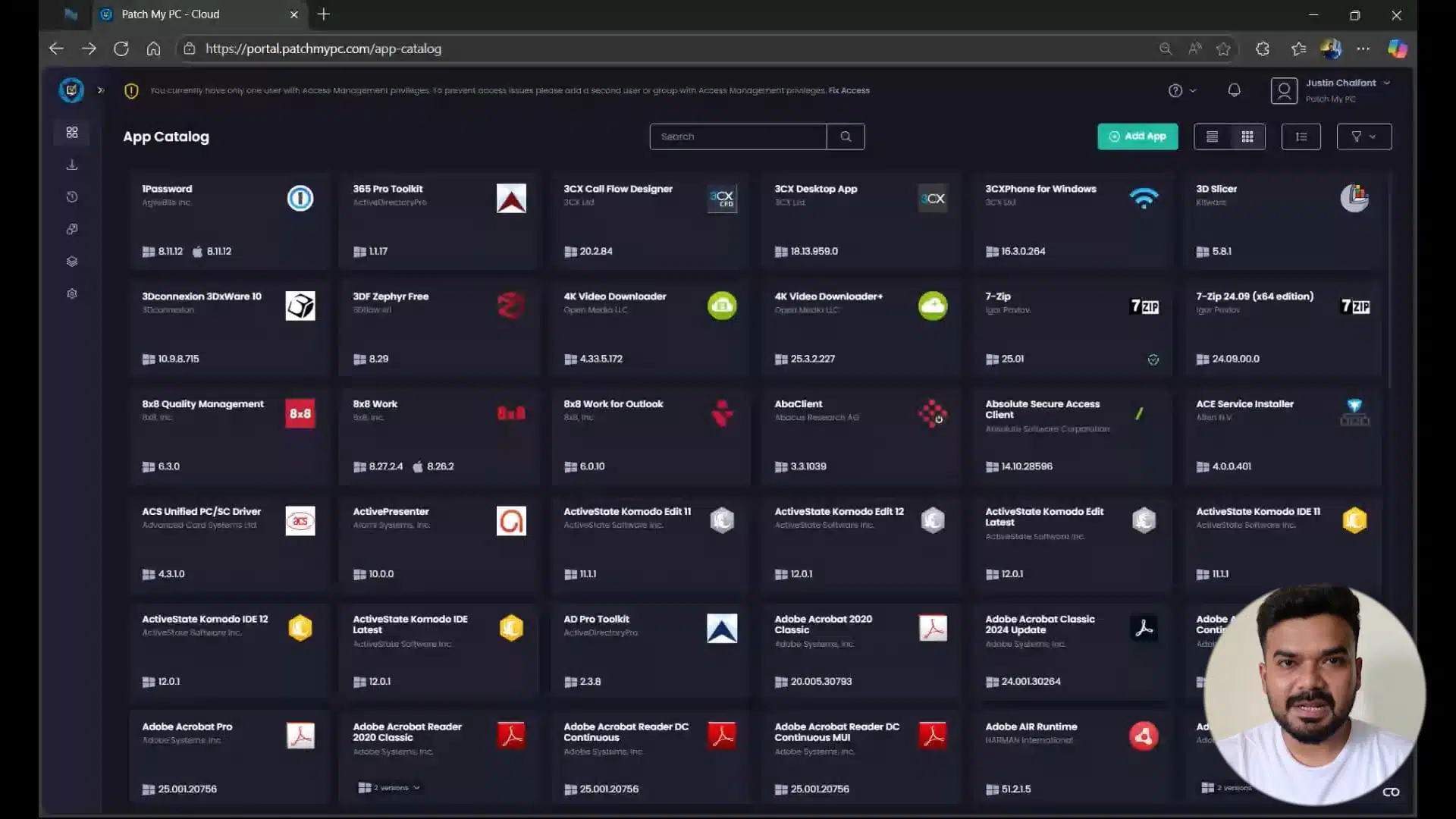
Hi, my name is Zonak and I’m a Customer Engineer here at Apache PC. Today we’ll be talking about the different type of assignments that we have in the cloud portal, how easy it is to configure them and what are the differences in those different assignment types that we have. So let’s go. So once you successfully onboard to the cloud portal and you have started deploying the application, assignment would be a go-to. So let’s take an example of one password over here. We’ll talk about the assignments here by deploying the application.rnrnSo I’ll go with one password, I’ll click on deploy here. And from here, you will start configuring the package. You will select the architecture, installer type, and the sol context that you want. Configuration is where you apply customization to that package. What are the different type of customization you want for the package to be applied? You can use the configuration tab here. Next is the assignment. This is where you’ll apply customization to that package. We have multiple assignment types to choose from.rnrnThink of this tab as the place where you tell Intune how and to whom your app should be delivered. Now, we see different assignment types here. Add required, add available, add update only, and add uninstall. Add required, this means the app is mandatory. Once deployed, Intune will automatically install it on every device or user group you have targeted.rnrnAn example could be if you’re deploying one password and if you want one password to be installed on all your company laptops, then this would be your go-to. Client-side behavior, the app installs silently in the background, no user action needed. Then we have an ad available. If you make the application as available, that means the app will be visible in the company portal where user can go ahead and simply install it themselves.rnrnPerfect for software that are not very essential for every customer. Let’s say, notepad plus plus, VLC, power toys as an example. Client set behavior. It does not auto install. The user can open the company portal and choose to install it themselves. Add update only. This is different from required and available. Add update packages will only update the app if an older version is already present on the machine.rnrnIt will not install a base application. It will just update the application if an older version is already present. How exactly is detecting that? So with every update package we publish, we also add an additional PowerShell requirement strip that detects the presence of the app on those machines. If it’s present, go ahead and update it. If it’s not in there, do not do anything. And then we have add uninstall. As the name suggests,rnrnthe assignment will remove the application from the targeted device or group we have selected. Client set behavior. The app gets silently uninstalled using the PatchMPC packages that you deploy. Okay, so let’s talk about the assignment. We have talked about the assignment types now. Let’s see how we’ll configure it. So let’s say I’m setting it as required to one of my group here. Let’s say this one. I’m setting this as a include assignment. Okay.rnrnThis is required, that means it will automatically install the application on the client machine. Then we have available, as we talked about, available will show the application in the company portal, where user can go ahead and install it. using it, I’m deploying it as available to this particular group. And then just to update the application, if you aware, if the applications there on the client machine already, then use the add update only assignment.rnrnSo in this case, let’s take an example of, or let’s say this one, okay? So I’ve created all the three assignment types here. Just for the example, update only, that will just update the application on the client machine if an older version already present. Available will show that app in the company portal where user can go ahead and install it. And required assignment will automatically install the application on the client machines. You have also an option to set filters.rnrnIf you want to include or exclude a specific group or specific, let’s say a device type, device type for your department, you can also do that. These filters that you see here, these are created in Intune. That’s when you will see it here. Once you select it, those groups will be included or excluded or devices will be included or excluded. rnrnWe also have notifications here where if you want to show the notification to the user, hide them or just show the restart notification. You can also do that. Then the content download. You can pick foreground. This is by default for installs and background by default for updates. PatchMPC by default will auto optimize these settings based on the best practices, but you can tweak them as you need. You can set as foreground or even a background here.rnrnSo this is how the assignment works. These are different diverse assignment that we have. Now easy you can configure it. And when you click on next, you will see a short summary of what you have configured. And then when you click on deploy, this will now start creating those packages in the Indian portal, along with the assignment that you have selected.rnrnNow, one more thing to add up here. We talked about these three assignments, add available, required, and uninstall. Now, what if I want to manage the assignments from the Intune portal? I just want the packages to be created. So I’ll take one more example of Chrome here. I’ll click on deploy, continue anyway and go next, we’ll come to the assignment. rnrnWe have these two assignments as well. App without assignment, install app and update only app. These two will create the application package and update packages for Google Chrome in the Intune portal. The way it’s been used, there are many admins who wants to manage the assignment from the Intune portal instead from the cloud. If they want to do that, then they can use the assignment.rnrnThis will create an application package. This one will create an update package. Once it’s visible in the Indian portal, from there they can simply go ahead and assign them to whichever group they would like to target. Now in the Indian portal for one password that we have created, let’s confirm if the packet got created or not. So I can see the package is here, it’s still getting assigned. This is an application package, and this is an update packet that starts with update for as a prefix. Right now the assignment is set to no.rnrnSo if I even click on this, for this one, it’s set to yes now. So if I click on one password, and if I go to the assignments tab, I will see the assignment that I’ve configured. So let’s go to the properties of it and review the assignment that we have enabled.rnrnSo if I scroll down, I can see the assignment that I’ve selected required for this group I’ve selected, and it’s available for this particular group. For update package, this is the update package now. And if I go to the properties of this update package, still getting created now. App is not yet in ready state. So let’s wait for a few moments here and we should see the update package as well.