
Review the Doc article on how how Updating Rings work in Patch My PC Cloud — https://docs.patchmypc.com/patch-my-pc-cloud/cloud-deployments/cloud-update-rings
In this video, we will discuss update rings, how to enable them and how the Cloud handles overlapping updates. The Update Rings feature in Patch My PC Cloud allows you to deploy apps and updates in a phased manner across your Intune estate. This means you can deploy software to a pilot group of users or devices first to ensure it functions as expected. After a set period, you can deploy the update to a wider group and pause to check for issues. Finally, if there are no issues, you can deploy the update to the remaining users or devices.
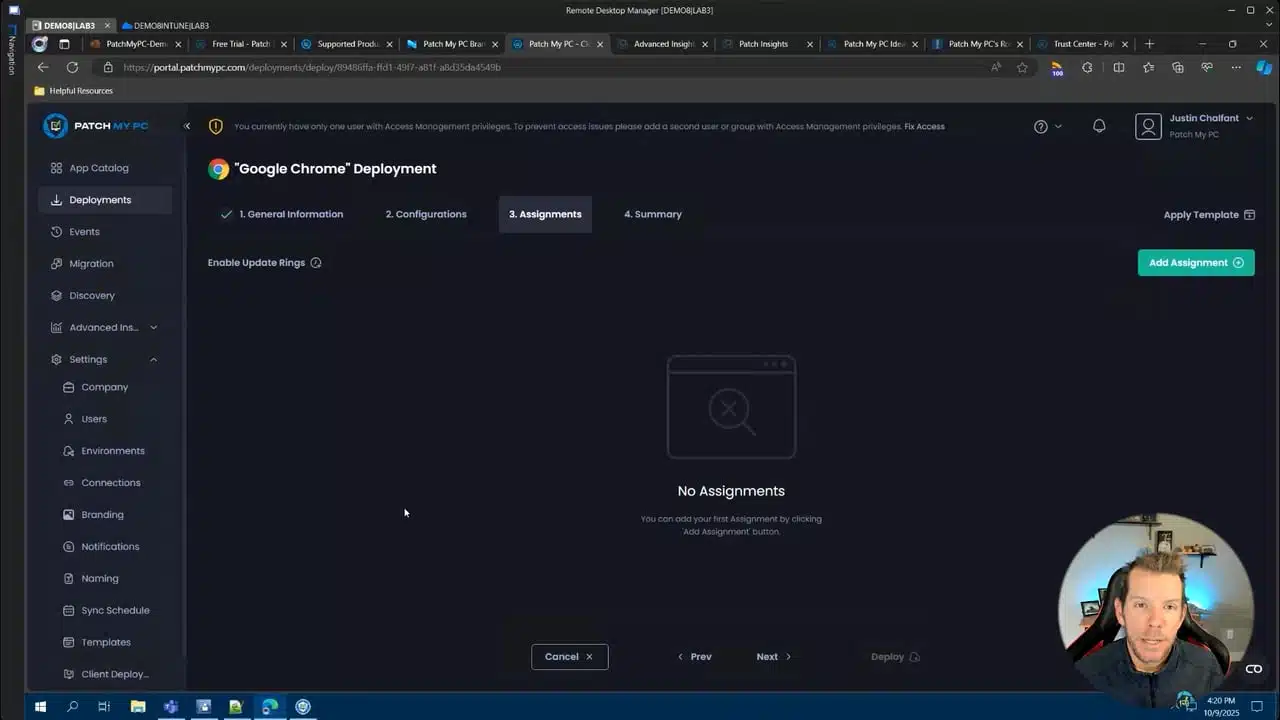
Hi, my name is Chris. I’m a customer engineer here at Patch My PC and we’re to be talking about update rings. As you’re building your deployments, you may have the need for slowly rolling these updates through your environment. So we give you the option here to enable some update rings. You can add as many rings as you want here. I’m going to go ahead and add three different rings and you can specify the delay for each of those rings. So I’m going go ahead and set up zero three and seven day delays between when we are going to add our assignments in Intune. I’m gonna go ahead and add my assignment to make this application available to my users the day that the application comes out. So that would be day zero. rnrnI’m also going to make sure that we’re testing this with our IT department first. Now, if you are currently using Windows Auto Patch or Windows Update for Business, you may already have update groups built out. You can use those exact same groups. So I’m going to go ahead and set up my IT department here. And then three days later, we’re going to make sure that I set up our broad range device group. And lastly, after seven days, we’ve done enough testing. Let’s go ahead and send it to all of our production devices. Now, update ring start time. This is important. Delayed would mean that today is day zero. rnrnSo as I’m deploying this into Intune, we’re going to only assign these assignments here, my IT department, and my all users assignment as available. So we’ll go ahead and set it up as delay. That’s why it is recommended. Setting it to immediate would ensure that we assign all of these immediately. However, we will start the update cycle the next update of Google Chrome. So let’s go ahead and set this up.rnrnNow, as this is being built, there’s a couple of things to take note here. Currently, version 141 is the latest and greatest version of Google Chrome, and we are assigning it out to all of our users as available, as well as the update. We’re only sending it to our IT department. There may be an instance where updates start to overlap each other. This is something unique to third party applications where vendors typically update their software so frequently that they might overlap the rings that you have set up. Now that’s OK. We will continue to maintain the current version, in this case version 141, through all of your update rings. And if a new version is released within that time frame, we will start a new ring one with that new version. So from the user’s perspective, all they’re really going to see is currently it’s version 141 and version 142.rnrnThey will not be skipped around as far as versions go. So in Intune, let’s go ahead and refresh this. have my Google Chrome update here and this should be assigned out to all my devices.