
Review the Doc article on Onboarding To Cloud — https://docs.patchmypc.com/patch-my-pc-cloud/onboard-to-cloud
Review the Doc article on Onboarding To Intune Apps — https://docs.patchmypc.com/patch-my-pc-cloud/intune-apps/onboard-to-intune-apps
In this video, we show you how to get started with Patch My PC Cloud by creating a new Cloud Company and connecting your new company to your Intune tenant
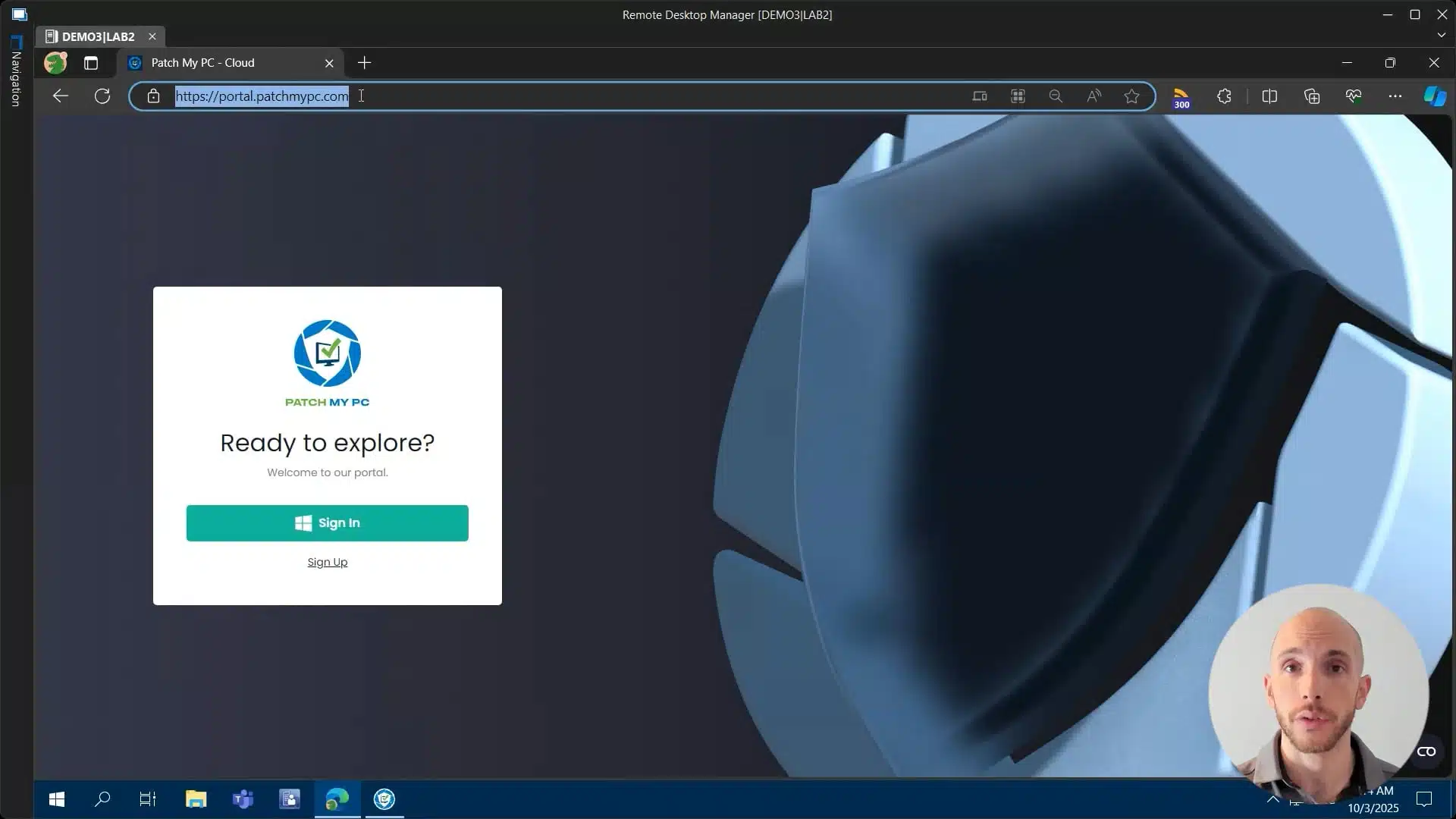
Hi there, my name is Hugo. I’m a customer engineer here for Patch My PC. And today I’m going to show you how easy it is to create your own company within the Patch My PC cloud portal. So first and foremost, all you have to do is navigate to portal.patchmypc.com and then click on the sign up button. You will then be prompted to log in using your own Microsoft account. So I’m just going to select the one that I have here.rnrnAnd then you’re going to be asked to choose a location for where your data is actually going to be stored. And you can choose either between the US or the EU. In this case, I’m going to leave the US on and just fill out the company name.rnrnThen also choose the country. So I’m going to go with United States. There we go. Continue. Then just the actual user info for the person logging on. So just going to use my own details here. And then the email as well.rnrnHugo Marinho (01:07.269)rnThere we go. And then check this box for terms and conditions and click on continue.rnrnAnd within a few seconds, we have our company created. All we now have left is to actually connect this to your internet environment. And to do that, we have to click here on the Connect button, which will then ask us to log in one more time. Now, this time around, this account will need to be a GA account or global admin. So I’m going to select the account here.rnrnHugo Marinho (01:37.027)rnAnd then we’re prompted for a few permissions. And what this will actually do is this will create a enterprise application within your own environment, which will then allow us to do our magic, so to speak. So all you have to do is to click on the accept button here.rnrnAnd within a few moments, we’re going to see a confirmation message saying that the Intune connection was successful. So we just have to wait a little bit. There we go. And then here, you would just need to enter your license key. If you were actually logging in for the first time, you would also see an option here where I currently, it’s just a blank space for me to start your own free 30 day trial. So you can actually give the product a go with all of the features that we have to offer.rnrnbefore making any sort of commitment. Now, since I do actually have a valid key, I don’t see that option here, so I’m just gonna go ahead and select my key. And again, very shortly, we will also have a confirmation message that the license has been activated. And that’s how easy it is to create a company and to connect this with your internet environment. And you are now ready to start pushing out applications and updates. Remember, if you want, we do offer a free trial, as I just mentioned, so you’re welcome to just give that a go.rnrnThank you so much for watching and have a great day!