
Review the Doc article on creating custom apps in Patch My PC Cloud — https://docs.patchmypc.com/patch-my-pc-cloud/custom-apps
In this video, we explore the Custom Apps feature in Patch My PC Cloud. This powerful capability lets you package and publish your own software to ConfigMgr or Intune using the Publisher, or directly to Intune using the Cloud.
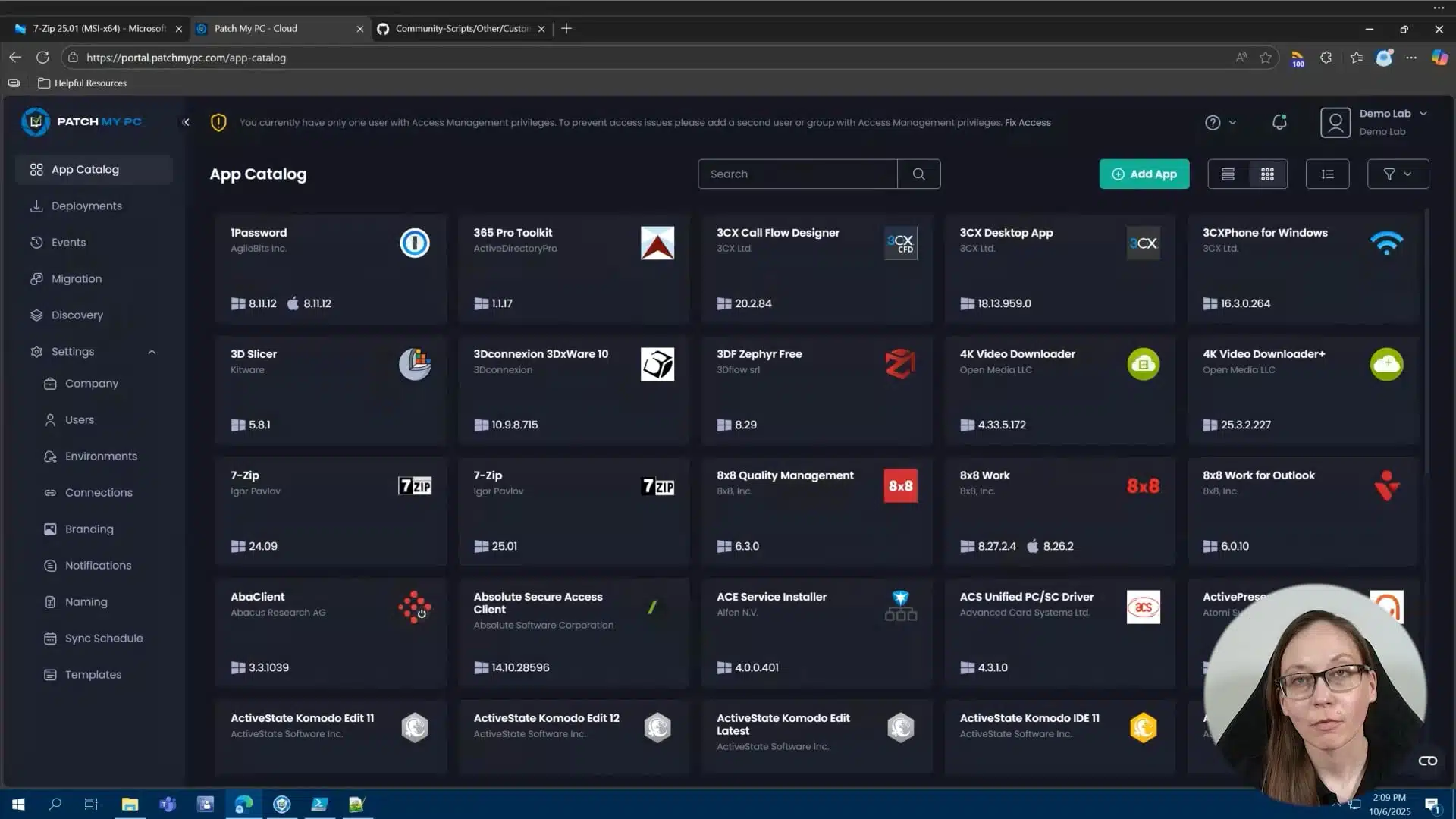
Hi, my name is Melissa, and today I want to walk you through creating custom apps. Maybe you have a homegrown application or an application that’s just not in our catalog. As long as the primary installer is an MSI or an EXE, you can easily create a custom app with Patch My PC. I have a couple of common examples of custom apps that I want to walk through. The first one is a simple MSI.rnrnThen after that, we’re going to use an EXE and I’m going to show you the custom apps helper tool, which can pull some of the needed information from the registry for your application. And then finally, I’m also going to show you a custom app using the PowerShell app deploy toolkit or the PSADT. rnrnThe custom apps feature is in our cloud portal. So we’re going to start there. You first create the custom app and you’ll need to be onboarded to the cloud in order to see this feature. So you see here, this green button, add app. That’s where you would add your custom app. And we’re about to go through that process. You can also connect the cloud to the publisher. Once you’ve created your custom apps, you can sync those custom apps with the publisher and deploy them via the publisher and customize them to configuration managers as an application and to Intune as an application in an update. I’ll show you that process as well. rnrnFor the first custom app, I do want to do a pretty easy MSI. So you saw me hit add application. All this is going to do is show you a couple of tabs in order to upload the primary installation files and any needed extra files, which is on this first tab. The second tab is going to be any icons, app name, vendor and description. So basic application information. You will have to provide this unlessrnrnFor example, with this MSI, you’ll see it’ll upload and grab some of that information by default without having to upload that information. Configuration is going to go into the detection. So if you do use Patch My PC built-in detection methods, all of the information here, the version, language, apps and features name will all go in architecture and install context will all play a part in where we are looking in the registry for this application after it’s installed and matching that information. rnrnThis is super important. You’ll notice an MSI like what I’m about to do. We’ll pull all this information for you, but if you were to use an EXE, you may have to use what we have, our custom app script or helper tool in order to get some of this information. Finally, you have the silent installation parameters. And then we also have a new feature, which I’m going to show here today. The ability to add and append the basic uninstall parameters. So what we’re doing by default, when you hit uninstall or you assign this as an uninstallation, what it’s going to do is going to pull that uninstall string from the registry. If you need to add anything else to it, like a silent command line parameter, you can easily add that here. I’ll show you an example of that here in a second. Okay. So let’s actually get into adding a custom app.rnrnSo the very first custom app I’m going to do is this return on investment tool MSI. So I’m to go ahead and upload this. I don’t have any additional files and folders for this particular custom app. So I’ve just uploaded my primary installation file, which is that MSI. You’ll notice it’s already pulling a lot of this information for me. Very, very helpful here. And I’ll go through an example of a custom app that does not have some of this information and going through that process.rnrnSo that’s pretty straightforward. have the app name, vendor and description, as well as the icon. Let’s get into the configuration. So this application is going to be a 64 bit system installer. have the apps and features name. This is what is showing in the display name in the registry. And we also have our conflicting processes, our silent installation parameters and the version. I’m going to go ahead and leave the uninstall command as automatic.rnrnWe do also have the ability to add detection rules. So one of the benefits of using the custom app feature is that it’s going to add by default Patch My PC detection methods. Also, it’s going to add the Patch My PC requirement script if needed for updates, and it’s going to add the ability to pull Patch My PC logging. So it’s going to build that all into your custom app for you.rnrnYou also have the option if needed to build out custom detection. Now keep in mind only the Patch My PC default detection method is supported with the publisher. So if you use custom, you can deploy this application to Intune via the cloud portal, but it will not be supported on the publisher side.rnrnSo you have the ability to configure a manual detection rule, custom script. So if I hit manually, you have a couple of options here, including file and registry-based detection. So you have a lot of options here. I’m gonna switch this back to default and hit create. This is going to build that custom app and it’s going to add it back to my catalog. So one of the easiest ways to find this, you’ll notice this source, this is going to be my tenants or my demo lab that I’ve onboarded here. If I hit this filter, it’s going to show me all of my custom apps. So I have my return on investment tool that I just created. And I also have this seven application that I’ve created as a custom app. From here, all I’d have to do is hit deploy.rnrnAnd you’ll notice I’ll have the same exact configurations, including pre and post scripts, additional files, app information, and installation parameters. So all of those will be available to me here. And then under assignments, I have the same assignment options as well. So I can just build this out with my standard all users and I can deploy this out.rnrnOkay. One more thing before we kind of go into the next, custom app, you’ll notice I already uploaded that or I created that return on investment tool. So if I hit refresh here, I have connected into my cloud from the publisher. So under config manager apps, you’re now seeing an all custom products and I will see both of my custom apps as options here for config manager applications.rnrnIntune applications and Intune updates. So those are all available for me in the publisher.rnrnOkay, let’s go back and the next thing I want to show you is you’ll notice I have 7-Zip created as a custom app. So if I go back and filter by my custom apps.rnrnHit deploy. I am going to go ahead and deploy this because I do want to show an update. So let’s go ahead and get this published.rnrnOkay, so let’s say you have a custom app, in this case, 7-Zip. And you’ll notice that version of 7-Zip is actually old. So what do we do when there’s a new version of a custom app? So what I want to show you is how easy it is to update a custom app. All you have to do is you’ll notice I found the 7-Zip application in my catalog. I’ll just hit add version. This screen looks identical to the previous screen. So you have your… ability to add your file configuration and detection rules. rnrnYou notice it’s not also asking me to create the same, upload an icon and stuff like that. I would have to do that if I was creating an EXE from scratch, which we’ll all show you here shortly, but this is super easy to do. So all you have to do is add your primary installation file. So if I go to my downloads, where I’ve downloaded my 7-Zip 2501. Hit open. If I go to configuration, some of this information is being pulled from my previous custom app that I’ve uploaded. But I do want to show you our custom apps helper tool real quick. So we do have a tool in GitHub, our Patch My PC GitHub called the custom apps helper tool.rnrnAll you do is you download it. I’m going to run it. What it’s going to do is show you everything that’s in the registry for installed applications. You’ll see here’s my 7-zip 2501. I am going to hit OK here. And then I actually see all the helpful information here that I need for my configurations tab. So that’s a really easy way to find all this information out.rnrnSo let’s go ahead and finish this out. So we have 2501 for my version. It’s pulling those conflicting processes, the apps and features name. Now 7-zip has the version in the app and the display name, which is why we’ve had a wild card here, which will allow me to keep the same app and features name over versions. So as versions change, it’s a good example of that. Silent installation parameter is going to be the same and it’s 64 bit.rnrnSo we should be good to go there. I’m going to keep the default patch my PC for detection and let’s go ahead and hit save. Now what’s going to happen here is it’s going to wait till that sync time to actually pull in that new version. And since I already have this deployed, it’s going to update that deployment automatically for me. I can also go back to my deployments and speed that up a little bit by hitting sync or recreate here.rnrnOkay, so the final custom app I want to show you is how to use the PowerShell AppDeploy Toolkit as a custom app. So in this particular scenario, I have built out a PSADT version 4 that is installing Notepad++. So let’s go ahead and build that out as a custom app. In this case, this is just a good example as a starting point on how to do this. We get this question a lot in support.rnrnSo let’s actually, I want to show you the base, um, actual package that I have built from the PS app deploy. So let’s make this a little bit bigger here. So this is for notepad plus plus. If I open this up, I have my PS one, my EXE, and then all of these support files as well. So what I’m going to do here as my primary installer is going to be the invoke app, deploy toolkit.exe.rnrnSo you can easily drag and drop. So what I’m gonna do is drag and drop that over here. And then another easy way to add your extra files, I wanna make sure that I’m adding everything, but that EXE that I just uploaded as my primary, I can easily drag and drop that over here as well. So let’s go ahead and do that.rnrnSo that’s the main difference here. So this is a good example of a primary EXE, but also has a ton of additional files here. So I went ahead and just have to make sure that PS1 is there and those files and all of your supporting files and folder structure for the PSADT.rnrnUnder general information, this is going to be very similar to just using a EXE and, regardless of the PSADT. So I do have to upload the app icon. I do have my icons here. Let’s go ahead and do that for notepad plus plus app name is notepad plus plus. And I did use the custom apps helper tool to pull this information, but I have it pre populated here for notepad plus plus. So this is super straightforward.rnrnWe’ll do notepad++64.rnrnDescription can be whatever you want. in this case, I’m going to do notepad plus pct demo. Configuration is the important stuff for your detection. So we’re actually going to copy and paste a lot of this stuff over.rnrnVersion is 885.rnrnI’ll do English.rnrnConflicting processes is also really simple. So it’s just notepad++.exe, but that was information that was pulled from that tool. And then the silent installation parameter. This is where, because I’m using a PSADT package, this is going to be slightly different than if I was just uploading notepad++.exe here. So I’m actually going to pass the defaults for the PSADT. That’s gonna be deployment type and you saw here, deployment type install, deploy mode interactive. So I’ve uploaded that here.rnrnGoing to use the Patch My PC default for the detection rules as well. And we’ll go ahead and create that.rnrnAwesome, so let me take a look at all of our custom apps that we’ve created. So we created a standard MSI custom app. We updated an EXE based custom app for 7-Zip from 24.09 to 25.01. And then we also created a PSADT based custom app as well. We’ll walk through that process.rnrnSo hopefully after seeing all of this you feel a little bit more confident about building out your own custom apps. You can always reach out to us if you have any questions. Thanks for your time.