
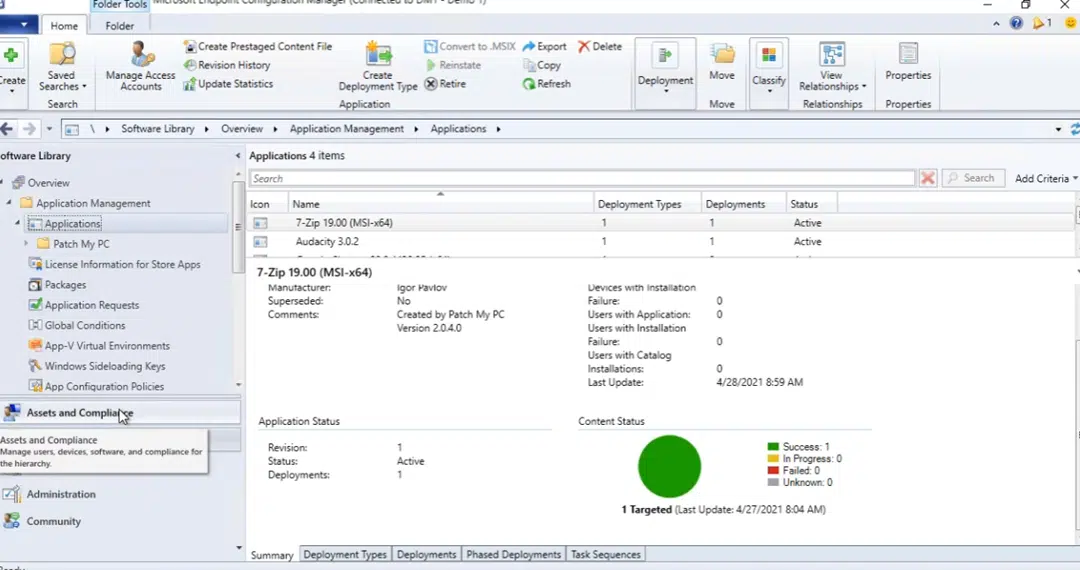
Scenario 1: Succesful Content Lookup Workflow
Pre-Conditions:
- Healthy ConfigMgr client.
- The client is in a boundary.
- There is a Distribution Point associated with the boundary group.
- The content is distributed successfully to the DP.
- The software / update / package is deployed to the device.
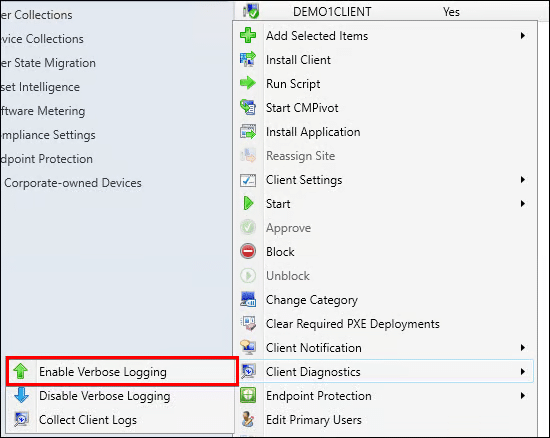
- Enable verbose logging on the site system with the MP role and the client
Successful Content Lookup Flow
There are many moving parts when a content location request is sent to the management point and processes by a ConfigMgr client. Here are some key snippets of how this happens.
| Log File | Log Text |
|---|---|
| DataTransferService.log | BITSHelper, remote name = http://DEMO1.CONTOSO.LOCAL:80/SMS_DP_SMSPKG$/9c93cbee-aabc-4daf-996a-4580daa09c87/sccm?/debcf2da-e7da-4c50-b718-fc95ffe40c9d_1.cab, local name = C:Windowsccmcache1debcf2da-e7da-4c50-b718-fc95ffe40c9d_1.cab |
| DataTransferService.log | Job: {C54E37D3-BFDE-4629-AC82-32E6CE733750}, Total Files: 1, Transferred Files: 0, Total Bytes: 79417630, Transferred Bytes: 262144 |
| CAS.log | CContentAccessService::NotifyDownloadProgressEx – downloaded size 52480, total size 77556 |
| CAS.log | The hash we are verifying is SDMPackage:<Content ContentId=”9c93cbee-aabc-4daf-996a-4580daa09c87″ Version=”1″><FileContent Name=”debcf2da-e7da-4c50-b718-fc95ffe40c9d_1.cab” Hash=”78A05BCA9CCA039C62C1B2D494281E72ED864BD9″ HashAlgorithm=”SHA1″ Size=”79417630″/></Content> |
| CAS.log | Hash verification succeeded for content 9c93cbee-aabc-4daf-996a-4580daa09c87.1 downloaded under context System |
| DataTransferService.log | Job: {C54E37D3-BFDE-4629-AC82-32E6CE733750}, Total Files: 1, Transferred Files: 1, Total Bytes: 79417630, Transferred Bytes: 79417630 |
| DataTransferService.log | DTSJob {C54E37D3-BFDE-4629-AC82-32E6CE733750} successfully completed download. DataTransferService 4/27/2021 8:21:18 AM 2612 (0x0A34) |
| DataTransferService.log | DTS job {C54E37D3-BFDE-4629-AC82-32E6CE733750} has completed: |
| DataTransferService.log | Elapsed time : 5 seconds |
| ContentTransferManager | CCTMJob::EvaluateState(JobID={C17823B5-A8A9-48F8-8375-64CFC55869CB}, State=Success) |
Tip
You can open all content logs at once in CMTrace.exe by adding the following files: “CAS.log” “CIAgent.log” “CIDownloader.log” “CIStateStore.log” “ClientLocation.log” “CMBITSManager.log” “ContentTransferManager.log” “DataTransferService.log” “DCMAgent.log” “LocationServices.log” “StateMessage.log” “UpdatesDeployment.log”
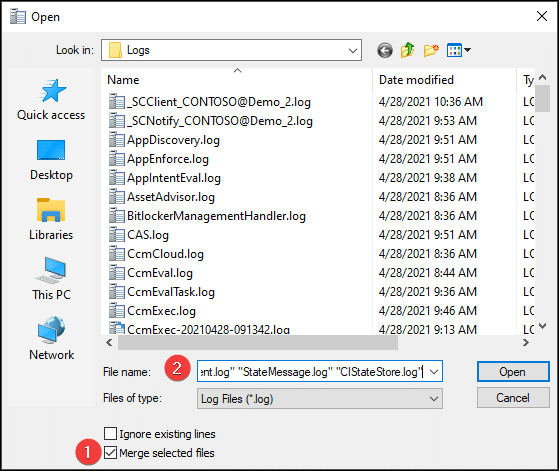
Snippets of Location Request
Example of the management point MP_Location.log calling the stored procedure MP_GetContentDPInfo
<ServerNameList>
    <ServerName LocalityEx="256" Fallback="0">DEMO1.CONTOSO.LOCAL</ServerName>
</ServerNameList>,SMSUpdate,00000000,CONTOSO.LOCAL,CONTOSO.LOCAL,<ClientLocationInfo LocationType="SMSUpdate" DistributeOnDemand="0" UseAzure="0" AllowWUMU="0" UseInternetDP="0" AllowHTTP="1" AllowSMB="1" AllowMulticast="1" AllowSuperPeer="1" DPTokenAuth="1">
<ADSite Name="DEFAULT-FIRST-SITE-NAME"/>
<Forest Name="CONTOSO.LOCAL"/>
<Domain Name="CONTOSO.LOCAL"/>
<IPAddresses>
    <IPAddress SubnetAddress="192.168.10.0" Address="192.168.10.35"/>
</IPAddresses>
<Adapters>
    <Adapter Name="Ethernet" IfType="6" PhysicalAddressExists="1" DnsSuffix="" Description="Microsoft Hyper-V Network Adapter"/>
</Adapters>
<BoundaryGroups BoundaryGroupListRetrieveTime="2021-04-28T15:00:21.637" IsOnVPN="0">
    <BoundaryGroup GroupID="16777218" GroupGUID="ad36e248-a857-45e6-ab82-c179bb680b18" GroupFlag="0"/>
</BoundaryGroups>
</ClientLocationInfo>,<BoundaryGroups BoundaryGroupListRetrieveTime="2021-04-28T15:00:21.637" IsOnVPN="0">
<BoundaryGroup GroupID="16777218" GroupGUID="ad36e248-a857-45e6-ab82-c179bb680b18" GroupFlag="0"/>
</BoundaryGroups>)
Tip
The Fallback=”0″ or Fallback=”1″ controls if fallback is allowed. To learn more about fallback see this Microsoft Doc.
Example of a content location request from the client sent to the management point in CAS.log
<ContentLocationRequest SchemaVersion="1.00" BGRVersion="1" ExcludeFileList="">
    <Package ID="UID:9c93cbee-aabc-4daf-996a-4580daa09c87" Version="1" DeploymentFlags="9223372036855300962"/>
    <AssignedSite SiteCode="DM1"/>
    <ClientLocationInfo LocationType="SMSUpdate" DistributeOnDemand="0" UseAzure="0" AllowWUMU="0" UseInternetDP="0" AllowHTTP="1" AllowSMB="1" AllowMulticast="1" AllowSuperPeer="1" DPTokenAuth="1">
        <ADSite Name="Default-First-Site-Name"/>
        <Forest Name="CONTOSO.LOCAL"/>
        <Domain Name="CONTOSO.LOCAL"/>
        <IPAddresses>
            <IPAddress SubnetAddress="192.168.10.0" Address="192.168.10.35"/>
        </IPAddresses>
        <Adapters>
            <Adapter Name="Ethernet" IfType="6" PhysicalAddressExists="1" DnsSuffix="" Description="Microsoft Hyper-V Network Adapter"/>
        </Adapters>
        <BoundaryGroups BoundaryGroupListRetrieveTime="2021-04-28T15:00:21.637" IsOnVPN="0">
            <BoundaryGroup GroupID="16777218" GroupGUID="ad36e248-a857-45e6-ab82-c179bb680b18" GroupFlag="0"/>
        </BoundaryGroups>
    </ClientLocationInfo>
</ContentLocationRequest>
Example of Content location reply from the management point to the client in the client’s CAS.log
<ContentLocationReply SchemaVersion="1.00" BGRVersion="1">
    <BoundaryGroups BoundaryGroupListRetrieveTime="2021-04-27T14:21:06.263" IsOnVPN="0">
        <BoundaryGroup GroupID="16777218" GroupGUID="ad36e248-a857-45e6-ab82-c179bb680b18" GroupFlag="0"/>
    </BoundaryGroups>
    <ContentInfo PackageFlags="0" DeploymentFlags="9223372036855300962">
        <ContentHashValues/>
    </ContentInfo>
    <Sites>
        <Site>
            <MPSite SiteCode="DM1" MasterSiteCode="DM1" SiteLocality="LOCAL" IISPreferedPort="80" IISSSLPreferedPort="443"/>
            <LocationRecords>
                <LocationRecord LocalityEx="BOUNDARYGROUP" DPFallbackIn="PT0M">
                    <URL Name="http://DEMO1.CONTOSO.LOCAL/SMS_DP_SMSPKG$/9c93cbee-aabc-4daf-996a-4580daa09c87" Signature="http://DEMO1.CONTOSO.LOCAL/SMS_DP_SMSSIG$/9c93cbee-aabc-4daf-996a-4580daa09c87.1.tar" Capability="0"/>
                    <ADSite Name="Default-First-Site-Name"/>
                    <IPSubnets>
                        <IPSubnet Address="192.168.10.0"/>
                        <IPSubnet Address=""/>
                    </IPSubnets>
                    <Metric Value=""/>
                    <Version>9040</Version>
                    <Capabilities SchemaVersion="1.0">
                        <Property Name="SSLState" Value="0"/>
                    </Capabilities>
                    <ServerRemoteName>DEMO1.CONTOSO.LOCAL</ServerRemoteName>
                    <DPType>SERVER</DPType>
                    <Windows Trust="1"/>
                </LocationRecord>
            </LocationRecords>
        </Site>
    </Sites>
    <RelatedContentIDs/>
</ContentLocationReply>
Here’s a snippet of the download options for a software update download request in UpdatesDeploymentAgent.log
<DownloadOptions>
    <Priority>Foreground</Priority>
    <DPLocality>10</DPLocality>
    <Timeout>
        <Location>604800</Location>
        <Download>86400</Download>
        <PerDPInactivity>0</PerDPInactivity>
        <TotalInactivity>0</TotalInactivity>
        <UseBranchCache>true</UseBranchCache>
        <PersistOnWriteFilterDevices>false</PersistOnWriteFilterDevices>
        <OverrideServiceWindows>false</OverrideServiceWindows>
    </Timeout>
</DownloadOptions>
A point of interest is DPLocality flag determines how the client obtains distribution points, according to distribution point locality. Possible values are:
To pick up a draggable item, press the space bar. While dragging, use the arrow keys to move the item. Press space again to drop the item in its new position, or press escape to cancel.
To pick up a draggable item, press the space bar. While dragging, use the arrow keys to move the item. Press space again to drop the item in its new position, or press escape to cancel.
| Value | UInt32 |
|---|---|
| DP_DOWNLOAD_FROM_LOCAL | 4 |
| DP_DOWNLOAD_FROM_REMOTE | 6 |
| DP_NO_FALLBACK_UNPROTECTED | 17 |
| DP_ALLOW_WUMU | 18 |
| DP_ALLOW_METERED_NETWORK | 19 |
Scenario 2: Failed Content Lookup Due to Boundary Misconfiguration
Pre-Conditions:
- Healthy ConfigMgr client.
- The client is NOT in a boundary.
- There is a Distribution Point associated with the boundary group the client is NOT in.
- The content is distributed successfully to the DP.
- The software / update / package is deployed to the device.
- Enable verbose logging on the site system with the MP role and the client
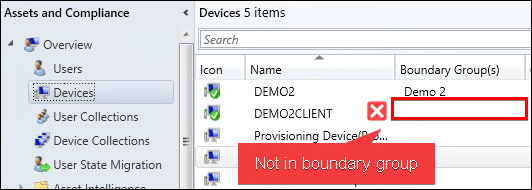
Ways to identify when a Client is not in Boundary Group
If a client is not in a boundary group here are some snippets that can be helpful.
To pick up a draggable item, press the space bar. While dragging, use the arrow keys to move the item. Press space again to drop the item in its new position, or press escape to cancel.
To pick up a draggable item, press the space bar. While dragging, use the arrow keys to move the item. Press space again to drop the item in its new position, or press escape to cancel.
| Log File | Log Description |
|---|---|
| LocationServices.log | Client is not in any boundary group and ConfigMgr is no longer managing WindowsDO GPO. Set WindowsDO GPO to default values. Mode = LAN. GroupID = empty |
| CAS.log | The number of discovered DPs(including Branch DP and Multicast) is 0 |
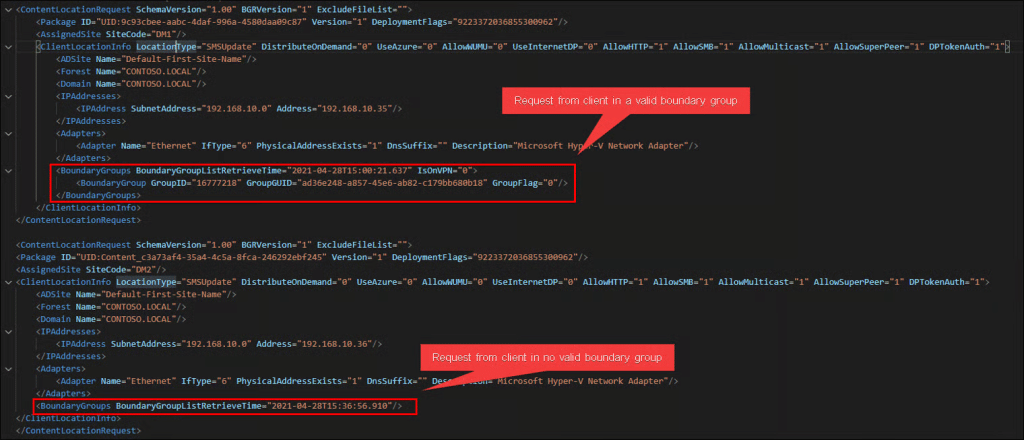
In the content location request in the CAS.log, you will also notice the BoundaryGroup element doesn’t contain the fields GroupID, GroupGUID, or GroupFlag.
Tip
Search the text “ContentLocationRequest” in the CAS.log to find location requests performed on the client-side logs.
In the CAS.log here is an example of a response from the management point when the client is in no boundary group, and fallback is disabled, and no content was found.
<ContentLocationReply SchemaVersion="1.00" BGRVersion="1" ContentFlags="86016" HashAlgorithm="32780" AlgorithmPreference="4" Hash="5230AF02CF06BDD36CDD10FD13C4DF795F465E46FC47E1B1A00E44E2589AA6AD" ExcludeFileListHash="" RelatedContentID="">
    <BoundaryGroups BoundaryGroupListRetrieveTime="2021-04-28T15:36:56.910"/>
    <ContentInfo/>
    <Sites>
        <Site>
            <MPSite SiteCode="DM2" MasterSiteCode="DM2" SiteLocality="FALLBACK"/>
            <LocationRecords/>
        </Site>
    </Sites>
    <RelatedContentIDs/>
</ContentLocationReply>
We can compare this to the response received in the CAS.log when the content was found and the client is in a boundary group.
<ContentLocationReply SchemaVersion="1.00" BGRVersion="1">
    <BoundaryGroups BoundaryGroupListRetrieveTime="2021-04-28T15:00:21.637" IsOnVPN="0">
        <BoundaryGroup GroupID="16777218" GroupGUID="ad36e248-a857-45e6-ab82-c179bb680b18" GroupFlag="0"/>
    </BoundaryGroups>
    <ContentInfo PackageFlags="0" DeploymentFlags="9223372036855300962">
        <ContentHashValues/>
    </ContentInfo>
    <Sites>
        <Site>
            <MPSite SiteCode="DM1" MasterSiteCode="DM1" SiteLocality="LOCAL" IISPreferedPort="80" IISSSLPreferedPort="443"/>
            <LocationRecords>
                <LocationRecord LocalityEx="BOUNDARYGROUP" DPFallbackIn="PT0M">
                    <URL Name="http://DEMO1.CONTOSO.LOCAL/SMS_DP_SMSPKG$/9c93cbee-aabc-4daf-996a-4580daa09c87" Signature="http://DEMO1.CONTOSO.LOCAL/SMS_DP_SMSSIG$/9c93cbee-aabc-4daf-996a-4580daa09c87.1.tar" Capability="0"/>
                    <ADSite Name="Default-First-Site-Name"/>
                    <IPSubnets>
                        <IPSubnet Address="192.168.10.0"/>
                        <IPSubnet Address=""/>
                    </IPSubnets>
                    <Metric Value=""/>
                    <Version>9040</Version>
                    <Capabilities SchemaVersion="1.0">
                        <Property Name="SSLState" Value="0"/>
                    </Capabilities>
                    <ServerRemoteName>DEMO1.CONTOSO.LOCAL</ServerRemoteName>
                    <DPType>SERVER</DPType>
                    <Windows Trust="1"/>
                </LocationRecord>
            </LocationRecords>
        </Site>
    </Sites>
    <RelatedContentIDs/>
</ContentLocationReply>
If the content is not found, you will be able to note the following line in StateMessage.log
State message(State ID : 5003) with TopicType 1702 and TopicId ScopeId_CA3F999B-7A81-43BF-912C-56E267C1E565/DeploymentType_677dac51-d2a2-4bbd-aeb0-4b845aa288cd/1 has been recorded for S-1-5-21-1880864260-2612682489-34998949-6112

Scenario 3: Download Failure Due to Content Distribution Failure
This scenario covers some of the basics in troubleshooting content that has failed to distribute to a distribution point.
Log Files for Troubleshooting Content Distribution in ConfigMgr
To pick up a draggable item, press the space bar. While dragging, use the arrow keys to move the item. Press space again to drop the item in its new position, or press escape to cancel.
To pick up a draggable item, press the space bar. While dragging, use the arrow keys to move the item. Press space again to drop the item in its new position, or press escape to cancel.
| Log File | Log Text |
|---|---|
| distmgr.log | Records details about package creation, compression, delta replication, and information updates. It can also include other activities from the distribution manager component. For example, installing a distribution point, connection attempts, and installing components. For more information on other functionality that uses this log, see Service connection point and OS deployment. |
| PkgXferMgr.log | Records the actions of the SMS_Executive component that is responsible for sending content from a primary site to a remote distribution point. |
https://docs.microsoft.com/en-us/troubleshoot/mem/configmgr/components-and-threads
Example of Error if the Source Folder Doesn’t Exist or the Site Server Doesn’t Have Access
To pick up a draggable item, press the space bar. While dragging, use the arrow keys to move the item. Press space again to drop the item in its new position, or press escape to cancel.
To pick up a draggable item, press the space bar. While dragging, use the arrow keys to move the item. Press space again to drop the item in its new position, or press escape to cancel.
| Log File | Log Text |
|---|---|
| distmgr.log | The source directory \demo3SourcesApplicationsIgor Pavlov7-Zip (x64) – MSI Installaad16824-5471-4dd8-ae69-f71167d7051d doesn’t exist or the SMS service cannot access it, Win32 last error = 2 |
| distmgr.log | Failed to take snapshot of one or more contents in package DM300013 |
Scenario 4: Download Failure Due to Invalid Content
For scenario 4, we delete a file directly from the FileLib and modify a file directly in the FileLib. We will cover the content library in a future video. This builds off of scenario 3 by showing specific failure scenarios.
The fix for this type of scenario may be as simple as performing an ‘update content’ or ‘redistribute’ the content which is failing. Other times you may have to validate antivirus exclusions on your endpoints and servers. Using the log files to identify what type of error is occurring will be key to resolving the issue and determine where the issue lies.
Example of Error if the Hash of the Downloaded File Does Not Match the Expected Hash
To pick up a draggable item, press the space bar. While dragging, use the arrow keys to move the item. Press space again to drop the item in its new position, or press escape to cancel.
To pick up a draggable item, press the space bar. While dragging, use the arrow keys to move the item. Press space again to drop the item in its new position, or press escape to cancel.
| Log File | Log Text |
|---|---|
| CAS.log | Failed to do hash verification with preference : 4. Try to verify at next hash algorithm |
| CAS.log | Download failed for content Content_ebb608a6-a6a7-4384-b168-63a0f446b7fb.1 under context S-1-5-21-1880864260-2612682489-34998949-6112, error 0x80091007 |
| DCMAgent.log | appState: DownloadFailed |
The above log files and lines would be helpful from the client when determining if there is a hash mismatch issue. It is good to note that the hash mismatch may not be due to a corrupt file in the Content Library, but it is still worth investigating. This can also commonly be due to Antivirus on the endpoint which lacks the prover exclusions for example.
Example of Error if a File is Missing from the Content Library When a Client Requests It
To pick up a draggable item, press the space bar. While dragging, use the arrow keys to move the item. Press space again to drop the item in its new position, or press escape to cancel.
To pick up a draggable item, press the space bar. While dragging, use the arrow keys to move the item. Press space again to drop the item in its new position, or press escape to cancel.
| Log File | Log Text |
|---|---|
| DataTransferService.log | [CCMHTTP] ERROR: URL=http://DEMO4.CONTOSO.LOCAL:80/SMS_DP_SMSPKG$/Content_ac0256aa-503f-48f1-bfa0-972d685cf50d.1, Port=80, Options=224, Code=0, Text=CCM_E_BAD_HTTP_STATUS_CODE |
| DataTransferService.log | Successfully queued event on HTTP/HTTPS failure for server ‘DEMO4.CONTOSO.LOCAL’. |
| DataTransferService.log | Error sending DAV request. HTTP code 404, status ‘Not Found’ |
| DataTransferService.log | GetDirectoryList_HTTP(‘http://DEMO4.CONTOSO.LOCAL:80/SMS_DP_SMSPKG$/Content_ac0256aa-503f-48f1-bfa0-972d685cf50d.1’) failed with code 0x800705b4. |
| DataTransferService.log | Error retrieving manifest (0x800705b4). |
| IIS Logs on DP | 2021-04-29 02:25:19 192.168.10.22 PROPFIND /SMS_DP_SMSPKG$/Content_ac0256aa-503f-48f1-bfa0-972d685cf50d.1 – 80 CONTOSODEMO4CLIENT$ 192.168.10.38 SMS+CCM+5.0 – 404 0 0 1704 2 |
Log Files for Troubleshooting
Client Logs
To pick up a draggable item, press the space bar. While dragging, use the arrow keys to move the item. Press space again to drop the item in its new position, or press escape to cancel.
To pick up a draggable item, press the space bar. While dragging, use the arrow keys to move the item. Press space again to drop the item in its new position, or press escape to cancel.
| Log File | Description |
|---|---|
| CAS.log | The Content Access service. Maintains the local package cache on the client. |
| CIAgent.log | Records details about the process of remediation and compliance for compliance settings, software updates, and application management. |
| CIDownloader.log | Records details about configuration item definition downloads. |
| CIStateStore.log | Records changes in state for configuration items, such as compliance settings, software updates, and applications. |
| ClientLocation.log | Records tasks that are related to client site assignment. |
| CMBITSManager.log | Records information for Background Intelligent Transfer Service (BITS) jobs on the device. |
| ContentTransferManager.log | Schedules the Background Intelligent Transfer Service (BITS) or Server Message Block (SMB) to download or access packages. |
| DataTransferService.log | Records all BITS communication for policy or package access. |
| DCMAgent.log | Records high-level information about the evaluation, conflict reporting, and remediation of configuration items and applications. |
| LocationServices.log | Records the client activity for locating management points, software update points, and distribution points. |
| StateMessage.log | Records details about software update state messages that are created and sent to the management point. |
| UpdatesDeployment.log | Records details about deployments on the client, including software update activation, evaluation, and enforcement. Verbose logging shows additional information about the interaction with the client user interface. |
Server Logs
To pick up a draggable item, press the space bar. While dragging, use the arrow keys to move the item. Press space again to drop the item in its new position, or press escape to cancel.
To pick up a draggable item, press the space bar. While dragging, use the arrow keys to move the item. Press space again to drop the item in its new position, or press escape to cancel.
| Log File | Description |
|---|---|
| MP_Location.log | Records location request and reply activity from clients. |
| IIS Logs | Built-in IIS logging – useful for all IIS based ConfigMgr roles. Log location and name may vary. |