
Windows Autopilot provisions Windows devices and prepares them for a user with minimal hands-on IT effort. For many organizations, that includes installing required applications during provisioning, before first sign-in, or shortly after the user reaches the desktop.
Patch My PC creates Intune Win32 apps that can fit into these Autopilot scenarios. Some apps are part of the device baseline and should be installed during provisioning. Some are required before the user can start work. Others are better handled after provisioning, depending on how broadly they are assigned and whether they are likely to apply to a new device at all.
This article explains how to use apps created by Patch My PC with common Autopilot scenarios, how Enrollment Status Page (ESP) and pre-provisioning settings affect required apps, why the number of required Win32 apps assigned to a device matters, and what you can and cannot do about it in Intune.
Key Points
- Put only the apps a user needs before they can start work in the ESP blocking app list or the device preparation selected apps list, and keep that list small.
- Use Patch My PC base install apps for those, not update apps.
- Selecting an app in ESP or device preparation does not assign it. The app still needs a Required assignment to the devices or users being provisioned.
- Every required Win32 app assigned to a device is evaluated by IME during provisioning and first sign-in, even when it does not apply.
- For pre-provisioning, set Only fail selected blocking apps in technician phase to No.
- Intune has no setting that defers a required app until after Autopilot.
Which apps belong in the blocking list
Start by deciding what the device must have at each stage of Autopilot.
Use ESP blocking apps (or the device preparation selected apps list) for software that must be present before the user can start work. Use targeting, filters, or device categories when an app only applies to a specific device type or population.
Everything else assigned as required still arrives, just later. Non-blocking required apps are processed after the user reaches the desktop. For most apps that is fine. A user does not need every application installed before they can sign in and read their email, and pushing more apps into the blocking list only makes provisioning longer without making the device more useful.
Also question whether an app needs to be required at all. Many apps that only some users need are better published as Available in the Company Portal, with the onboarding guidance telling users to install what they need from there. That takes the app out of the Autopilot flow completely, avoids the evaluation cost on devices that never wanted it, and lets the user pull it down when they are ready.
Common examples of apps that are often configured as blocking apps include:
| App type | Autopilot guidance |
|---|---|
| Security tooling | Usually include if required before user access |
| VPN or network access | Include if needed for sign-in, access, or management |
| Identity or management agents | Include if required for baseline management |
| Core productivity apps | Include only if the user needs them before starting work |
| Large optional apps | Avoid blocking Autopilot unless required immediately |
The goal is to use Patch My PC apps where they make sense in the Autopilot flow.
Base installs and updates are different
Patch My PC can create two kinds of Win32 app for the same product:
- A base install app installs the product. It has a detection rule and no version-based requirement rule, so it installs wherever it is assigned.
- An update app updates the product if an older version is already present. It has a requirement rule that checks for an eligible older version, and a detection rule that checks for the target version. It will not install the product on a device where the product is missing.
For Autopilot this distinction matters. If Chrome must be on the device before the user signs in, the blocking app should be the Chrome base install, not the Chrome update.
Adding Patch My PC apps to the ESP Profile
The steps are the same whichever Autopilot scenario you use. Create the base install app, assign it as Required to the group the Autopilot devices belong to, then select it in the ESP profile. Both Patch My PC Publisher and Patch My PC Cloud can manage the ESP step for you and keep it current as the app is updated.
Patch My PC Cloud
In the deployment wizard, add the ESP Profiles tool on the Configurations tab and select one or more profiles. When a new version of the app is created during a scheduled sync, the previous version is replaced in the ESP profile, so the blocking app is never left pointing at a version that potentially no longer exists..
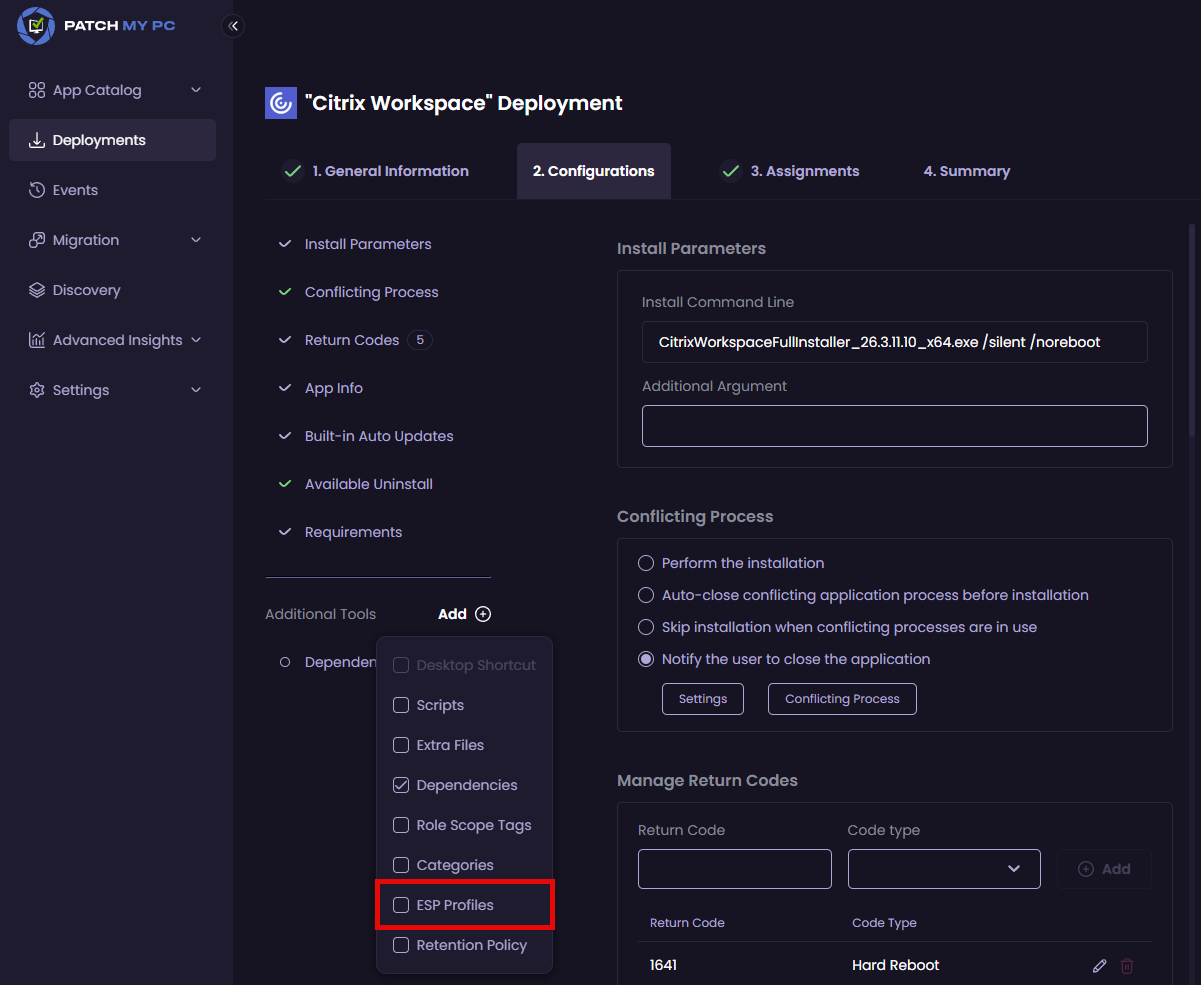
Important considerations:
- Adding the app to an ESP profile does not assign it. The app still needs a Required assignment to the devices or users being provisioned.
- Only ESP profiles with
Show app and profile configuration progress enabledappear in the list.
For more information, see https://docs.patchmypc.com/patch-my-pc-cloud/deployments/deploy-app/configurations-tab/additional-tools/esp-profiles
Patch My PC Publisher
On the Intune Apps tab, right-click a product, vendor, or product group and choose Manage Enrollment Status Page. Select the ESP profiles the app should be added to and click OK. The association is made at the next sync. When Publisher publishes a new version of the app, it removes the previous version it created from those ESP profiles and adds the new one, so the blocking app is never left pointing at a version that no longer exists.
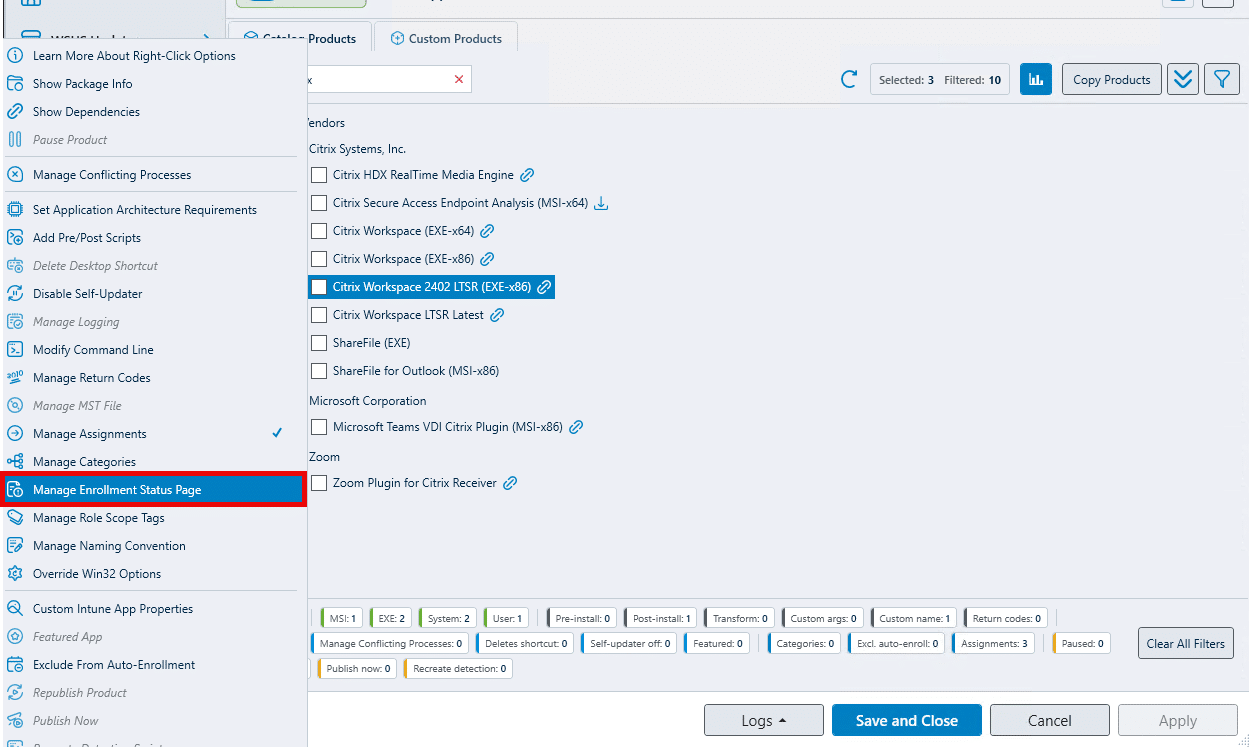
Important considerations:
- Adding the app to an ESP profile does not assign it. The app still needs a Required assignment to the devices or users being provisioned.
- Only ESP profiles with
Show app and profile configuration progressenabled appear in the list.
For more information, see https://docs.patchmypc.com/patch-my-pc-publisher/customizations/list-customizations/manage-enrollment-status-page
Windows Autopilot device preparation support
Neither Publisher nor Cloud can add an app to a device preparation policy. After the base install app has been created and assigned as Required to the device group used by the policy, select it in the policy’s blocking app list manually in Intune. There is an idea open to add this to the product at https://ideas.patchmypc.com/ideas/PATCHMYPC-I-4284.
Because the app is not managed alongside the policy, there is a risk to be aware of. When Patch My PC publishes a new version of an app, the previous version it created can be deleted from Intune depending on your update and cleanup settings. If that version was selected in a device preparation policy, it disappears from the policy’s app list without warning, and the next device onboarding through Autopilot will not get it.
A workaround until the idea is delivered is to create a second, dedicated deployment of the app in Patch My PC Cloud, scoped to the Autopilot device group, with Updates Paused enabled. That deployment does not update itself out of existence, so the Intune app it creates can be relied on in the device preparation policy. The cost is that this copy does not stay current on its own, you need to update it manually from time to time, in the device preparation policy, so that devices are not provisioned with an old version. At this time, there is not a way to create a second copy of the same app in Patch My PC Publisher.
How the IME processes required apps during Autopilot
Patch My PC update apps are often deployed broadly, for example to All Devices or to large device rings. Those required assignments are still processed during provisioning, pre-provisioning, first sign-in, or shortly after the user reaches the desktop, depending on the scenario.
This article does not recommend trying to avoid update processing during Autopilot. As noted earlier, Intune has no native way to do that. The aim here is to explain what the processing costs so you can decide which apps belong in the Autopilot baseline and which should be assigned more selectively.
What the IME does with every required app
When a required Win32 app is assigned to a device, IME does not just install it. It first has to decide whether the app applies. For Patch My PC update apps, IME evaluates requirement and detection logic to determine whether the update applies. The requirement rule checks whether an older eligible version is installed, and the detection rule checks whether the target version is already installed.
That is by design. An update app should never install a product that is not already present. A Chrome update should update Chrome where Chrome is installed and eligible, and do nothing on a device that was never built with Chrome.
When the IME evaluates these, if the outcome is to “do nothing”, that still costs time and processing power. For script-based requirement and detection rules, IME hands execution to AgentExecutor, which starts a PowerShell process to run the script. Even when the script itself is quick, there is process start-up, execution, output capture, log writing, state update, and reporting overhead each time. Each script costs roughly two seconds of overhead, so an update app that runs a requirement script and a detection script can cost around five seconds of IME time per evaluation, before any download or install happens.
Example workload calculation
The following table is only an illustration. It is not a guaranteed provisioning delay, and not every app will always run every script in every pass.
| Required Win32 apps used as updates | Example evaluation time per app | Simple evaluation total |
|---|---|---|
| 100 updates | 5 seconds | Around 8 minutes |
| 300 updates | 5 seconds | Around 25 minutes |
| 600 updates | 5 seconds | Around 50 minutes |
| 1,000 updates | 5 seconds | Around 83 minutes |
| 1,500 updates | 5 seconds | Around 125 minutes |
The numbers are simplified, but they show why volume matters. Large required app estates create noticeable IME activity during provisioning and first sign-in, even when most of those updates ultimately do nothing because the product is not installed.
Autopilot scenarios
The impact of required app processing depends on the Autopilot scenario. The same assignment behaves differently during user-driven Autopilot, pre-provisioning, device preparation, or reset and rebuild.
User-driven Autopilot
For user-driven Autopilot, use the Enrollment Status Page to control which apps must complete before the user reaches the desktop. Under Block device use until required apps are installed, choose Selected rather than All.
Selecting an app in the ESP profile does not assign it. The ESP list only tells Intune which apps to track and wait for. Each selected app must also be assigned as Required to the device or user being provisioned, otherwise the app is never delivered to the device and ESP has nothing to track. If an app is selected in ESP but not assigned, ESP does not wait for it and the app is not installed.
Best practice:
- Keep the ESP blocking app list small. Fewer than five apps is ideal, fewer than 10 is recommended.
- Block only on apps required before the user starts work, and use base install apps for these.
- Avoid using ESP as a catch-all app installation phase.
Selecting blocking apps stops ESP from waiting on every assigned required app: ESP tracks only the blocking apps. It does not mean the device is idle after ESP. Required Win32 apps that are not selected as blocking are still evaluated after first sign-in, and the user may notice the device is busy for a while after reaching the desktop.
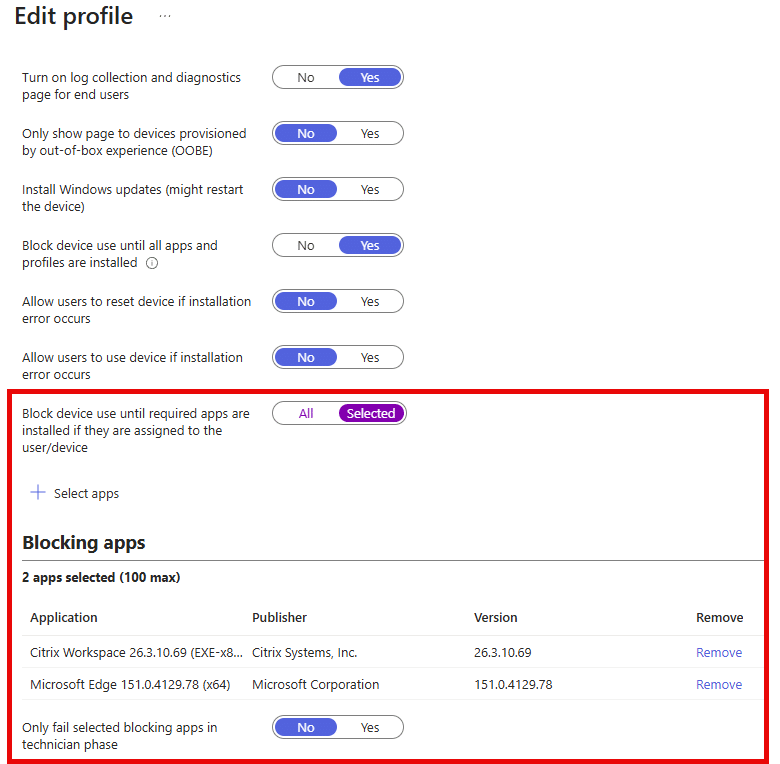
For Patch My PC apps, separate the day-one baseline from the rest of the update apps. Apps required for security, access, management, or immediate productivity belong in the Autopilot baseline. Update apps do not.
Autopilot pre-provisioning
During the technician phase there is no user, so only device-targeted assignments are processed. User-targeted required apps wait until the user signs in.
Pre-provisioning has an additional ESP setting that controls technician phase behaviour:
Only fail selected blocking apps in technician phase
- No – the technician flow attempts only the selected blocking apps. Non-blocking apps are attempted later when the user signs in.
- Yes – Intune attempts all device-targeted required apps during the technician flow, but only fails the deployment if one of the selected blocking apps fails. If the device is already targeted with hundreds of Patch My PC update apps, those apps can be evaluated during the technician flow, which can significantly extend it.
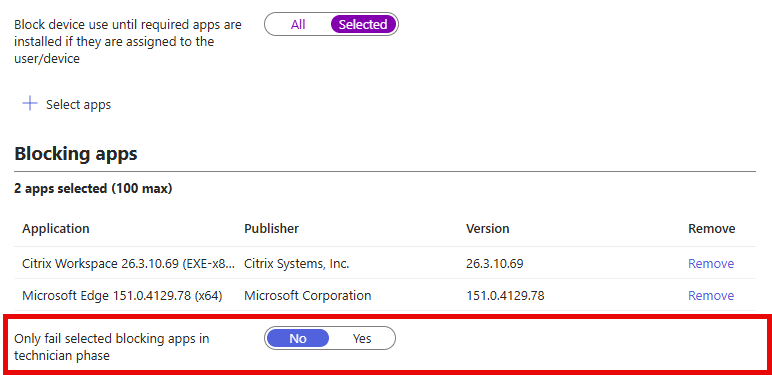
For environments with a large Patch My PC Win32 estate, this setting matters. Setting it to No keeps the technician phase focused on the blocking apps. It does not remove the need to review broader required assignments, because those apps are still evaluated once the user signs in.
Best practice:
- Keep the technician phase focused on the required baseline.
- Use selected blocking apps for apps that must be installed before reseal.
- Set Only fail selected blocking apps in technician phase to No.
- Expect required update apps to be evaluated again in the user phase, and review broad required assignments accordingly.
Windows Autopilot device preparation
For Windows Autopilot device preparation, use the selected apps list in the device preparation policy to control what must run during OOBE. Only device-targeted apps can be selected, and the policy caps the list at a small number of apps, so it can only ever hold the baseline.
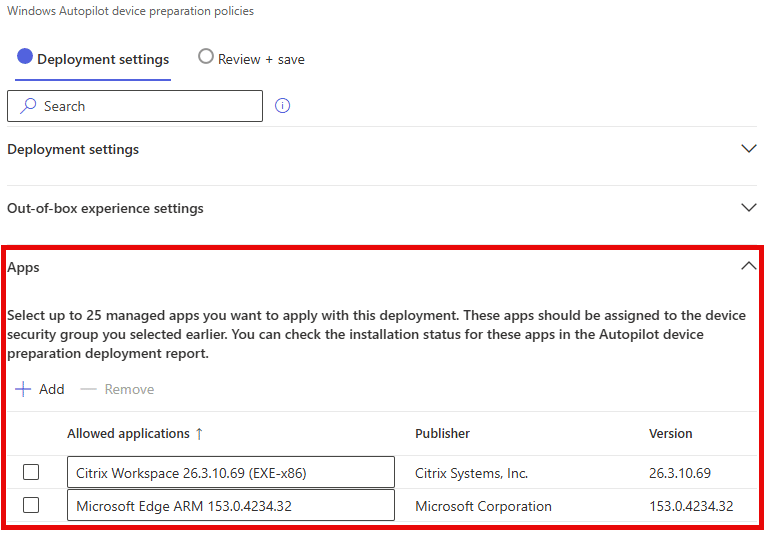
As with ESP, selecting an app in the device preparation policy does not assign it. Each selected app must also be assigned as Required to the device group used by the device preparation policy. An app that is selected but not assigned to that group is not installed during OOBE.
Best practice:
- Keep the app list focused on the required baseline.
- Select only apps required before the user starts work.
- Do not use device preparation as a catch-all app installation phase.
Device preparation is separate from classic Autopilot and ESP, but the app guidance is the same. Required apps assigned outside the selected apps list are still evaluated after the device preparation flow completes.
Required app targeting limitations
If a required Win32 app is assigned to a user or device, Intune delivers that policy to the IME and the IME has to decide what to do with it. Requirement and detection logic prevents the wrong install, but the logic still has to run.
There is no native Intune option that says:
Make this required app apply to this broad population, but do not evaluate it during Autopilot or first sign-in.
There is no “defer until after provisioning”, no “evaluate only after day one”, and no way for a Win32 app to tell IME to skip it while ESP is running. ESP blocking app selection controls what the user waits for; it does not control what IME evaluates.
Because of that limitation, assignment scope is the only setting that changes the amount of work. The broader the required assignment, the more work the platform does to decide what applies.
Order of installation
It’s worth knowing that you cannot control the order in which IME works through the required apps. There is no priority setting. IME processes apps in alphabetical order of their app ID (GUID), so the app whose GUID sorts closest to 00000000-0000-... is evaluated first and the one closest to ffffffff-ffff-... is evaluated last. The order has nothing to do with how important the app is or when it was assigned. If a blocking app happens to have a GUID that sorts late, it can sit behind hundreds of update app evaluations before IME reaches it. App dependencies are the only way to force one app to be processed before another.
Targeting considerations
Because assignment scope is the only thing that changes how much policy the IME has to evaluate, it is worth reviewing how Patch My PC update apps are targeted. None of the points below are Autopilot features. They are ordinary targeting decisions that could reduce the work a new device does during provisioning and first sign-in.
- Narrow the assignments
Review why every update is assigned to All Devices in the first place. An update for a product that only exists on a subset of devices can be assigned to a group that represents that subset. - Use filters or device categories for known device types
Where a product only belongs on a particular kind of device, such as a model, a department, or a role, an assignment filter or a device category can keep the update app off everything else. Filters are resolved in the service at check-in, so an app excluded by a filter is never delivered to the IME for evaluation. - Use your existing ring groups
If you already run a phased ring strategy, and you already have a mechanism that guarantees every enrolled device ends up in at least one ring, such as Windows Autopatch groups or your own ring group automation, assign Patch My PC update apps to those ring groups rather than to All Devices. A device that has just enrolled is not in a ring yet, so it is not targeted with update policy while it is being provisioned, and it starts receiving updates once the ring mechanism places it, the same way it starts receiving Windows updates.
The work you have already done to get devices into rings is doing the targeting for you, and the “never patched” failure mode is covered by whatever monitoring you already have on ring membership. This only holds if the ring mechanism is reliable and every device is guaranteed to land in a ring. A device that falls through the gaps misses application updates as well as everything else assigned to the rings. - Filters and groups are not Autopilot phase detection aware
There is no device property that says “this device is currently being provisioned”. Properties that identify Autopilot devices, such as the enrollment profile name, stay set for the life of the device record, so an exclusion built on them is permanent rather than temporary. Some organizations build automation that adds devices to an exclusion group during provisioning and removes them afterwards or changes a device category once provisioning completes. That is possible, but it is a custom solution with its own failure risks. If the exclusion is never removed, the device never receives updates and nothing natively in Intune flags app compliance. Weigh that against the cost it avoids.
Before you exclude updates
All four options above mean an update is temporarily or permanently not assigned to a device. Stop and consider that and think about what happens if the exclusion is not removed. If the automation that removes the exclusion breaks, if a dynamic group rule stops matching, or if a filter is written incorrectly, the result is a device that never receives updates and nobody notices until it starts to show up in your reports.
IME evaluation overhead is a legitimate performance hit when you are deploying hundreds of thousands of required Win32 apps as updates, but it has no security impact. A device that spends an extra 30 minutes evaluating updates after first sign-in is still fully patched at the end of it.
For most environments the recommendation is:
- Keep the ESP and device preparation baselines small and built from base install apps.
- Set Only fail selected blocking apps in technician phase to No.
- Narrow update assignments where the product clearly only exists on a subset of devices.
- Use group or filter exclusions only if the remaining overhead is still a problem, and only where the removal of the exclusion is monitored.
Practical checklist
Use this checklist when reviewing Patch My PC apps for Autopilot:
| Check | Guidance |
|---|---|
| Is the app required before the user signs in? | Consider it for ESP blocking or device preparation selection, using the base install app |
| Is the app selected in ESP or the device preparation policy? | Confirm it is also assigned as Required to the devices or users being provisioned; selection alone does not install it |
| Is the app security, access, identity, or management related? | Usually keep it in the baseline if required early |
| Is the app large or slow to install? | Avoid blocking Autopilot unless required immediately |
| Is the app an update for software not present on new builds? | It will never install during Autopilot; review whether it needs broad required targeting |
| Is the app only relevant to certain device types? | Use groups, filters, or device categories |
| Is the app assigned broadly because the requirement script will prevent the wrong install? | The script prevents the install, not the evaluation; review the assignment scope |
| Is pre-provisioning in use? | Set Only fail selected blocking apps in technician phase to No |
| Are update apps excluded during provisioning by a group or filter? | Confirm something removes the exclusion, and monitor it |