

The Maintenance Window Settings for OS, Drivers, and Updates is now showing up in Intune, giving control over when update actions like install and restart are allowed to run. Instead of relying on softer controls like active hours, this feature introduces a clear time window where update work is permitted. Behind the scenes, this is handled through the Update CSP and processed directly on the device, where Windows turns the policy into a real schedule it can follow during update operations.
Maintenance Window Introduction
Microsoft recently announced that the possibility to configure a Maintenance Window is now also coming to Intune for cloud-managed Windows devices….
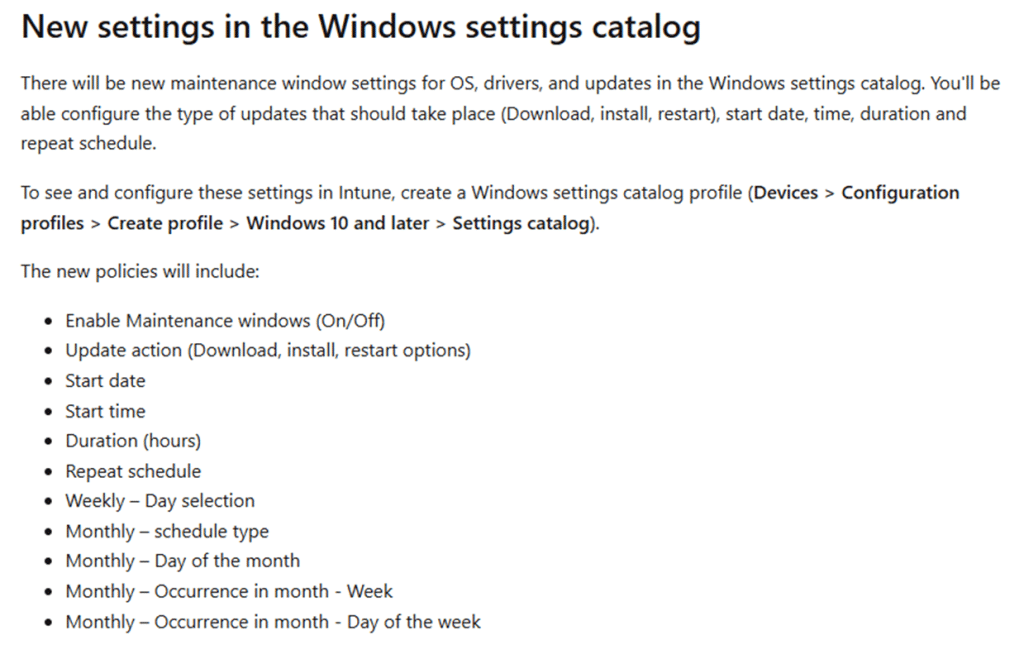
With it, a new Settings Catalog entry will appear in Intune (In the near future).
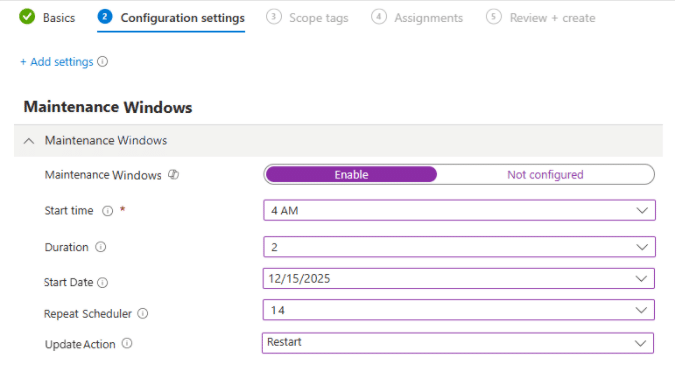
Please Note: This is a mockup? AKA Not there yet...but it will look like this…
Which brings back some good memories, right?
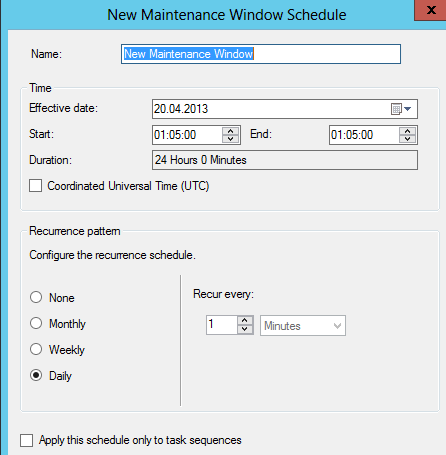
That new Maintenance Window setting catalog gives us the option to define when update activity is allowed and adds controls for OS, driver, and firmware servicing. Before the Maintenance Window setting fully shows up in the Settings Catalog, we can already spot the underlying logic in Windows.
You can already spot it in the policy definitions, in the MOF behind the WMI bridge, in the Update Policy CSP, and inside the Unified Update Platform itself. So by the time Microsoft announced it, Windows already knew how to read the policy and act on it.
Why Windows needed something beyond active hours
Windows Update has had scheduling controls for years. You can configure active hours, deadlines, grace periods, and restart notifications. Those settings help, but they do not give you a true maintenance window.
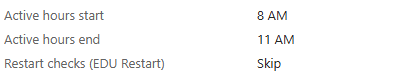
That is the difference that matters. Active hours are mostly about avoiding disruption. They tell Windows when it should stay out of the user’s way. A Maintenance window does the opposite. It defines when update work is actually allowed to happen.
For many environments, that is a much better model. Shared devices, kiosks, frontline endpoints, and cloud-managed devices often need a fixed servicing slot rather than a soft attempt to avoid reboots during the day. That is exactly where the Maintenance Window fits.
The first clue appeared in the Windows Update ADMX
The first sign of this new Maintenance feature showed up in WindowsUpdate.admx.
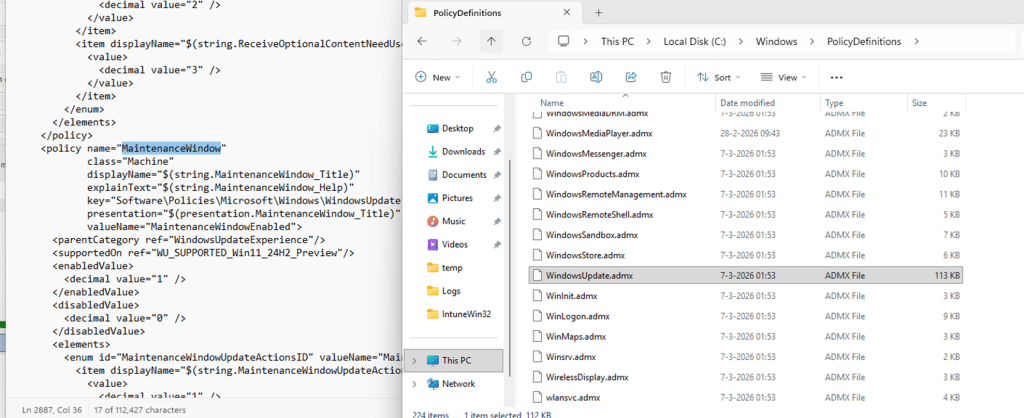
Inside the policy definitions, a new policy named Maintenance Window appeared with the backing value Maintenance Window Enabled. It was marked as supported for Windows 11 24H2 preview, which already showed that the operating system had a real policy surface for this feature before Intune exposed it.
It was also clear from the start that this was not just a cosmetic toggle. The policy definition included update actions, which meant the feature was designed to control actual update behavior, such as download, install, and restart. At that point, the policy definition told me Windows was aware about the maintenance window policy. What it did not yet show was how that policy was exposed to modern management.
That is where the MOF came in.
The MOF confirmed it was part of the WMI bridge
The next clue appeared in the MOF definitions that are related to the WMI bridge.
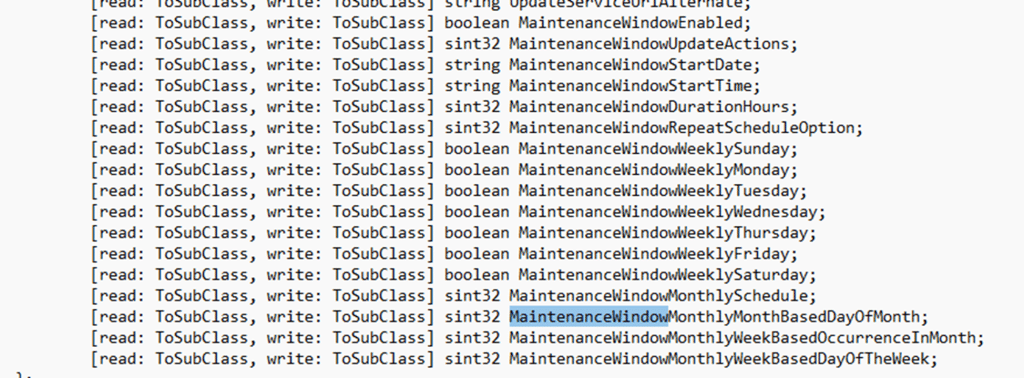
That matters because the MOF file tells you the setting is not just living in old administrative template land. Once it appears in the MOF file, you know it is part of the modern management surface as well. The Maintenance Window policy is being projected through the same bridge that exposes MDM-backed settings into WMI.
That was the point where the Maintenance Window feature stopped looking like an unfinished ADMX addition and started looking like a fully grown setting. The next step was obvious. If the feature already exists in the policy definitions and in the WMI bridge, then the actual implementation should be visible in the CSP that backs it.
And that is exactly what turned up.
Maintenance Window in the Update Policy CSP
Once the search moved into the Update Policy CSP, the picture became much clearer.
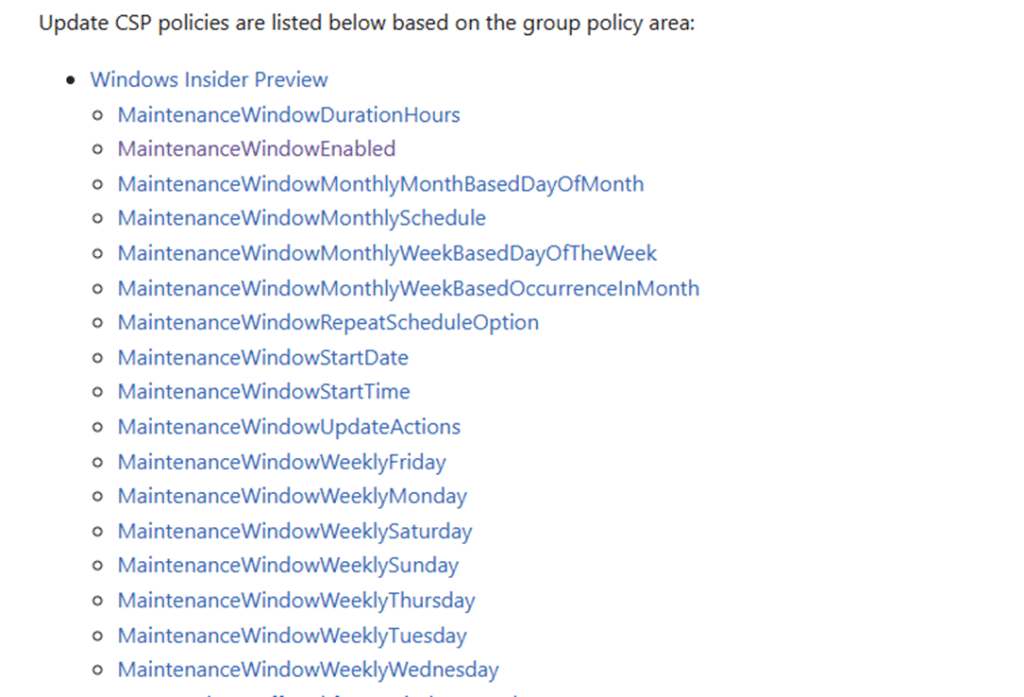
The Maintenance window policy family was already there. It included the settings to enable or disable the window, define the start date and start time, set the duration, choose the repeat schedule, and configure which update actions are governed by the window. Weekly and monthly scheduling options were already available.
Configure the Maintenance Window with a CSP
Because the Update Policy CSP already exposed the Maintenance Window settings, the only thing missing was the friendly Intune experience. The device itself did not need that interface. It only needed the policy values.
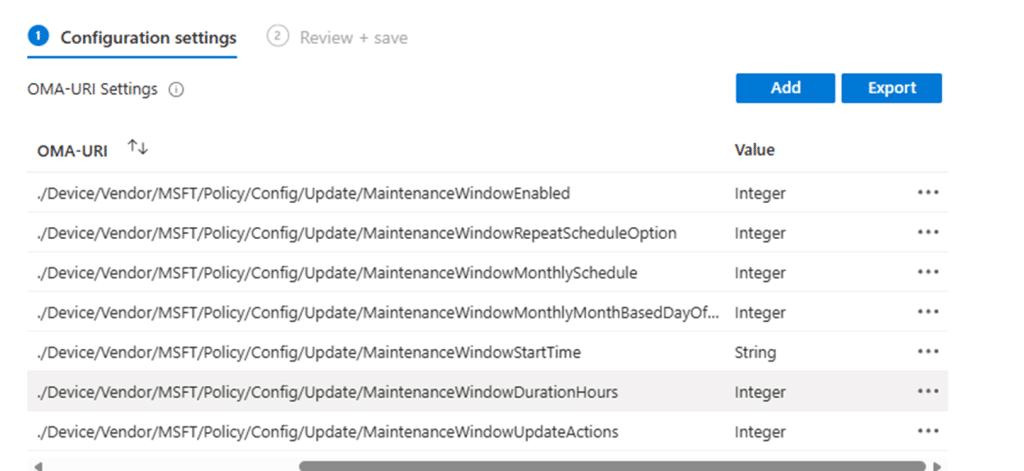
So the feature could already be configured manually through a custom policy. Once those CSP settings were pushed to a supported Insider Preview build, the device accepted them and treated them as a valid update policy.
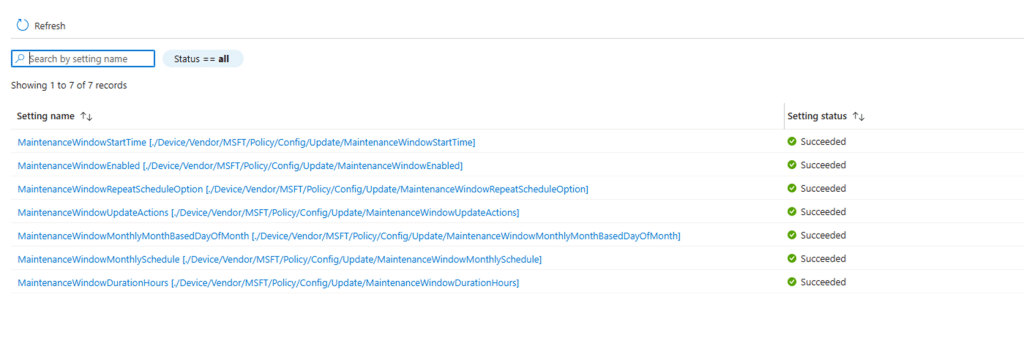
As shown above and below, the device was accepting the maintenance window configuration.

With it, we can also spot those Maintenance Window settings showing up in the policies registry keys
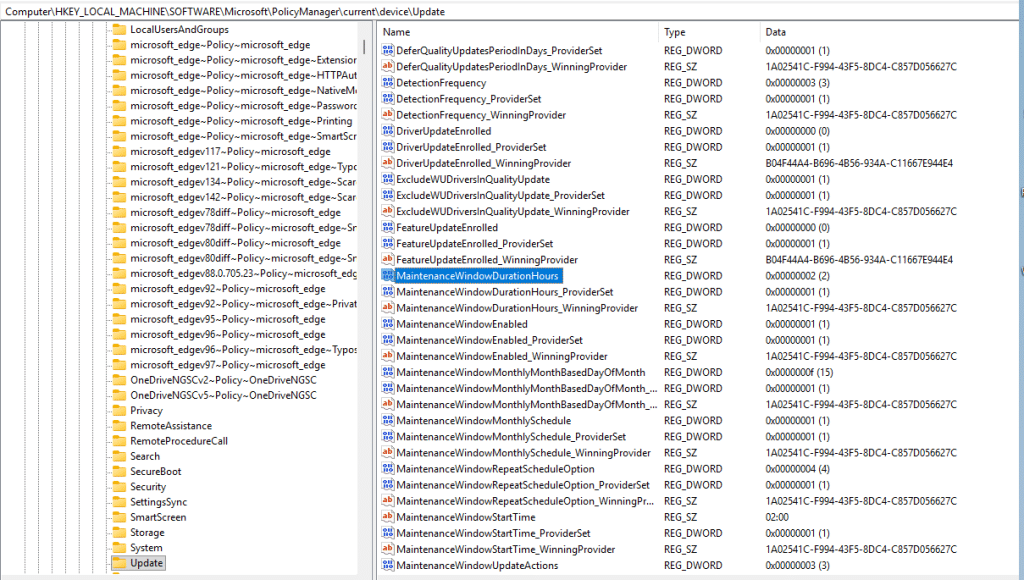
From there, the next question was how Windows processes it internally once that Maintenance Window policy arrives on the device.
Windows Maintenance inside the MoUsoCoreWorker
The MoUsoCoreWorker executable is where the Maintenance Window policies are being processed and validated so Windows can actually use and apply them. This all happens inside the GetAndValidateMaintenanceWindowConfiguration function

The function starts by checking whether the underlying feature is enabled through Feature_Containment_UUS_Feature_MaintenanceWindow_59270588. (because everything is behind known issue rollback/feature flighting)

After that, it reads enterprise policy ID 65 using Windows::GetEnterprisePolicy. From the flow, this value is clearly the main enablement switch. If it is not enabled, the function falls back to the existing configuration.
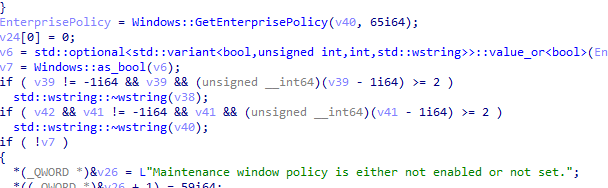
If the Maintenance Window policy is enabled, the function continues by calling Windows::Policy::GetMaintenanceWindowGovernedActions. That is the point where Windows determines which update actions are controlled by the maintenance window.

The function then reads the enterprise policy ID 70. Based on the switch statement in the code, that value controls the recurrence type. A value of 1 maps to no repeat, 2 maps to daily, 3 maps to weekly, and 4 maps to monthly.
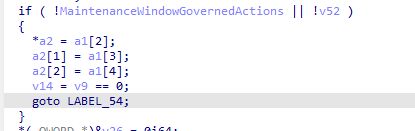
That repeat type is then handed to one of four generator functions:
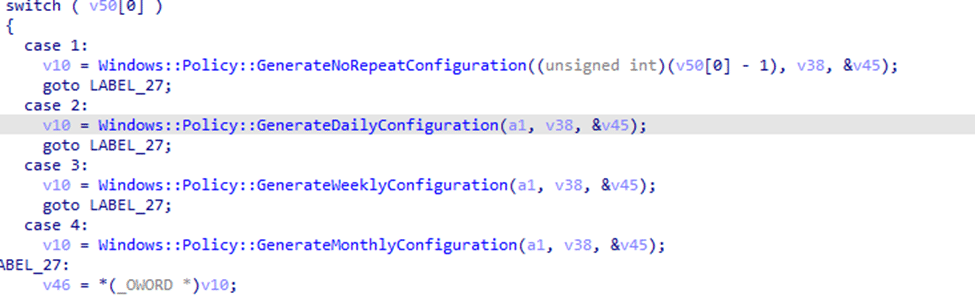
Windows::Policy::GenerateNoRepeatConfiguration
Windows::Policy::GenerateDailyConfiguration
Windows::Policy::GenerateWeeklyConfiguration
Windows::Policy::GenerateMonthlyConfiguration
This is the part that matters most. Windows takes the policy, reads the current time, resolves the recurrence pattern, and calculates the next actual start and end time for the upcoming window. The logging inside the function makes that clear:

That is the real shift. Windows is not storing a passive policy blob. It is building a runtime maintenance window configuration with governed actions, a real next start and end time, and the duration. At that point, the maintenance window is no longer just a policy. It is part of the update decision-making path.
How the Maintenance Window is checked
Once update activity begins, whether through a scheduled scan or a user pressing Check for updates, the execution path moves into the modern update stack. One of the components involved there is the famous MoUsoCoreWorker.exe.

That is where the maintenance window starts to matter in practice. By the time MoUsoCoreWorker.exe is running, the device already knows whether a maintenance window exists, which update actions it governs, and whether the current moment falls inside a valid scheduled window. The worker is operating within the context of that effective update-policy state rather than blindly continuing with update work. That is the important distinction. The maintenance window is not just something that sits in policy. It becomes relevant during execution.
This is not just active hours with a new name
It is easy to confuse this with active hours, but they solve different problems. Active hours are defensive. They try to reduce user disruption by avoiding restarts during expected working hours. A Maintenance Window is strict. It defines exactly when updates are allowed to run. That is why this feature reaches deeper into the update stack. It is not just a UX setting. It is a scheduling primitive for modern update orchestration.
Summary
The Maintenance Window settings catalog policy is pretty important because it will finally give control over when update activity happens, instead of relying on Windows to avoid disruption on its own. This makes update behavior more predictable, especially for shared devices, critical workloads, or environments where timing matters. Once configured, Windows calculates the next valid window and uses that schedule during update execution. When update work starts, MoUsoCoreWorker.exe checks if the current time falls within that window. If it does, updates proceed. If not, they wait until the next allowed moment.