

Windows has a habit of prompting users the moment they add a work or school account: “Allow my organization to manage my device.” Most users just click straight through it, but that tiny checkbox has caused years of accidental MDM enrollments, mixed-tenant registrations, and licensing failures. It’s been a steady source of confusion and frustration for end users and a steady source of cleanup work for IT admins.
But…. It seems Microsoft has introduced a new Public Preview setting that finally puts you in control of what happens during the account-add flow. It’s small, but it fixes a long-standing problem.
Allow My Organization to Manage My Device
There has always been one Windows dialog that quietly caused more trouble than it solved. Whenever a user added a work or school account, Windows presented a simple (but stupid) checkbox asking whether the organization should be allowed to manage the device.
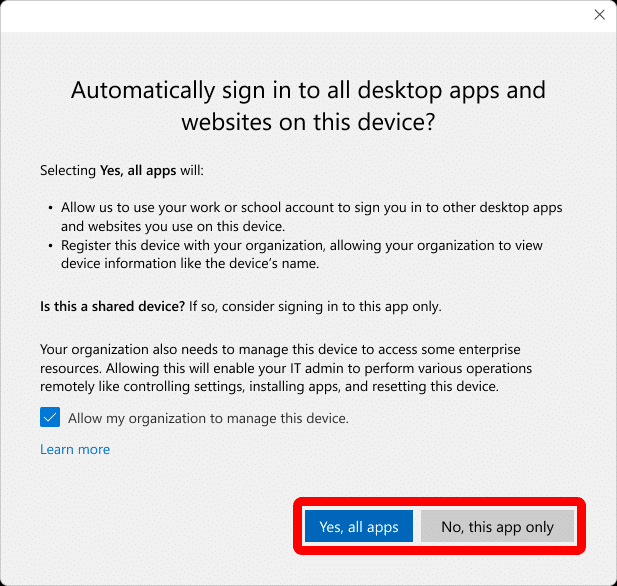
Most users clicked through it without thinking. Many didn’t even understand what the “Allow my organization to manage this device” checkbox meant. Administrators, meanwhile, had no reliable way to control or suppress it. The only way to block this, on managed devices, was by adding the following registry value to
HKLM\SOFTWARE\Policies\Microsoft\Windows\WorkplaceJoin: “BlockAADWorkplaceJoin”=dword:00000001.’
But on non-managed devices? Well, have fun! Because that single prompt had the power to move a device from an unmanaged state into full MDM enrollment. It wasn’t limited to Company Portal or to the classic enrollment paths. Just adding a Teams account was enough.
Why the “Allow my organization to manage this device” caused so many problems
Adding a work account did far more than authenticate the user for Outlook, Teams, or OneDrive. Behind the scenes, Windows triggered the Workplace Join flow, and if the user was in an automatic-enrollment group, the device would immediately attempt MDM enrollment. There was no warning, no step separation, and no admin-controlled service-side switch to change it. This became especially painful in environments where users routinely added a secondary Teams account or tried to open the Office apps on their non-managed device. With it
- Devices unexpectedly appeared in Intune.
- BYOD Entra registered devices silently became “corporate-managed.”
- MAM-only deployments were forced into MDM enrollment they didn’t want.
Administrators needed to clean up the side effects manually. There was no built-in service control to prevent the prompt from appearing or to stop the enrollment flow once the account was added.
Microsoft finally introduces a way to control it
Microsoft has now finally added a new setting to the Windows automatic enrollment configuration in Intune:

Disable MDM enrollment when adding a work or school account on Windows
- Please Note 1: This feature is in public preview. Tenants need to have the enableHupDisplayConfigSettings flight enabled
- Please note 2: Microsoft, This picture above is a mockup based on the Intune Portal JS code
- Please note 3: This setting DOES NOT apply to users adding their account through the Settings flow.

This small addition completely changes how the Teams (Office Apps) registration flow behaves. When the setting is off, Windows continues to act as before. When the setting is on, Windows stops after registering the account. It does not initiate MDM enrollment, even if the user belongs to an enrollment group.
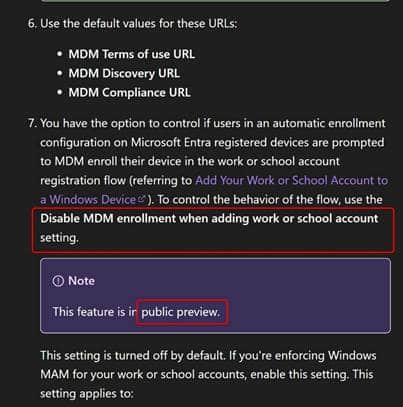
The device is registered with Entra if needed, but the enrollment step, as shown below, will be skipped.
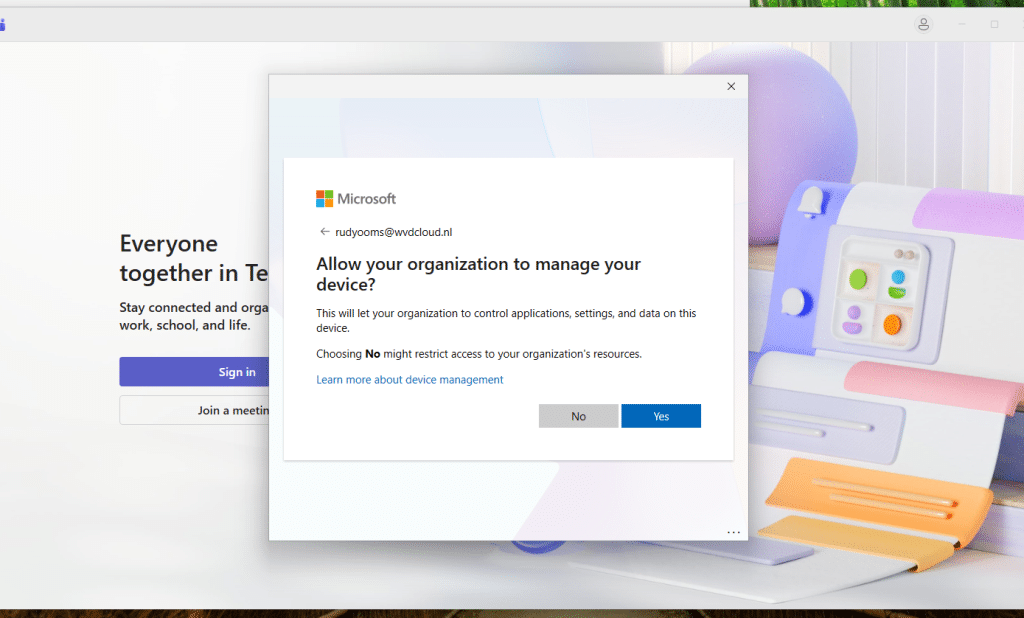
With it, the device “shouldn’t” be enrolled in Intune/MDM.
How it fits into the new Windows registration experience
Microsoft is updating the entire account registration experience on Windows. The flow is now split into two stages: Registration and Enrollment. In the past, these happened together with no separation. The new experience aligns with modern Microsoft design patterns and gives administrators a cleaner way to control how devices behave when accounts are added.
The new toggle directly determines whether the enrollment stage is shown at all. If it’s disabled, users only see the registration step. The infamous “Allow my organization to manage my device” screen never appears because the MDM enrollment flow is never invoked during account addition on Entra-registered devices.
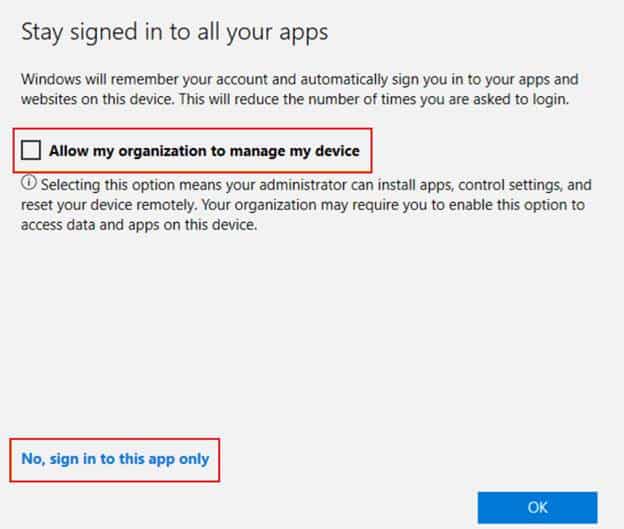
How to Enable: Is Mdm Enrollment During Registration Disabled
If you read the earlier blog where I walked through why a device simply refused to enroll in Intune, you’ll remember how the root cause traced back to an additional but invalid MDM policy in Intune.
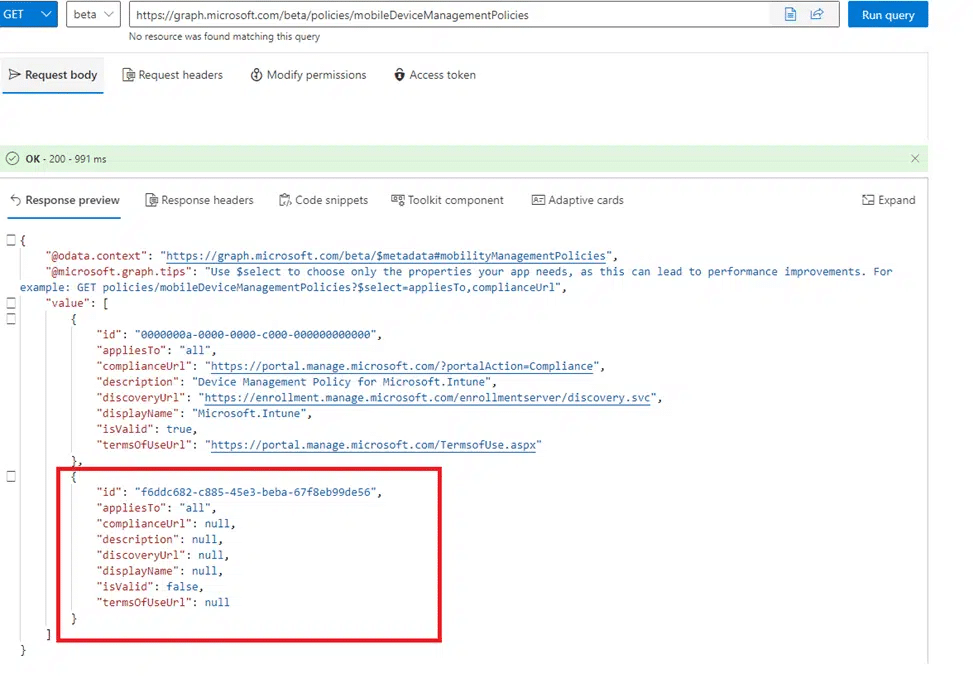
While looking back at the blog, we knew exactly what to do. Opening the default MDM policy through Graph, because the Intune portal doesn’t always show you the real picture. And the moment the response came back, one thing jumped out. The policy now includes a property that was not present in my earlier screenshots.
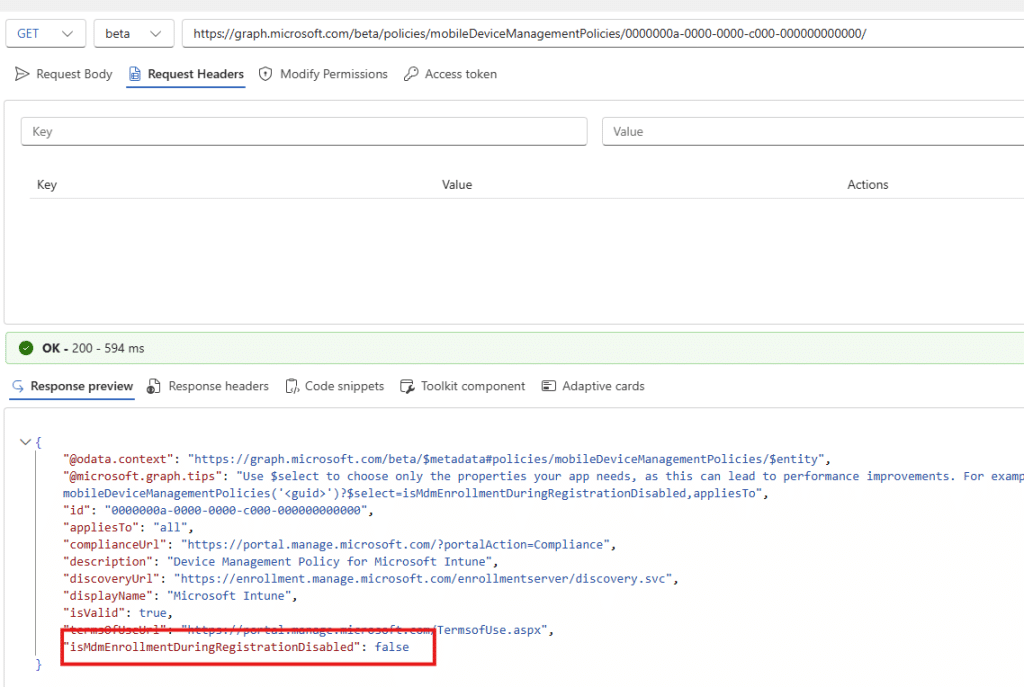
"isMdmEnrollmentDuringRegistrationDisabled": false
And that tiny additional field tells the whole story. It confirms that the new toggle is surfaced directly in the default MDM policy. If it is set to false, Windows behaves exactly as before. If you set it to true, MDM registration stops after the account is added, and the Intune/MDM enrollment step is skipped entirely.
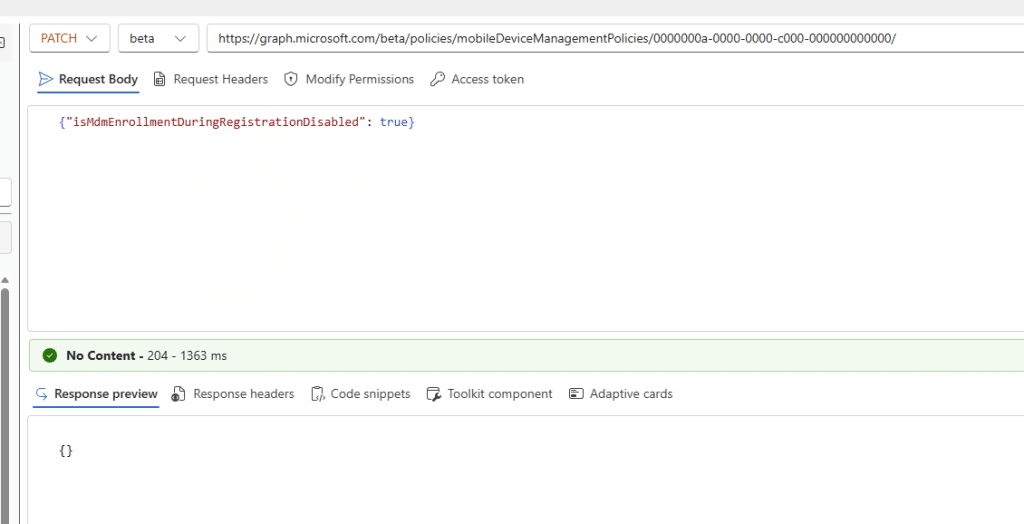
It’s a small detail, but it’s the kind of detail you only see when you’re used to troubleshooting by digging through the MDM policy itself using Graph. Once you patched it, you would also see the change showing up in the Intune Portal. Well, not in the UI but using the devtools.

My First test: isMdmEnrollmentDuringRegistrationDisabled
So it was time to do a test drive with this isMdmEnrollmentDuringRegistrationDisabled setting configured to true.
PATCH https://graph.microsoft.com/beta/policies/mobileDeviceManagementPolicies/0000000a-0000-0000-c000-000000000000
{"isMdmEnrollmentDuringRegistrationDisabled": true}
I expected Windows to fully block MDM enrollment when adding a second work account.
What actually happened was slightly different and perfectly shows why this toggle is still labeled public preview. The device was already registered in my Entra tenant. From there on, I added a second account from a different tenant via Teams.
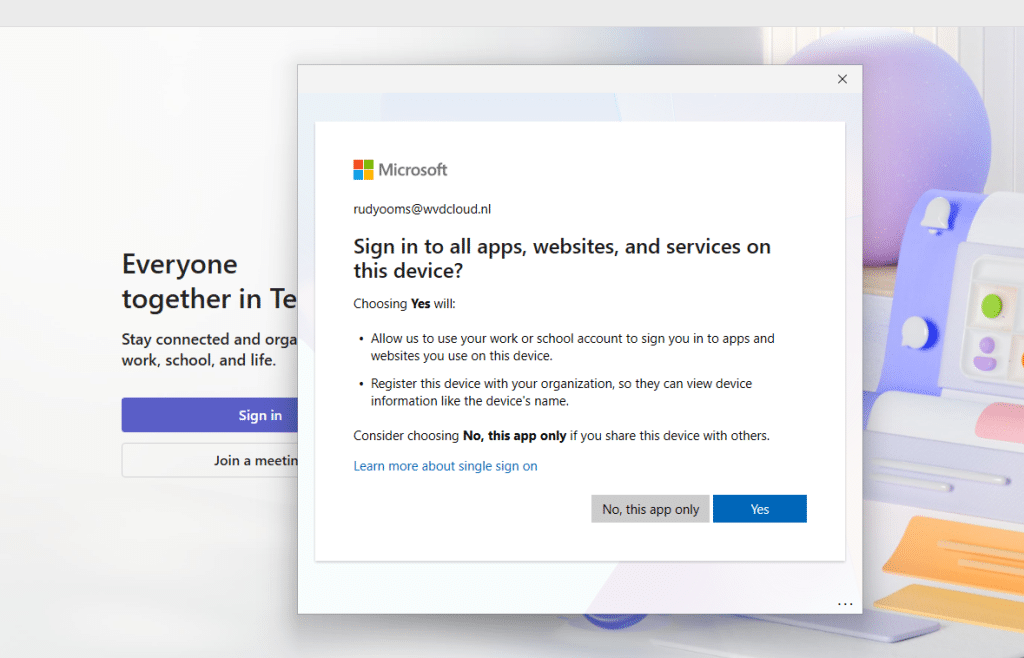
The good news: the “Allow my organization to manage my device” prompt was never shown!
That part worked exactly as advertised. But…. Uhhh…… the device was still silently enrolled in the other tenant’s MDM. No consent prompt, no warning, no question to manage my device.
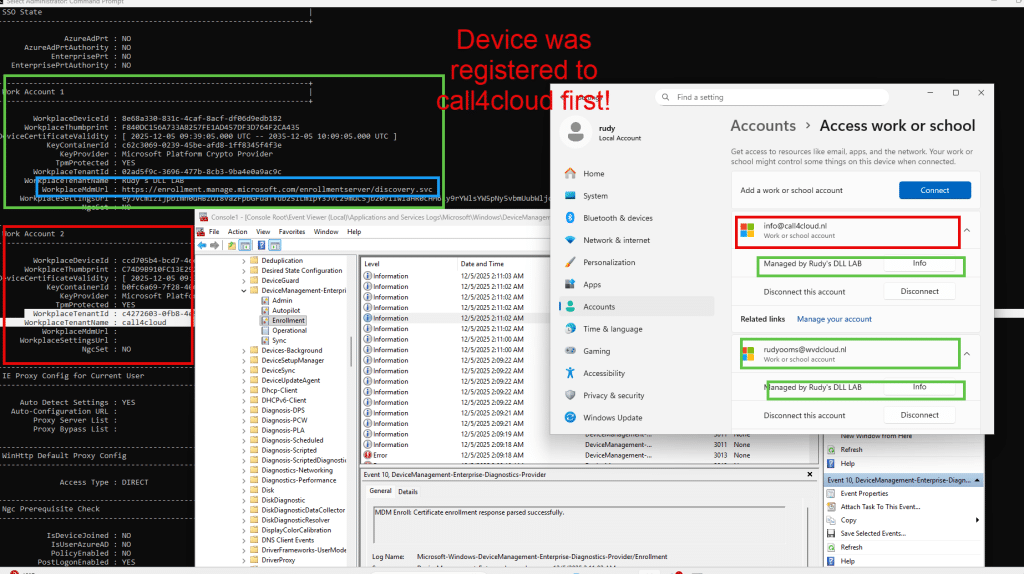
Just a full MDM enrollment in the background, and the worst thing…? I could even wipe the device afterwards. So the switch only removed the“Allow your organization to manage your device” prompt.
It didn’t remove/disable the underlying MDM enrollment mechanism.
As long as the second tenant forces automatic MDM enrollment, the broker still pushes the device into management. The UI is gone, but the MDM enrollment flow continues?
I passed my findings to the proper team within Microsoft… and within 2 months… They got it fixed and it seems to be working now.
My Second Test and Why This Feature is now Perfect!
After 2 months, the “Disable MDM enrollment when adding a work or school account on Windows” option appeared in the portal.
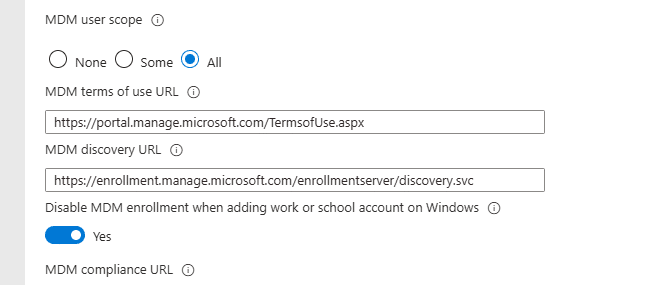
With the feature now showing up in the Intune portal, it feels like they have fixed the bug. So, I decided to do another test. Luckily, I still had the same VM checkpoint. So testing it would be pretty easy. The first test was with the, “Disable MDM enrollment when adding a work or school account on Windows” (IsMDMEnrollmentDuringRegistrationDisabled) still set to false

As shown in the video above, the device was still getting enrolled into MDM. This is exactly what this new feature, “Disable MDM enrollment when adding a work or school account on Windows” would prevent. With it, I now changed the same setting to true
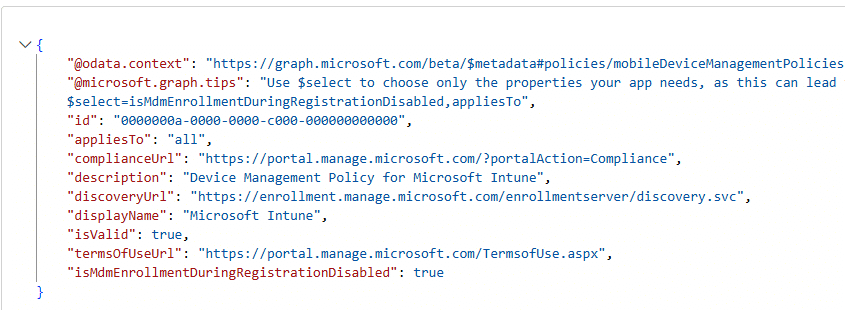
As shown above, with “Disable MDM enrollment when adding a work or school account on Windows” now set to enabled, “Allow my organization to manage my device” is no longer shown, and the device is not being enrolled in Intune!! Exactly what we wanted!
How Disable MDM enrollment Option works under the Hood
Want to see what happens behind the scenes? I have written an additional deep dive that breaks down the full Windows sign-in flow and shows, with trace data, how disabling MDM enrollment changes the returned configuration and stops the management prompt.
Disable MDM Enrollment When Adding a Work or School Account
Wrapping up
The new Public Preview toggle brings long-requested clarity to the Windows account-add scenario. From now on, administrators decide whether adding a work or school account should trigger device management or not. The days of mysterious enrollments, conflicting tenant metadata, and accidental device takeovers are finally numbered.
The moment this feature goes GA, I will write a follow-up explaining how it works from the inside out